Overview: Quality Control Tab
In almost every deposition, there are moments when what is said during the discussion is hard to hear, has ambient or background noise, or sounds jumbled. When synchronizing a DVT, the synchronization engine will not assign timecodes to these lines in the transcript, or it may flag an assigned timecode as questionable and in need of verification. In some cases, lines will be marked out of sequence if the assigned timecode occurs before the previous line’s timecode.
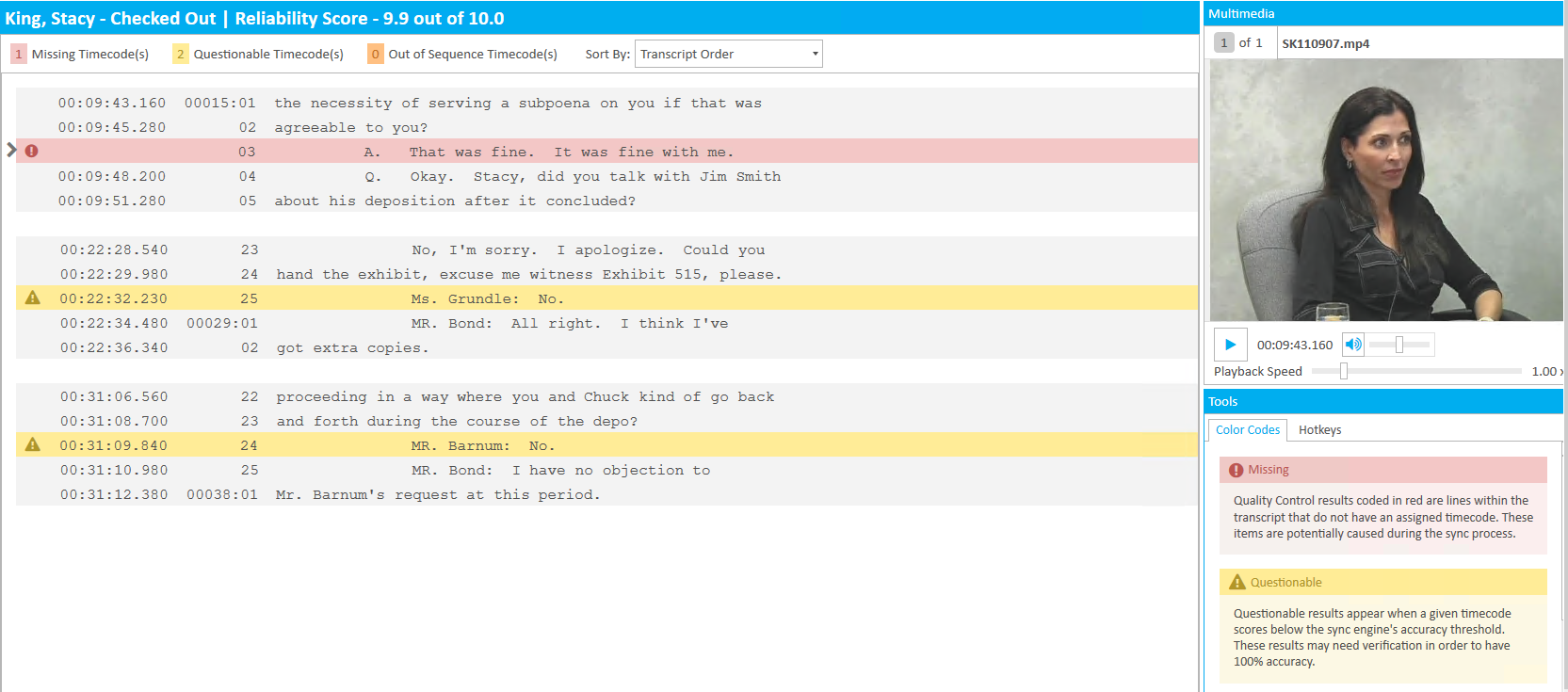
In any of these situations, Sync Plus provides a streamlined process to handle these potential errors in the Quality Control tab, or QC. QC allows you to easily work through all the transcript’s timecode errors, whether they are missing, questionable or out of sequence.
Before beginning work in QC, open the Quality Control tab in SYNC User Preferences. Here you can customize the QC experience to best fit your needs. View the Change Sync User Preferences article for more information.
To access Quality Control:
-
Select the job on the start page and click Open in QC.

-
Click the Quality Control tab at the top of the QC Workstation, if not already selected.



The following articles detail more information on how to use QC:
Get Started with Quality Control
Quality Control Best Practices
Understand Quality Control Color Codes
Correct Out of Sequence Timecodes
Complete Transcript in Quality Control
Version: 2022.2.0
Last Revision: 1/18/2023