Fill Missing Timecodes
You can fill missing timecodes automatically using Sync Plus. Sync analyzes the surrounding timecodes to fill in the blanks. Automatically filling timecodes saves you time and allows you to continue working.
With the transcript open, navigate to the Quality Control tab and follow these steps:
-
Click Fill Missing Timecodes. The missing timecodes appear in the empty slots.
Sync Plus extrapolates the timecodes in the transcript and makes the "best guess" using the timecodes before and after the empty slot or slots to be filled in. If there is no timecode before or after the missing slot, Sync Plus finds the next valid timecode later in the transcript and works its way backward from there.
- Click Save Changes.

Manually Fill Timecodes
On the Quality Control tab, Sync Plus flags lines when they are missing timecodes. You can fill these timecodes manually. To fill in missing timecodes manually, open a DVT, navigate to the Quality Control tab, and follow the steps below:
-
Select a missing timecode instance.

Tip: Each instance of a missing timecode appears with the other timecode errors on the Quality Control tab. You can filter the results to show the missing timecodes first by selecting Missing Timecode(s) from the Sort By dropdown.
Select the timecode by:
- Using the Up and Down arrow keys to navigate to the timecode
- Double clicking the timecode
- Right clicking on the timecode and clicking Set as Active.

Note: You can change the Quality Control display by Changing SYNC User Preferences. Go to the Quality Control tab in SYNC User Preferences and check the Show full transcript in Quality Control tab box.
- Play the video.
- Click Play in the multimedia player
- Press the Pause key on the keyboard
-
Press the Spacebar at the correct point in the video. When the video reaches the beginning of the line for the missing timecode in question, press the Spacebar on your keyboard.
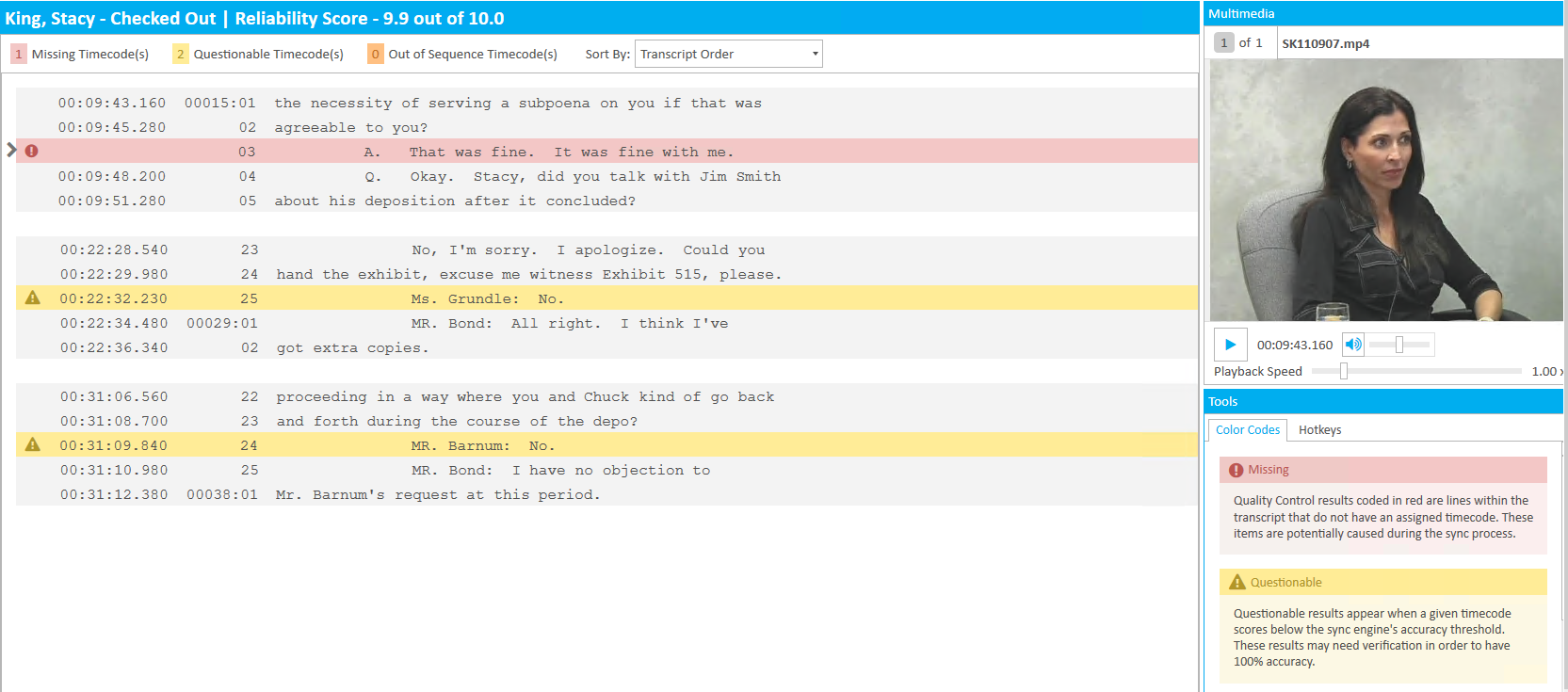
You can play the video to reach the point of the line with the missing timecode in two different ways:


A new timecode appears in the vacant slot next to the line at the precise moment when the Spacebar was pressed.
|
|
Note: For more keyboard shortcuts, see the Quality Control Hotkeys article. |
Related Topics
Version: 2022.2.0
Last Revision: 1/18/2023