Accept Questionable Timecode
As you review the Quality Check results in the Quality Control tab, you find that several timecodes marked Questionable are correct. Follow the steps below to accept the Questionable timecodes as valid:
-
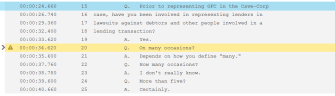
Select a Questionable timecode. Questionable timecodes are marked in yellow.

Tip: Each instance of a questionable timecode appears with the other timecode errors on the Quality Control tab. You can filter the results to show the questionable timecodes first by selecting Questionable Timecode(s) from the Sort By dropdown.
Select the timecode by:
- Using the Up and Down arrow keys to navigate to the timecode
- Double clicking the timecode
- Right clicking on the timecode and clicking Set as Active.
-
Press Z on the keyboard to accept the questionable timecode. Sync Plus accepts the timecode and highlights the line green. You may also right-click the line and select the Mark as accepted option.

Note: For more keyboard shortcuts, see the Quality Control Hotkeys article.
- Proceed to update questionable timecodes and make additional changes as needed. When ready to save your changes, click the Save Changes button in the ribbon bar. Note that if you close the DVT without first saving your changes, these changes will be lost.

Related Topics
Version: 2022.2.0
Last Revision: 1/18/2023