Get Started with Quality Control
The Quality Control (QC) area highlights the lines from a transcript that were flagged by the synchronization engine as missing, questionable, or out of sequence timecodes. QC singles out each line with an error and surrounds it with context lines for easy navigation and reference.
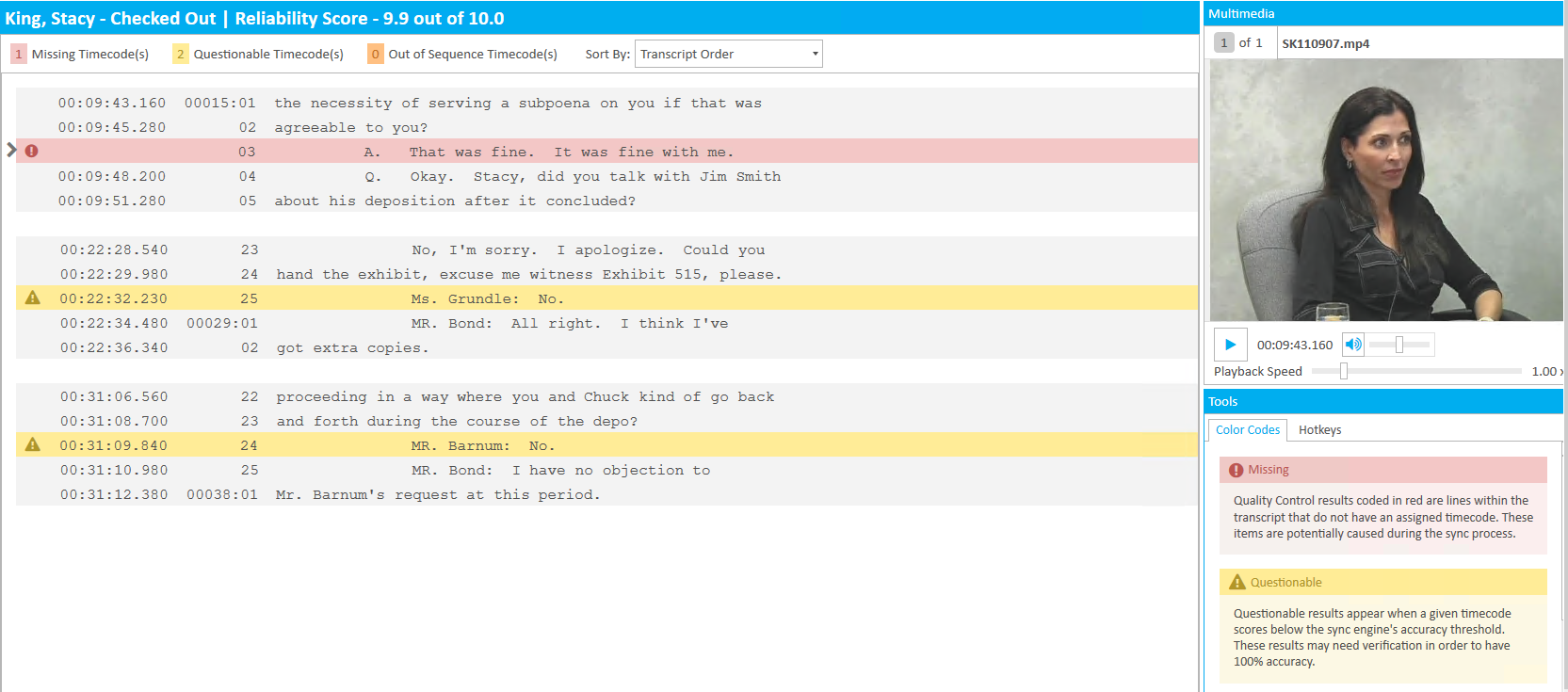
If errors appear in succession in the transcript, they are grouped together in the same potential error block. If the Sort By filter is set to a specific error, like Missing Timecodes, only those timecodes will be grouped in succession in the same potential error block.

You can open a job in QC from the Sync Plus start page. To do so, select the job in question and click the Open in QC button in the ribbon bar.

|
Note: You can change the number of contextual lines in the results panel, or show the full transcript in Sync Plus User Preferences under the Quality Control tab. View the Change Sync User Preferences article for more information. |
With the DVT open, click the Quality Control tab. All of the missing and questionable timecodes immediately appear in the Results panel. Now you can perform the main tasks of Quality Control:
- Fill Missing Timecodes
- Accept or Correct Questionable Timecodes
- Correct Out of Sequence Timecodes
- Save Changes
- Run Another Quality Check
|
|
Note: All the timecode errors, missing, questionable, or out of sequence, appear in transcript order by default. You can use the Sort By dropdown at the top of the Results panel to view specific timecode errors first, making it easier to work with one or the other at a time. |
Fill Missing Timecodes
You have the option to fill the missing timecodes automatically or manually.

Automatically
To automatically fill in missing timecodes, simply click the Fill Missing Timecodes button. The lines are immediately filled in and you can move on to your other tasks.
For more information, see the Fill Missing Timecodes article.
Manually
Though there are several ways to approach filling in missing timecodes block by block, the general set of steps you can use include:
-
Select a Missing Timecode instance.
You can either double click the missing timecode block you want to fill in, or use the up and down arrow keys. When you select a line, notice an arrow in the left margin points to the selection, indicating this line will receive the new timecode.
Note: When a block is selected, the video automatically seeks to the first context line of the block.
- Play the video.
-
Press the Spacebar when the video reaches the first word of the missing timecode line to insert a timecode.
Note: The issue indicator (arrow) moves directly on to the next missing timecode potential error block when the Spacebar is pressed. The video plays from that block’s starting line. In this way, you can continue to fill in missing timecodes without always having to play the video manually for each block.
Apart from the issue indicator, a highlight bar scrolls along each line while the video plays. If the highlight bar is too distracting, you can press H to hide it.
Other Approaches
As mentioned previously, there are several approaches to begin filling in timecodes manually:
Select and Toggle Play/Pause – This method best represents the steps discussed previously. You can select a timecode block and toggle the video to play and pause from:
- The right-click context menu
- The Pause hotkey
- The media player
Play All Results – This option can be accessed from:
- The ribbon bar
- The right-click context menu
- The Ctrl + Pause hotkey
It automatically selects the first timecode block and starts playing the video from the first line of the first timecode block in the Results panel.
Play All From Here – This option can be accessed from:
- The right-click context menu
- The Shift + Pause hotkey
You can select any timecode block in the results panel and choose this option to play the selected block and on from that point.
Accept or Correct Questionable Timecodes
Another reported timecode from the synchronization process is Questionable Timecodes.

Questionable timecodes are more than likely correct, but can be verified and corrected using many of the same methods to fill in missing timecodes.
Accept Questionable Timecodes
You must accept questionable timecodes manually. Follow these steps:
- Select a Questionable Timecode instance.
- Accept the timecode by:
- Pressing Z on the keyboard
- Right clicking and selecting Mark as Accepted
You can either double click the questionable timecode block you want to verify, or use the up and down arrow keys.
|
|
Note: These same steps can be used to mark lines as unspoken. Instead of pressing Z, press X on the keyboard, or right click on the block and select Mark as unspoken. |
Correct Questionable Timecodes
You may want to manually replace the questionable timecode altogether. To replace the timecode, follow the same steps to fill missing timecodes:
- Select a Questionable Timecode instance.
- Play the video
- Press Spacebar when the video reaches the first word of the missing timecode line.
You can either double click the questionable timecode block you want to verify, or use the up and down arrow keys.
The new timecode appears and the issue indicator (arrow) moves directly on to the next block when spacebar is pressed. The video plays from that block’s starting line.
Apart from the issue indicator, a highlight bar scrolls along each line while the video plays. If the highlight bar is too distracting, you can press H to hide it.
Correct Out of Sequence Timecodes
Out of sequence timecodes can appear when the participants in the deposition talk at the same time, or timecodes were manually entered in error.

Correcting out of sequence timecodes is simply a matter of finding the correct order the lines were said in the video.
Steps for correcting these errors follow closely with filling missing timecodes:
-
Select an Out of Sequence Timecode instance.
You can either double click the out of sequence timecode block, or use the up and down arrow keys. The arrow in the left margin points to your selection, indicating the line is active.
Note: The blue highlight bar that scrolls with the video as it plays highlights the line with the earliest timecode in the block.
- Delete the timecode.
- Play the video.
- Press Spacebar when the video reaches the first word of the out of sequence line to insert a timecode.
Press Delete on your keyboard to remove the out of sequence timecode.
Now, you can treat the line as if it were missing a timecode and fill it in.
The line is assigned a new timcecode.
Save Changes
You have done a lot of work on your DVT. To save the changes you made so far, click Save Changes. Sync Plus saves all the work you have done up to that point.
There may be situations where you must get rid of the changes you made in QC. As long as you have not saved, you can get rid of all the changes at once, or undo changes to individual lines:
- Click the Cancel Changes button.
- Right click on the changed line and select Undo changes.
This button removes all the changes made in QC up until the last save point.
This option only removes the change from the selected line.
Quality Check
The Quality Check button performs a new timecode check on the open DVT and replaces the current results with the new analysis. There are a number of ways this feature can be useful:
- After filling missing timecodes and accepting questionable timecodes in order to see progress on the DVT.
- After Manually syncing a transcript in the Transcript tab.
Conclusion
QC allows you to quickly move through a DVT and ensure the text and audio have been synced appropriately. You have all the options you need to customize the look of the QC Results and fill and accept any flagged timecodes.
From here, consider reading over our Quality Control Best Practices.
Related Topics
Version: 2022.2.0
Last Revision: 1/18/2023