Basic Advanced Search Procedures
To construct and run, save, or save and run an advanced search:
-
Open the case you want to search.
-
In the Case View pane of IPRO Eclipse, click Advanced Search. The Advanced Search tab replaces the Documents tab.
-
If a previously defined search is in the Advanced Search tab, click New Search in the Advanced Search area of the Case View pane or the Clear button at the bottom of the tab. (To edit the existing search definition, see "Changing an Advanced Search").
-
Complete the top portion of the Advanced Search tab:
-
Family (based on case BEGATTACH field)
-
Near-duplicates (based on CAATND field)
-
Duplicates (based on MD5HASH field)
-
Email relationships (based on various CAAT fields)
|
Component |
Description |
||
|
Name |
If you will be saving the search, enter a unique name here. Leave this field blank if you will not be saving the search. |
||
|
Parent Folder |
If you will be saving the search, select the folder in which the search should be saved. By default, a saved search will be public (available to all users with access to the case or batch). It can also be private or shared. Folders are used to organize saved searches and are created as described in "Working with Search Folders". |
||
|
Include |
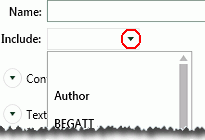
To include documents related to those in the search results, select one or more of the Include options (click on the right side of the Include field). All fields defined with the Allow Group by option will be available; typical selections include fields that indicate:
|

Specify Sort Order
Search results can be organized based by field content (the columns in the case table). Up to three fields can be defined for sorting. When you sort based upon multiple fields, the order of the sorting is based on the order in which the fields are selected.
To specify sort order:
-
Define a search using the previous procedures.
-
If the Sort Options section is not visible in the Advanced Search tab, click the corresponding
 .
. -
Click
 Add sort by field.
 -
Select the first field to be sorted. This is the primary order for the search results.
-
Select the sort order—Ascending (lowest to highest) or Descending (highest to lowest).
-
To specify a second sort order, click
and repeat step 4
and step 5 for the second field. -
To specify a third sort order, click
and repeat step
4 and step 5 for the third
field. Search results will be sorted
first by author name and then by sent date. -
Evaluate the sort order. The top field will be sorted first, the middle field second, and the third field last. To change the order, identify the field to be moved and drag its to the desired location. A green bar identifies the selected field’s location:

-
Review your selections. Note:
-
Make changes if needed.
-
To remove one of the sort-definition rows, point to the right side of the row and click X.
-
-
After the sort order is defined, continue with one of the following actions as needed:
-
Define random sampling for the search results, next.
-
Add Random Sampling to a Search
To return a random sample of documents instead of all documents meeting your search criteria, complete the following steps. An overview of random sampling can be found in "About search types and options."
-
Define a search using the previous procedures.
-
Ensure the Include option is not selected.
-
If the Random Sampling section is not visible in the Advanced Search tab, click the corresponding
. -
In the Random Sampling section, select Apply to Search.
-
Select the needed sampling type and associated options as described in the following table.
-
90: wider range of documents considered (fewer documents typically returned).
-
95: medium range of documents considered.
-
99: narrower range of documents (more documents typically returned).
-
When your search is defined and random sampling is configured, continue with "Run and/or save a search" next.
|
Sampling Type |
Description |
|
Fixed size |
Select this type to create a sample containing a specific number of documents in the search results. When this option is selected, enter the desired size (a value equal to or greater than 1) in the Fixed Size field. The value you choose should be based on the size of the search results without random sampling applied and what number of those documents represents a good sampling size. |
|
Statistical sampling |
Statistical sampling is based on standard statistics calculations that utilize a confidence level and margin of error. |
|
Confidence Level |
Confidence level represents the reliability of an estimate, that is, how likely it is that the sample returned will be representative of all search results. The larger the confidence level is, the narrower the range of documents will be that are considered to be representative. |
|
Margin of Error |
The margin of error expresses the amount of error to be allowed in the search results sample. Select a value from 1 - 5, where 1 is the least amount of error and 5 is the highest amount of error. A setting of 1 typically returns the most documents; a setting of 5 typically returns the fewest documents. |
Changing an Advanced Search
Before a Search is Run
Any time before an advanced search is run, revise the search as follows:
-
Conceptual or Text Search entries in the top portion of the Advanced Search tab can be changed.
-
In the Fields to Search section of the tab:
-
Individual search statements can be added or removed by using the
 or
or  buttons.
 -
Value selections for a search statement can be changed, but you cannot change the Search Type once a type has been selected. You must remove the statement(s) and re-create the correct statement(s).
-
To change values, click
 to expand the search statement. Do not enter details in the Value
field.
to expand the search statement. Do not enter details in the Value
field. -
Any connectors can be changed or parentheses can be added.
-
-
To remove all entries in the Advanced Search tab and start over, click Clear Fields above the search-statement area.
-
Random sampling can be added, changed, or removed.
After a Search is Run
To edit a search that has just been run (whether it was saved or not), click Edit Search in the Advanced Search section of the Case View pane. The search definition will be in the Advanced Search tab. Make changes as described in the previous topic.
Modify Saved Searches
See "Saved Searches" and "Search History" for details on changing searches you have saved.