Search Folders
This page contains the following content:
Working with Search Folders
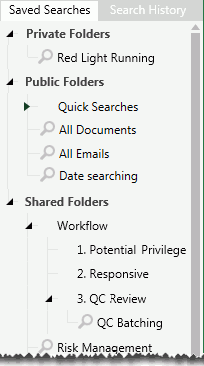
Saved searches are organized in folders, either the main (parent) folders provided in IPRO Eclipse or in custom folders you create within the parent folders. Parent folders include:
-
Private: Contains searches available to only you or a Super Administrator
-
Public: Contains searches available to all users who have access to the case or review batch in which the search is created/saved. (By default, folders are public and will be stored in the Public Searches folder.)
-
Shared: Limits searches to specific user groups you choose.
This figure shows a typical hierarchy of saved-search folders.
|
|
Note: Custom folders are required to limit shared searches to specific user groups. (If you save a search in the root level of the Shared Searches folder, the search will be public.) |

Create Custom Folders
To create custom search folders:
-
Open the case being searched.
-
Click Advanced Search in the Case View pane.
-
In the Saved Searches tab, right-click the folder in which you want to add a folder and select Add Folder. For example, right-click Public Searches.
-
Enter a name for the folder and make sure the intended search-type option (parent) is selected—Private, Public, or Shared. (Change the option if needed.)
-
Shared folders only: Under the Shared option, select the needed user group(s). Only the users in these groups will be able to see and use the searches saved in the folder.
-
Click Save.
-
Repeat these steps to add other folders.
|
|
Note: If you have a hierarchy of shared folders, child folders cannot have more or different user groups assigned than their parent folders. For example, if a parent folder has three groups assigned, then its child folder(s) can be restricted only to one or more of those groups. |
Manage Search Folders
To make changes to existing search folders:
-
Open the needed case.
-
Click Advanced Search in the Case View pane and complete any of the following steps.
-
To edit folders:
-
In the Saved Searches tab, locate the folder to be changed.

Tip: To view all folders, right-click a parent folder (such as Public Searches) and select Expand All. To open an individual folder, click
 .
. -
Right-click the folder, select Edit Folder, and take any of the following actions.
-
Change the folder name, click a different search-type option, and/or click a different folder in which the selected folder (and its contents) should reside.
-
Shared folders: Change the group(s) who will have access to the search.
-
Click Save.
-
-
To move searches within folders:
-
In the Saved Searches tab, locate the search to be moved.
-
Right-click the search and select Edit Search.
-
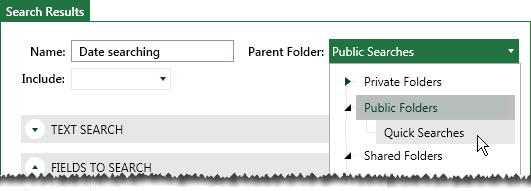
In the Advanced Search tab, select a different folder. In the following example, the “Date searching” search is being moved to the “Quick Searches” folder.
-
Click Save.
-
-
To delete folders:
-
In the Saved Searches tab, locate the folder to be deleted.
-
Open the folder to be deleted and check to see if any folders or searches in it should be kept; if so, complete step 3 and/or step 4 to move them.
-
Right-click the folder and select Delete Folder.
-
Click OK in response to the confirmation message.
-