Advanced Search
The Advanced Search feature of IPRO Eclipse allows you to easily construct complex search expressions or specialized searches and display results in the Search Results tab. Searches can also be saved for later use or for specific tasks. For example, batches must be based on a saved search.
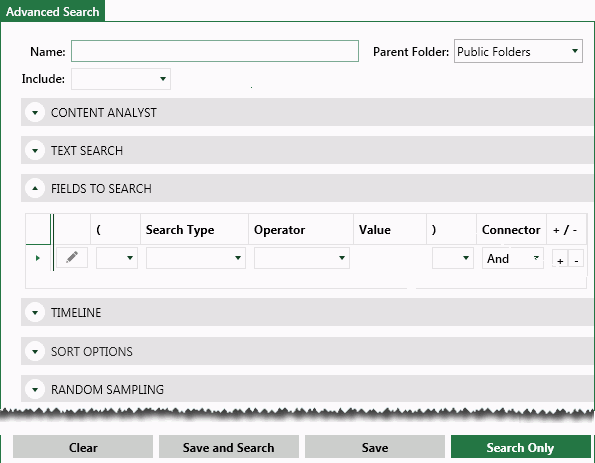
The following figure shows the Advanced Search tab with the Fields to Search area expanded and the other areas collapsed. These areas can be expanded as needed to define the search and/or search options (areas are introduced in the following paragraphs).
About Search Types and Options
Content Analyst Search
If IPRO Eclipse Analytics has been implemented at your firm, the Advanced Search tab will include the Content Analyst search section.
This optional feature helps you search for and identify concepts and relationships within and across case documents.
Text Searches
Text searches are as the name implies – full text searches for words or phrases in case database fields (and corresponding images, native files, etc.).
Fields to Search
This section of the Advanced Search tab allows you to create any of the following special searches. See "Types of Search" for descriptions of these searches.
-
Fields within the case
-
Analytics (if installed at your site)
-
Categories
-
Clusters
-
Analytics Index
-
-
Batch
-
Assign to
-
ID
-
Review Status
-
Set
-
-
Doc Tags
-
IPRO Intelligence (primarily for Technology-Assisted Reviews)
-
Redaction Categories
-
Review Status
-
Saved Searches
-
Smart Folders
Timeline Searches
This section of the Advanced Search tab allows you to limit search results to a specific date range, which will display on the timeline. For more information, see "The Timeline."
Sort Options
This section of the Advanced Search tab allows you to organize (sort) search results based by field content (the columns in the case table). Up to three fields can be defined for sorting.
Random Sampling
This section of the Advanced Search tab allows you to define a search to return a random sampling of documents matching your search criteria. Random sampling provides a representative set of documents from the search results. With random sampling, every document in your search results has an equal chance of participating in the sample; the number of documents in the sample depends on either a fixed value that you define or a statistics calculation based on confidence level and margin of error values that you set.
Before you Begin
Before you use Advanced Search, it is recommended that you read "Searching Overview."
Also, if you will be constructing a complex search with many elements, plan the search carefully. For example, consider how multiple-part searches will need to be combined. Searches are combined using the AND operator except as noted here:
ConceptSearch AND (TextSearch AND/OR/NOT Field AND/OR/NOT SpecialSearch Statements) AND TimelineSearch
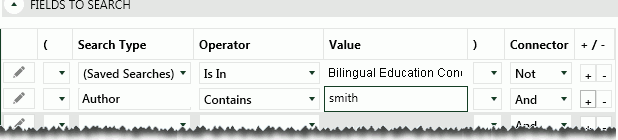
To combine a concept or timeline search with a different operator (OR or NOT), save the search and combine it in the Fields To Search area. The following example shows that the reviewer wants to find all documents matching the “Bilingual Education Concept” that are not authored by people with the name “Smith.”
Search Navigation
Navigate between Visual and Advanced search by clicking the arrow on the Search tab and selecting either the Advanced Search or Visual Search options.
