Default Search Assumptions
Simple searches – words or phrases with no specific search criteria included – are conducted using the following default criteria for advanced searches. (At this time, a simple search performed using the Search bar searches extracted text and indexed fields.)
-
Full text, all fields, all records: All indexed words in all indexed fields (that the user has rights to view) of all records are examined. If you have any questions on whether a field is indexed, contact your administrator. All fields (indexed and non-indexed) are searchable using a field-specific search in Advanced Search.
-
All words: For a plain search (with no operators), all search words must exist in the database record, but not necessarily in the same field or in the same order.
-
Search order: When multiple words or statements comprise a search expression, the search is conducted from left to right, top to bottom (similar to the way a mathematical equation is treated).
Examples
-
annual and profit and deficit
-
(annual or profit) and deficit
This search phrase will find all records containing annual OR profit (in any indexed case field) and then reduce that set to those documents containing the word deficit (in any indexed field).
This simple search will find all records containing all three words (annual AND profit AND deficit) in any indexed case fields.
Case Sensitivity
IPRO Eclipse searches are not case sensitive. For example, the same results will occur whether you search for smith, SMITH, or Smith. Likewise, all search criteria and operators, as explained in the following paragraphs, are case insensitive.
Special Characters
Punctuation marks (other than characters defined for specific uses, such as an asterisk) in a search statement are treated as spaces. For example, a search for A208(d)(5)(iv) would become A208 d 5 iv (four words). When punctuation marks are included in a search statement, highlighting may not be consistent between the Image and Extracted Text tabs.
When entering such search terms, entering spaces in place of the punctuation may be easier and provide more consistent highlighting of results. In some cases, enclosing the term in quotation marks (for a specific search) may also help ensure the needed results are found and highlighted.
Concatenated Fields
If your case includes concatenated fields (created when multiple fields are imported into a single field in IPRO Eclipse) and a delimiter is used in the concatenated field, the delimiter will be ignored during searches.
Types of Search
The following table lists the types of searches available in IPRO Eclipse, which can be performed using the Advanced Search. Some search types (such as full text searches) can be performed using the main Search bar (quick search).
|
Field |
Description |
||
|
Analytics-based searches |
If IPRO Eclipse Analytics has been implemented at your firm, the following searches are available:
|
||
|
Batch-related searches |
|
||
|
Document Tags |
Search for documents that have been marked with a specific document tag.
|
||
|
Field-specific searches |
Search for documents with specified content in a selected field. |
||
|
Full Text |
The simplest type of search. Full-text searches look for words or phrases in one or more indexed fields of IPRO Eclipse. This includes indexed database fields and extracted text as described at the beginning of this page. |
||
|
IPRO Intelligence |
Searches for all documents required for review in order to train IPRO Eclipse Analytics for categorization of documents. This search is used primarily for technology-assisted review (TAR). |
||
|
Redaction Categories |
Search for documents that contain a specified redaction(s). See "Working with Redactions" for information on redactions. |
||
|
Review Status |
For a particular review pass of a particular case, search for documents that are tagged as Reviewed, Not Reviewed, or On Hold. |
||
|
Saved Searches |
Combine this with another search to refine the results of a saved public search. Must have permission to view saved searches. |
||
|
Smart Folders |
Search for documents included in or excluded from a specific Smart Folder. Combine this search to find needed documents within a Smart Folder, for example, find documents in a Smart Folder that contain certain text.
|
||
|
Timeline Search |
Search for documents within a certain date range; the timeline in the corresponding Search Results tab will display the selected date range. See "Filter By Date Range" for details on the timeline. The timeline itself or an advanced search can be used to find documents within a certain date range. |


Different search types can easily be combined using the IPRO Eclipse Advanced Search. With some limitations, search types are combined in expressions using Boolean operators AND, OR, and NOT.
Other Search Options
By default, a search in IPRO Eclipse will return a list of all documents matching your search criteria. Options for limiting search results exist for advanced searches (such as by using random sampling), as explained in "About search types and options."
Where Search Results Appear
The following paragraphs introduce search results. More details are presented in "Viewing Search Results."
Search Results Tab
Search results replace the contents of the current tab in the case pane (Documents, Batch, etc.) tab. Search results are based on the entire case. (That is, they are not limited to a batch if a batch is open. To limit a search to a specific batch, use an advanced search based on the batch of interest.)
Document Details Pane Tabs
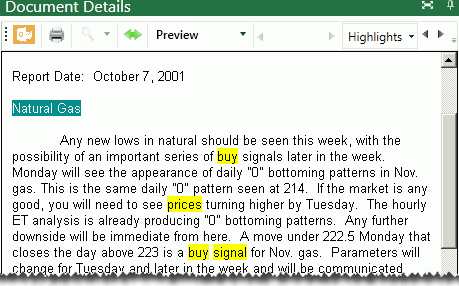
Search “hits” are highlighted in tabs within the Document Details pane if the search term exists in the image, native, and/or extracted text file, not if the term exists only within a field(s).
-
Image: Hits are highlighted in images if documents have been processed for word coordinates (a standard function of IPRO processing, but not always implemented).
-
Native Viewer: Hits are highlighted if a native file associated with the selected record exists and contains the search term.
-
Extracted Text: Hits are highlighted if text (OCR) associated with the selected record exists and contains the search term.
The following example shows an excerpt of search results (highlighted in yellow) in the Extracted Text tab.