Working with Smart Folders
This page contains the following content:
The following figure presents an example of Smart Folders in the Case View pane and explains basic components of the Smart Folders list:
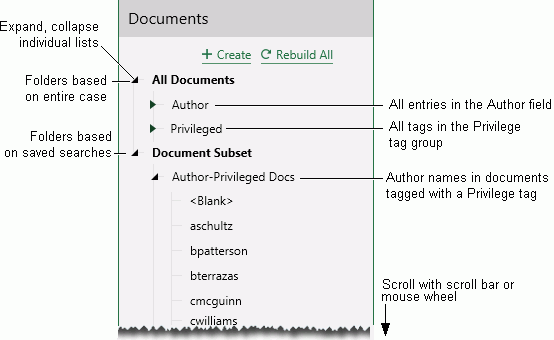
In the Case View pane, each folder lists the entries in the field on which the folder is based or tags in the tag group on which the folder is based. Notes:
-
<Blank> in a field-based folder indicates at least one record contains no data.
-
Tag-group based folders list all tags in the group, whether or not they have been applied to any documents.
View Records in a Smart Folder
After you or other reviewers have created "Smart Folders," view documents in a folder as follows:
-
Open the Case View tab, pin it, and click (expand) Documents.
-
Click
 to expand the needed type of folder (All
Documents or Document Subset).
to expand the needed type of folder (All
Documents or Document Subset). -
Click
 to expand the folder of interest, then review the list of entries in the
folder (either all entries in a particular field or all tags in a particular
tag group).
to expand the folder of interest, then review the list of entries in the
folder (either all entries in a particular field or all tags in a particular
tag group).For long lists, use the scroll bar. If it is not visible, make the Case View pane wider (or use your mouse’s scroll wheel).
-
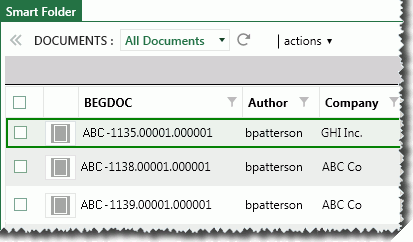
Click an entry of interest to display all records/documents with that content (a field value or a tag) in the case table. The following figure shows an example in which the reviewer has opened a Smart Folder based on the Author field, and has clicked the name “bpatterson” in the list.
-
View records in the folder. Use the scroll/navigation bars to see all records in the set; sort/adjust tab contents as described in "Getting Started."
-
Optional: search for specific records in a Smart Folder by using the Advanced Search as described in "Case Details Dashboard."
Edit a Smart Folder
Anyone with permission to edit Smart Folders can make changes to any Smart Folder. To change a Smart Folder:
-
Complete the steps describes in "Getting Started."
-
Right-click the Smart Folder to be changed and select Edit.
-
Change the folder name and/or criteria, then click OK.
-
Communicate changes to reviewers so they will use the folder correctly.
Rebuild a Smart Folder
Smart Folders can be rebuilt (singly or all at once) to ensure newly imported data and/or reviewer field edits and/or tagging are accounted for in the Smart Folder(s).
|
|
Note: Smart Folders defined with the Rebuild on import option are automatically rebuilt if data is added to the case (if the corresponding field or tag group is found in the load file). Smart Folders will also be rebuilt for other reasons, such as when a Smart Folder is edited and its criteria changes. |

To rebuild Smart Folders:
-
To rebuild an individual Smart Folder:
-
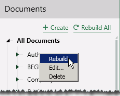
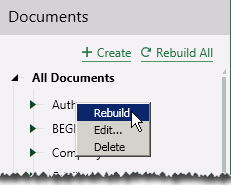
In the Case View pane, right-click the folder and select Rebuild:
-
Wait as the folder retrieves the latest data. While the action is in process, the folder name includes a suffix of (Rebuilding).
-
-
To rebuild all Smart Folders, click
 and wait as the latest data is retrieved for all folders.
Close a Smart Folder
When you finish working with Smart Folders, click All Documents in the Case View pane or perform another action, such as running a search.
Delete a Smart Folder
To delete a Smart Folder:
-
In theCase View pane, right-click the folder and select Delete.
-
In response to the confirmation message, click Yes.