Configure Smart Folders
This page contains the following content:
About Smart Folders
Smart Folders provide a way to find case records/documents based on a case field or document tag group (public tags, not private). Smart Folders are public by default; they can be private if you limit the folder scope to a private search.
Smart Folders can be based on the fields listed in the following table. Check with your administrator if you have any questions about the fields in your case.
|
Field type |
fields |
|
|
User-defined fields |
FixedLengthText |
|
|
Feature-specific fields |
Keyword List (KWL_FL) fields |
|
|
System fields |
|
|
|
|
Note: Smart Folders created prior to Eclipse 2016.3.0 are affected as follows by upgrades to 2016.3.0 or later:
For example, a single Smart Folder containing a tag from “Tag Group A” and two tags from “Tag Group B” will become two Smart Folders, one for “Tag Group A” and one for “Tag Group B.” To replicate the original Smart Folder (individual tags or those from different tag groups in a single folder), create/save an applicable search and then create a Smart Folder based on the search. |

Getting Started
Smart Folders are located in the Case View pane (Documents section) as shown in the example in this figure.
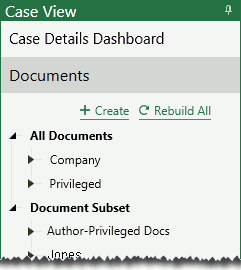
To begin working with Smart Folders:
-
Log in to Eclipse and open the needed case or batch.
-
Open the Case View tab, pin it, and click (expand) Documents.
-
Plan your Smart Folder:
-
Identify the needed folder content (field or tag group).
-
If you want to limit the scope of the folder to a specific set of documents, identify and/or create the applicable saved search.
-
Give some consideration to the folder name so that folder content and purpose are clear. If several folders will be defined, consider naming conventions for consistency and ease-of-use.
-
Ensure that the field or tag group is available in the case or batch (for example, is included in the selected coding form).
-
-
Continue with the procedures on the following pages.
Creating Smart Folders
If you have the permission to do so, create a Smart Folder as follows:
-
Complete the steps in "Getting Started."
-
Under Documents, click
 .
. -
Complete the Smart Folder options dialog box, shown in the following figure and described in the following table.
-
When the folder definition is complete, click Save. The folder will be added in the Documents area of the Case View pane.
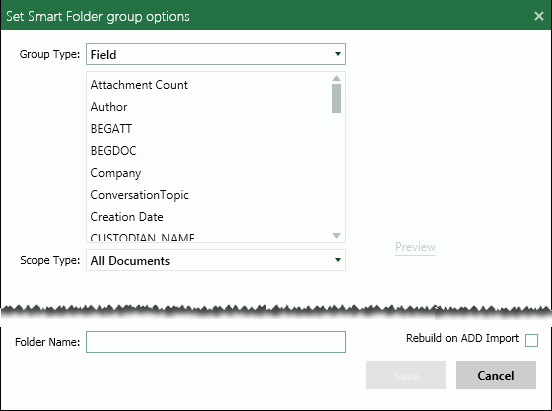
|
item |
description |
|
Group Type |
Select the folder content, Field or Tag Group. |
|
Folder Content |
Select either an individual field or tag group name. |
|
Scope |
Select either All Documents (entire case) or Saved Search. If you select Saved
Search, the list of available searches will be listed;
select the needed search. Click If you select a private search, only you will be able to see/use the Smart Folder. |
|
Preview |
Click the Preview link to display the folder content based on your group, content, and scope selections. |
|
Folder Name |
Enter a name for the folder. By default, the folder name is either the selected field or tag group name. |
|
Rebuild on import |
Select this option to automatically rebuild the folder if new data is added to your case. |
 to expand
the list of
to expand
the list of