The Timeline
This page contains the following content:
Starting in IPRO Eclipse 2016.3.1, users with appropriate permissions can view a timeline showing dates for the documents in the case or selected set of documents (such as a batch, folder, or search results). The timeline provides a simple way to filter the current document set based on a date range. See the following figure.
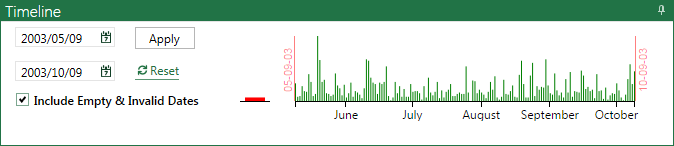
The dates presented in the timeline are based on the DOCUMENTDATE field. This field is populated with the dates in your case, such as calendar/email dates (Appointment Start Time, Sent Date, Date Created, Date Modified fields) and/or document dates (Date Created, Date Modified fields).
IPRO Eclipse “looks for” dates based on the fields selected by your administrator and in the order selected by your administrator. For each case document, the DOCUMENTDATE field is populated with the first date IPRO Eclipse “finds” in the field set defined by your administrator, and this is the date used in the timeline.
Notes:
-
The ability to view and use the timeline is governed by a specific permission. In addition, field permissions are taken into account for timeline display purposes, such that users who do not have access to a particular Date or DateTime field specified for the timeline are unable to see the field's data in the timeline. Contact your administrator if you have any questions about your ability to view and use the timeline.
-
The timeline initially depicts all dates found in the selected document set, from the earliest to the latest.
-
The graph is a general representation of the number of documents found for each date. If your case has a very large date span (for example, 10 years or more), the timeline graph may not be visible initially. Use the procedures in this topic to change the date range for the timeline.
-
The details provided along the X axis (bottom) of the timeline vary depending on the size of the date range—from years for large ranges to hours for small ranges.
-
A timeline can also be defined as part of an advanced search, as explained in "Define a timeline search" In this case, search results and the corresponding timeline will be limited to those documents with dates in the range defined by the Advanced Search.
Getting Started with the Timeline
For users with the correct permission, the timeline automatically appears above the case table in IPRO Eclipse, as shown in the previous figure. Check with your administrator if you do not see the timeline and you feel you need to see/use it.
To work with the timeline:
-
Open the needed case. If needed, open a batch, perform a search, or open a folder to list the documents of interest.
-
Optional: Show or hide columns so that the displayed content matches your needs.
-
Determine the date range you need to view:
-
Review the timeline, which initially shows the complete date range for the selected document set.
-
Review the documents in the document set.
-
-
Continue with any of the following procedures to work with the timeline.
|
|
Note: A timeline setting is not maintained if you change the contents of the case table (for example, if you view all documents and then perform a quick search or choose to view your batch). Complete these types of actions first and then use the timeline. |

Enter/Select Timeline Dates
To change the date range by entering or selecting the dates of interest:
-
Complete "Getting started with the timeline."
-
The date-entry fields are on the left side of the timeline, as shown in this figure. The top field is the starting date and the bottom field is the ending date. Either enter or select the needed dates in these fields. Note:
-
To enter dates, use the format MM-DD-YYYY.
-
To select a date from a calendar, click and click the date of interest. Use the arrow buttons in the calendar heading to scroll backward or forward one month at a time.
-
Optional: Select the Add docs with no/invalid dates option to include documents with date problems in the document set. This option only affects the documents listed in the case table; it does not affect the timeline.
-
Click Apply. The timeline will change to show only the details in the selected range and the case table will list only the documents with dates in the range.
The timeline’s start/end dates will match the actual starting and ending dates of the range, if they differ from the dates you entered. For example, the earliest date in the previous example was 01-02-2002, so the starting date would change accordingly.
-
Review the timeline and documents corresponding to the date range.
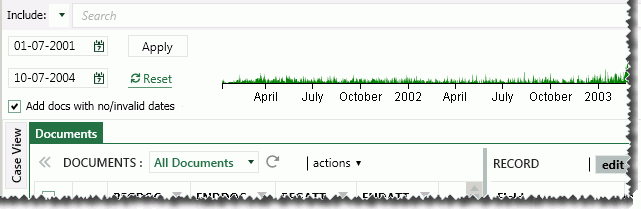
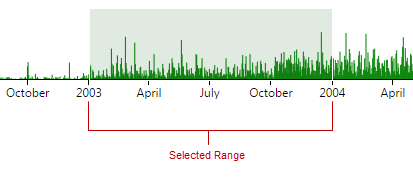
In the previous example, the date range entered is for the years 2002 - 2004. Once a range is entered, it is indicated on the timeline by a gray bar.
Select Range by Dragging in the Timeline
Instead of (or in addition to) entering/selecting dates, you can drag in the timeline as follows:
-
Complete "Getting started with the timeline."
-
Point to the timeline in the general area you want to select, until the pointer changes to a + (plus sign). A tooltip will indicate the date corresponding to the pointer location, as shown in this example.
-
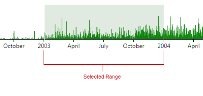
Drag right or left as needed to define the range of interest. When you stop dragging (release the mouse button), the selected range will be shown as a gray bar in the timeline, for example:
-
If the range is correct, skip to step 7. Otherwise, complete either of the following steps to refine or change the selected range.
-
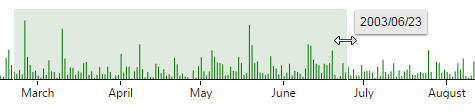
To move the selected start or end date, point to the edge of the gray bar until the pointer changes to
 . Drag the start/end date
to the needed location on the timeline. This example shows that the end
date is going to be changed:
. Drag the start/end date
to the needed location on the timeline. This example shows that the end
date is going to be changed: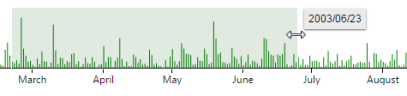
-
To move the entire range to a different set of dates, point to the inside of the gray bar until the pointer changes to
 , then drag the gray bar to
the needed location on the timeline. When you stop dragging, the range
will change to the new location/dates.
, then drag the gray bar to
the needed location on the timeline. When you stop dragging, the range
will change to the new location/dates. -
Optional: Select the Add docs with no/invalid dates option to include documents with date problems in the document set. This option only affects the documents listed in the case table; it does not affect the timeline.
-
When the date range meets your needs, click Apply. The timeline will change to show only the details in the selected range and the case table will list only the documents with dates in the range.
-
Review the timeline and documents corresponding to the date range.
Reset the Timeline
After the timeline is modified, it can be reset to
match the original (entire) document set—simply click  .
.