Define a Timeline Search
Starting in IPRO Eclipse 2016.3.1, users with appropriate permissions can view a timeline showing dates for the documents in the case or selected set of documents (such as a batch, folder, or search results). The timeline provides a simple way to filter the current document set based on a date range. See "The Timeline" for full details on the timeline.
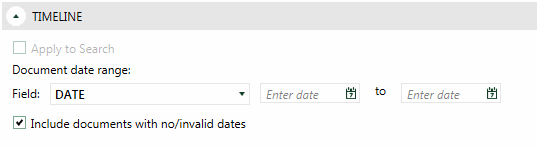
A timeline search can also be defined in the Advanced Search. The following figure shows an example of a timeline search.
To define a timeline search:
-
Begin with the "Basic Advanced Search Procedure".
-
If the Timeline section is not visible in the Advanced Search tab, click the corresponding
 .
. -
Select the date field upon which the search is to be based. All Date and DateTime fields are available for selection. In the previous figure, the Date field is selected.
-
Enter the starting and ending dates of interest or click
 to select the
needed dates. In the previous figure, the start date is 01/01/2010 and
the ending date is 12/31/2015.
to select the
needed dates. In the previous figure, the start date is 01/01/2010 and
the ending date is 12/31/2015. -
To include documents with date problems in the document set, select the Include documents with no/invalid dates option. This option only affects the documents listed in the search results (case table); it does not affect the timeline.
-
Complete your advanced search definition as needed. When finished, go to "Run and/or save a search."
|
|
Note: When you change dates in the Timeline section of Advanced Search, or when you change the date in the timeline section of the Eclipse workspace, the Apply to Search box will automatically be checked. While this box is checked, all subsequent search criteria entered in either Visual or Advanced Search will only pull documents from the selected date range. You may uncheck this box if you wish to search outside of the specified date range. |
