Saved Searches
This page contains the following content:
About Saved Searches
Search expressions created in the Advanced Search tab can be saved as explained in " Advanced Search Procedure." This allows you to build a “library” of commonly used searches, which will save you time.
Saved searches can be public, private, or they can be limited to certain user groups that have access to the case or review batch in which the search is created/saved. Search access is managed through folders as described later in this section.
Specific permissions are required for working with saved searches. Ask your administrator if you are not able to perform the activities explained in this section and it impacts your document review.
|
|
Note: If Technology-Assisted Review (TAR) projects are implemented at your site, searches typically used for TAR are included in the Saved Searches tab (in the Advanced Search area of the Case View pane). Use these searches as directed by your administrator. For more information, see the section on "TAR." |

About Search History
In addition to saved searches, a record of all searches is maintained for each user during a single working session. All searches a user performs are added to the history list, including quick searches, advanced searches, and saved searches.
When a history search is run, results from the initial search are presented in the Search Results tab (a new search is not performed).
Access to Saved and History Searches
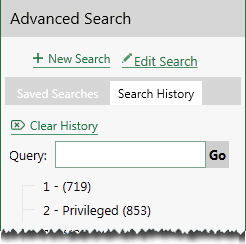
The figure below shows the Saved Searches and Search History tabs in the Advanced Search section of the Case View pane. These tabs provide access to these components as explained in saved searches and search history.
Working with Saved Searches
Execute a Saved Search
To run a saved search:
-
Open the case being searched.
-
Click Advanced Search in the Case View pane.
-
In the Saved Searches tab, locate the needed search.
-
Click the search. Search results display.
|
|
Tip: To expand folders, right-click one of the top folders (such as Public Searches) and select Expand All. Or, expand an individual folder. |

Edit a Saved Search
To modify a saved search:
-
Open the case being searched.
-
Click Advanced Search in the Case View pane.
-
In the Saved Searches tab, locate the needed search.
-
Right-click the needed search and select Edit Search. The Advanced Search tab replaces the Documents tab, with all search criteria listed.
-
Change the search as needed and described in the following table.
search type
notes
Content Analyst
Expand the area and make needed changes.
Text Search
Expand the area and make needed changes.
Fields to Search
Make any of the following changes:
-
Add or remove individual search statements by using the
 or
or  buttons.
 -
To change a statement completely, choose a different type (such as from the Author column to the Sent By column) and enter new criteria.
-
To change values, click
 and make changes in the area below the statement being edited.
-
To remove all entries for the statement and start over, click Clear Text or Clear Selections.
-
Change any connectors or add parentheses.
-
Change the Parent Folder selection or change the Private or Family options.
-
Delete a Saved Search
Saved searches can be deleted unless they are being used by another saved search.
To delete a saved search:
-
Open the case being searched.
-
Click Advanced Search in the Case View pane.
-
In the Saved Searches tab, locate the needed search.
-
Right-click the search and select Delete Search. The search will be deleted immediately.
|
|
Tip: As needed, expand folders. Right-click the top folder (such as Public Searches) and select Expand All. Or, expand an individual folder. |
Copy a Saved Search
To create a new search based on a saved search:
-
Open the case being searched.
-
Click Advanced Search in the Case View pane.
-
Click the Saved Searches tab and locate the search to be copied.
-
Right-click the needed search and select Copy Search.
-
Enter a name for the new search; if the search will be for personal use, click Private Search.
-
Click OK.
-
Right-click the newly created search and select Edit. Change the search as needed. See "Edit a saved search" for details.
-
Click either Save and Search or Save.