Search History
Working with Search History
When a history search is run, results from the initial search are presented in the Search Results tab (a new search is not performed). Links for each search are also included in the Documents tab, as explained in "Returning to the Documents tab."
To run a history search:
-
In the Documents tab, click the search of interest. Alternatively, go to step 2.
-
To use the Search History list:
-
Click Advanced Search in the Case View pane.
-
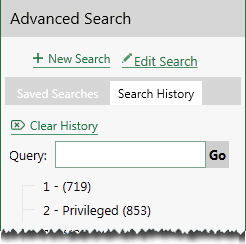
Click Search History in the Advanced Search area. If the Case View pane is narrow, expand its width and/or use the arrow buttons to scroll until the Search History tab is visible, as shown in this figure.

-
-
Click a search of interest. Quick searches are listed simply by the number of results, such as (719). Advanced searches that have names (whether saved or not) are listed by name.
Search results display in place of the Documents tab.
Combine Historical Searches
You can combine two or more historical searches using common Boolean operators. To combine historical searches:
-
Open the case being searched.
-
Click Advanced Search in the Case View pane.
-
Click the Search History tab.
-
In the list of searches, note the numbers of the searches to be combined.
-
In the Query field, enter a search expression in the following format:
Search# AND|OR|NOT Search# AND|OR|NOT Search#...
For example, the following example will find content matching the criteria of search 1 or search 3, but not search 2.

-
Click Go.