Search Results
Viewing Search Results
Search Results Tab
After you perform a search, a Search Results tab replaces the Documents tab and lists all documents meeting your search criteria. The number of documents meeting the search criteria and currently selected document in that set are listed in the navigation bar at the bottom of the tab.
Concept or Category Search Results
For Concept or Category searches (searches based on a single concept or category), a coherence score is included in the last (rightmost) column of the Search Results tab as shown in the following figure. Note:
-
For a Concept search, higher scores indicate a closer match to your search criteria (the concepts you are looking for).
-
For a Category search, higher scores indicate a closer match to category samples.


Note: If you define a document relationship using the Include option, related documents in the search results will show a score of 0.00. Documents meeting the search criteria (other than by this option) will have a score.

Working in the Search Results Tab
You can work with the documents associated with the records appearing in a Search Results tab as you would the Documents tab.
In addition, a special tagging feature exists for search results—you can apply a document tag to all records listed in a Search Results tab at once, as explained in "Simple Document Tagging."
Returning to the Document Tab
For each working session, search results are maintained and easily available for view. For each search, a link is added to the Documents tab, as shown in the following figure. Note that unsaved or quick searches are listed by number and results, such as 2 - (864). Saved searches also include the search name.
|
|
Tip: If you will be working with several unsaved searches, make a note the search criteria for each search when it is run, for easy recall as you work. |

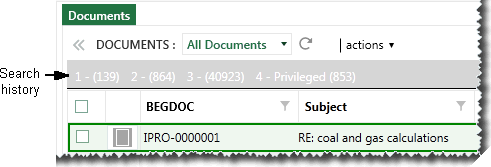
Image Tab
For a selected record in the Search Results tab, you can view “hits” in the Image tab if your case includes word coordinates. Contact your administrator if search results are not highlighted on the Image tab and you feel they should be.
Scroll throughout the image and/or change image size to see all hits; see additional details in the following tip.
|
|
Tip: If results are on individual pages, you will need to click the document’s pages to see all results in the Image tab. Or, you can see results in the Native Viewer or Extracted Text tab, both of which do not distinguish individual pages. You should also use those tabs if no highlighting exists on the Image tab. |
Extracted Text or Native Viewer
Search “hits” for a selected document are highlighted in the Extracted Text and Native Viewer tabs as shown in the following figure.
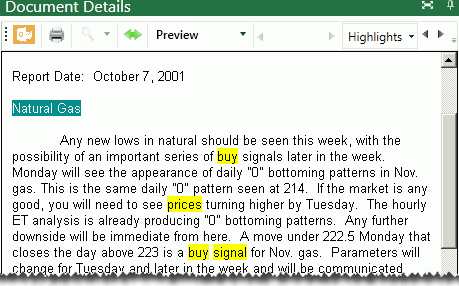
This example shows one persistent highlight (defined by the administrator) and two results from the user’s search. See the following section for details on working with persistent highlights.
Persistent Highlighting
Your administrator may define one or more terms that are essential to your case. Persistently highlighted words can help you find needed information quickly. Note:
-
These terms highlight persistently within a case or batch, similar to “permanent” searches.
-
Highlighting colors are defined by your administrator.
-
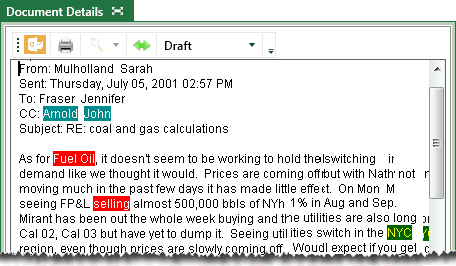
Words are highlighted in the IPRO Eclipse Extracted Text and Native Viewer tabs. The following example shows persistent highlighting in the Extracted Text tab.
-
Read case instructions or contact your administrator to make sure you understand how to use keywords.
-
For details on persistent highlighting in the Extracted Text and Native Viewer tabs, see "Viewing search results and highlights."
-
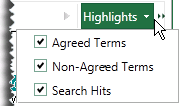
If persistent highlights interfere with your evaluation of search results, remove them from the current view by clearing the options on the Highlights menu, as shown in this figure.
If persistent highlighting is included in your cases: