Define a Field Specific Search
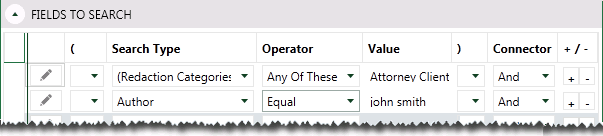
To limit a search to a specific field and/or perform any of several specialty searches (such as a search for specific tags or redactions), complete the following procedure. The following figure shows a simple field-specific search combined with a redaction search.
Field Specific Search Procedure
-
Begin with the "Basic Advanced Search Procedure."
-
If the Fields to Search section is not visible in the Advanced Search tab, click the corresponding
 .
. -
Construct the first search statement for your search as follows:
-
Select the needed Search Type from the list—either a field name or one of the special types of search described in "Types of search."

Tip:
-
Special searches are listed at the bottom of the list; names are enclosed in parentheses, as in (Redaction Categories).
-
To quickly move to the bottom of the list, click
 to open the Search Type
list, then enter a left parenthesis, (.
to open the Search Type
list, then enter a left parenthesis, (.
-
-
Below the search statement line, select or enter needed search details, which vary depending on the type of search. For example, for a Doc Tags search, select the document tag(s) for which you want to search.

Note: To ensure a correct search statement, select from options below the search statement line—do not type in the Value field.
-
Select the needed Operator. Operators vary depending on the type of search. They are presented in plain language for easy understanding. For example, for a field search, operator choices are listed in the following table.
operator
Description
Contains
The selected field contains the search term/phrase (other content may also exist).
Note: The wildcard * (asterisk) can be used with this operator. For example, consider the following searches.
-

Results will include the name Jan, as in Jan Smith or jan.smith@smithco.com.
-

Results will contain Jan, Jane, and Janet, as well as other names/ terms starting with “jan,” such as janitor.
Does Not Contain
The selected field does not contain the search term/phrase (other content may exist).
Note: The wildcard * (asterisk) can be used with this operator as described above.
Equal
The field content matches exactly the search/term phrase.
Not Equal
The field content does not exactly match the search/term phrase.
Set
The field is not empty; content exists in the field.
Not Set
The field is empty; no content exists in the field.
Is Less Than
Field content is less than the specified value. For numeric or date fields, this refers to numbers/dates; for text-related fields it refers to the letters of the modern English alphabet (a - z).
Is Greater Than
Field content is greater than the specified value. For numeric or date fields, this refers to numbers/dates; for text-related fields it refers to the letters of the modern English alphabet (a - z).
-
-
-
Enter or select the content/item(s) to be searched. For example, for a field search, enter the search text. For a document tag search, select the tag(s) of interest.
Tip: For certain field types/special searches, you can enter multiple items as a single search statement as explained in "Multi-Part Search Expressions."
-
To include another search statement in this area, select the needed connector (And, Or, Not) on the right side of the statement, then click
 and
go to the next step. Otherwise, skip to step
7.
and
go to the next step. Otherwise, skip to step
7. -
Scroll as needed to locate the new blank statement, then repeat the previous steps to define another search statement. Continue until all statements are added.
Tip: Click the
 button
on the left of the new statement to collapse the preceding statement
details.
button
on the left of the new statement to collapse the preceding statement
details. -
When all statements are added, collapse all details and review your search.
Note:
To make changes, do not change a search type for a completed line. To change a search type, delete the incorrect line and add a new line with the needed search type.
You can change the operator or values for a completed line if needed. To change the value, expand the line as shown in the previous steps.
To remove individual lines, click next to an unneeded or incorrect statement.
To remove all lines and start over, click Clear at the bottom of the search-statement area.
-
If two or more statements should be grouped into an expression (see "Multi-part Search Expressions").
-
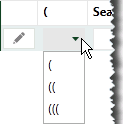
Click the left parenthesis, (, next to the start of the combined expression. Nested expressions can be created by selecting (( or (((.
-
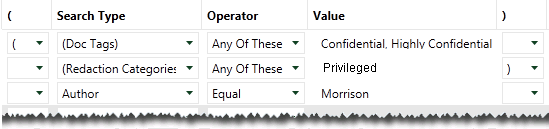
Locate the end of the combined expression and select the right parenthesis, ), next to it (or )) or ))) for nested expressions). The following example shows a search expression that will find certain tags OR redactions AND include “Morrison” in the Author field.
-
-
After the field and/or special search is defined, complete your advanced search definition as needed. When finished, go to "Run and/or save a search."
Multi-entry Search Statements
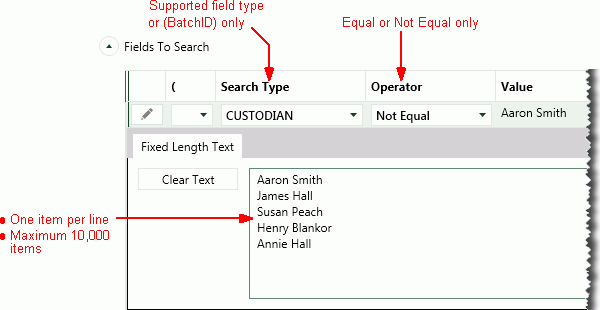
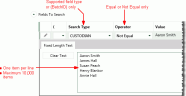
The following procedure allows you to save time when searching for different values for a specific field or for specific batches. For example, you may need to find five specific names in a Custodian field (or all custodians except for those five). Instead of creating a separate search statement for each name, you can enter all names in one statement. This type of search statement automatically uses the OR connector.
A multi-entry search statement can be used for the following field types/special searches:
|
Search Type |
Supported Item |
|
|
Field |
|
|
|
Special |
(Batch ID) |
|
To define a multi-entry search statement:
-
Begin with the "Basic Advanced Search Procedure".
-
If Fields to Search section is not visible in the Advanced Search tab, click the corresponding
 .
. -
Select the needed search item (see the previous table) and an operator of Equal or Not Equal.
-
In the entry area, type (or paste) the needed list of search items (up to 10,000), with one term per line and a hard return between lines. The following figure shows a search for custodians that are not equal to a particular set of names.
-
Complete your search definition as explained in "Field Specific Search Procedure."