Multi-Part Search Expressions

About Multi-part Searches

Search expressions can include several parts. This topic explains how to combine search criteria in the main Search bar. (To combine search types in the Advanced Search, see "Before you Begin").

Notes:

  • If you use more than one connector (and, or, not, etc.), use parentheses to precisely indicate the search criteria. For example, annual and profit or deficit could mean (annual and profit) or deficit, or it could mean annual and (profit or deficit).

  • If you combine a field search with another search, use parentheses in the following format to clearly define the field search: (fieldname contains (content)).

    Parentheses can similarly be used to help distinguish other search phrases within a multi-part expression. See examples in the table in the section titled "Multi-part Search Examples"

How Multi-part Search Expressions are Processed

Search operations are performed in sequence from left to right. For example, if you perform the following search, Eclipse will first find all documents created on the specified date, and then the documents in that set that contain either of the search terms indicated:

(Create Date contains (19811015)) and (silver or gold)

Multi-part Search Examples

The following examples will help you understand how you can construct multi-part search expressions. Another option is to use Advanced Search, which can help you organize your search criteria.

no.

search expression / results

1

(annual or profit) and deficit

This search first creates a set of documents containing either annual OR profit (in any indexed field) and then reduces that subset to only those documents that ALSO contain the word deficit.

2

annual or (profit and deficit)

This search first creates a set of documents containing annual and then adds to that set any documents containing both profit AND deficit.

3

(jones or (smith and hall)) and not (carpenter or blakely)

This search first creates a set of documents containing jones and then adds to that set any documents containing both smith AND hall. It then removes from the set any records containing either carpenter OR blakely.

4

jsmith@myco.com and (create date contains (20010101~~20011231))

This search finds documents containing the email address shown that also have a creation date ranging from January 1, 2001 to December 31, 2001.

5

(//text contains (aggregate payments)) and (sent date contains (20130127))

This search finds documents where “aggregate payments” is in the documents’ text files that also have a Sent Date of 1/27/2013.

Optimizing Searches

Some types of complex expressions using the W/ connector will produce ambiguous results and should not be used. The following are examples of ambiguous search requests:

(profit and deficit) w/10 (smith and jones)

(profit w/10 deficit) w/10 (smith and jones)

In general, at least one of the two expressions connected by W/ must be a single word or phrase or a group of words and phrases connected by OR. For example:

(profit and deficit) w/10 (smith or jones)

(profit and deficit) w/10 (john smith)

Troubleshooting Search Problems

If a search does not yield the results you expect, consider the possibilities listed in this Closedtable.

Issues

description

Typographical errors

You wanted to search for “smith” but you entered smth.

Considerations/solutions:

Check/correct your entry.

Syntax errors

Incorrect syntax is used. For example:

  • For a field search for a date, you entered DateField contains (06/01/2007) instead of DateField contains (20070601).

  • For a date search, you used auto-recognition syntax such as date(6/1/2007), however the search index is not configured for auto-recognition.

Considerations/solutions:

  • Check/correct your entry; refer to this section for syntax details.

  • Discuss auto-recognition with your administrator.

Field searches

A field search does not return expected results.

Considerations/solutions:

  • The field is not indexed.

  • Changes (edits) made for a field do not appear in search results.

Check with your administrator to find out if a field is indexed and/or if the search index is current (has been rebuilt recently).

Content errors

You searched for “smith,” but not all documents are found.

Considerations/solutions:

Some documents or fields include misspellings such as “smmth” or “smitth.”

  • For document content, use a wildcard or fuzzy search (and/or an OR search) to account for variations in spelling. For example:

    • Wildcard: sm*th

    • Fuzzy: sm%%h

    • OR: smith or smmth or smitth

  • For field content:

    • Enter a field search using wildcard, fuzzy, or OR searches described above.

    • If appropriate and you have the needed permission, search for the incorrect spelling for the field and use the mass edit function to correct the spelling (then perform your search).

    • If you do not have needed permission, alert your administrator so that the field can be corrected.

    • See "Globally Replacing Field Content" for details on mass editing.

Special character issues

You need to find documents containing the name “Smith+Hall” (including plus sign), but results include all documents containing “Smith” and “Hall.”

Or, you need to find “Brown&Jones,” but no results are found.

Considerations/solutions:

  • By default, most special characters (such as punctuation marks) are treated as spaces unless your administrator configures the search index to treat them as searchable characters.

  • Some special characters may be configured to be ignored, for example the ampersand (&). If this is the case, searching for “Brown&Jones” equates to searching for “BrownJones.”

Ask your administrator to make needed special characters searchable.

Highlighting issues: Following are various possibilities if you are having trouble viewing search result highlights (hits) in the Document Details pane.

All tabs

No search hits are found on any tab in the Document Details pane.

Considerations/solutions:

The search results exist only in fields, and not in any other content (image word coordinates, extracted text, or native files).

Image tabs

Search hits are not highlighted in an image.

Considerations/solutions:

The image has no corresponding OCR text; contact your administrator so that OCR can be imported or created.

Native Viewer tab

You cannot find search hits in the Native Viewer tab.

Considerations/solutions:

  • The native file is an image file or contains an image with no searchable text. For example, the file may be a .docx file with only an image embedded in it.

  • The file is multiple pages/all content is not visible and the search term is beyond the visible area.

    • Scroll down and/or across pages.

    • Change the zoom level and/or enlarge the Document Details pane to make more text visible.

    • Use the Highlights navigator to find search hits as described below.

  • Key word highlighting is interfering with your ability to see the highlights. Use the Highlight navigator as follows.

Using the Highlights navigator:

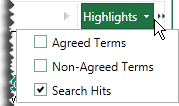
  • Click Highlights and make sure Search Hits is selected. If key words are interfering with your ability to see the search hits, clear any key word options as shown in this example.

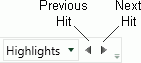
  • Use the arrow buttons to navigate from one search hit to the next:

Extracted Text tab

You cannot find search hits in the Extracted Text tab.

Considerations/solutions:

  • The file is multiple pages/all content is not visible and the search term is beyond the visible area.

    • Scroll down and/or across pages.

    • Change the zoom level and/or enlarge the Document Details pane to make more text visible.

    • Use the Highlights navigator to find search hits as described for the Native Viewer tab.

  • Key word highlighting is interfering with your ability to see the highlights. Use the Highlight navigator as described for the Native Viewer tab.