Globally Replacing Field Content
Users with appropriate permissions can replace field content across multiple records at one time as described in the following steps:
-
Getting started:
-
Verify the details needed for this operation (what is to be found and the needed replacement path or text).
-
Log in to IPRO Eclipse and open the needed case.
-
In the Case View pane, click Documents.
-
Optional: Display a specific subset of records by performing a search, opening a Smart Folder, filtering on one or more columns, or selecting an Analytics cluster or category.
-
Batches only: If you are working in a batch, select the scope of listed documents in the Documents from list.
-
-
On the Documents or related tab’s toolbar, click actions to show the “mass actions” toolbar.
-
Select the documents for which an image path or field content is to be changed in the same way:
-
To change all documents in the current set (entire case, batch, search results, etc.), select All from the mass actions toolbar and skip to step 4.

Note: All documents in a batch or an entire case may be changed, although such selections may be too large to be processed effectively.
-
To change some, but not all, documents, click the options on the left side of the needed records in the case table. See the first figure here.
-
Select Checked from the menu above the case table. See the second figure here.
-
-
From the adjacent menu, select Edit, then click Submit.
-
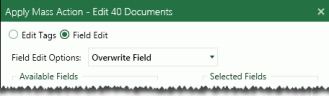
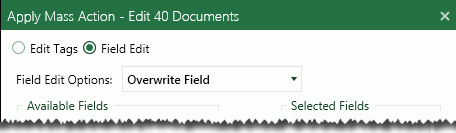
In the Apply Mass Action dialog box, select the Field Edit option as shown in the following figure. Note that the title of the dialog box includes the number of selected documents.
-
In the Field Edit Options list, select one of the following actions:
-
Search and Replace: Find specific content in a selected field(s) and replace it with different content. See step 7.
-
Copy Field: Copy the content of one field to another field. See step 8.
-
Overwrite Field: Replace whatever content exists in a selected field(s) with different content. See step 9.
-
-
If you selected Search and Replace:
-
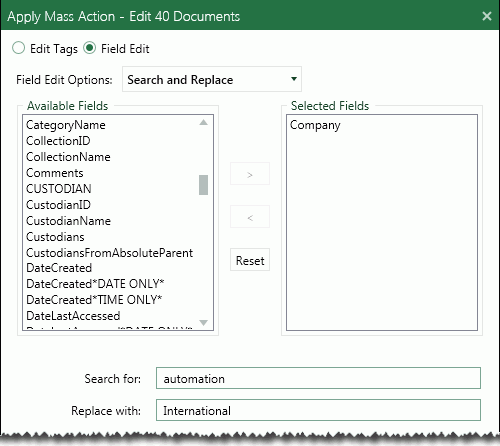
In the list of Available Fields, double-click each field to be changed in the same way. Alternatively, use Shift+click or Ctrl+click to select a contiguous or non-contiguous set of fields, respectively, then click > to move these fields into the Selected Fields list.
-
Enter the content to be replaced in the Search for box. This entry is not case sensitive.

Tip: An entry is required in the Search box. If you want to replace empty fields with content, use the Overwrite Field option.
-
Enter the new content in the Replace with box. The format of your entry must match the field type (for example, if a Date field needs to be changed from 01/01/2014 to another date, use the same format for your replacement entry). For text entries, the capitalization used here will be used in the selected field(s).
-
Skip to step 10.
-
-
If you selected Copy Field:
-
In the Copy From field, select the field containing the content you want to copy.
-
In the Copy To field, select the field in which the same content should be used.
-
Skip to step 10.
-
-
If you selected Overwrite Field:
-
In the list of Available Fields, double-click each field to be changed in the same way. Alternatively, use Shift+click or Ctrl+click to select a contiguous or non-contiguous set of fields, respectively, then click > to move these fields into the Selected Fields list.
-
Enter the new content in the Overwrite Selected Field with this Text box. The format of your entry must match the field type (for example, if a Date field needs to be changed from 01/01/2014 to another date, use the same format for your replacement entry). For text entries, the capitalization used here will be used in the selected field(s).
-
Go to step 10.
-
-
Select the Run Incremental Index option to rebuild the index based on changes being made now. If this option is not selected, then the index will need to be rebuilt at a later time in order for the changes to be incorporated into the search index (so that your changes are searchable).
-
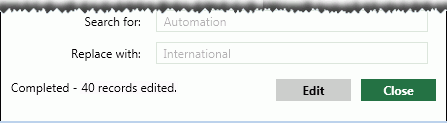
Click Submit and wait as the changes are made. When all changes have been made, a completion message appears at the bottom of the dialog box, as shown in the following example:
-
To perform another mass action on the same selected documents, click Edit and repeat this procedure or complete "Tag Multiple Documents."
-
When you are finished, click Close.

Example: All or part of a field’s content can be entered. For example, a company name might be entered as both “SmithCo Automation” and “SmithCo International” in your case. For consistency, you could search for “Automation” and replace it with “International” so that the company name is consistent. See the following figure.