Review a Digital Video Transcript
You have synchronized a digital video transcript. You want to quickly review the timecodes in the transcript and make any changes you find necessary so that you can feel confident when you send the DVT to your client.
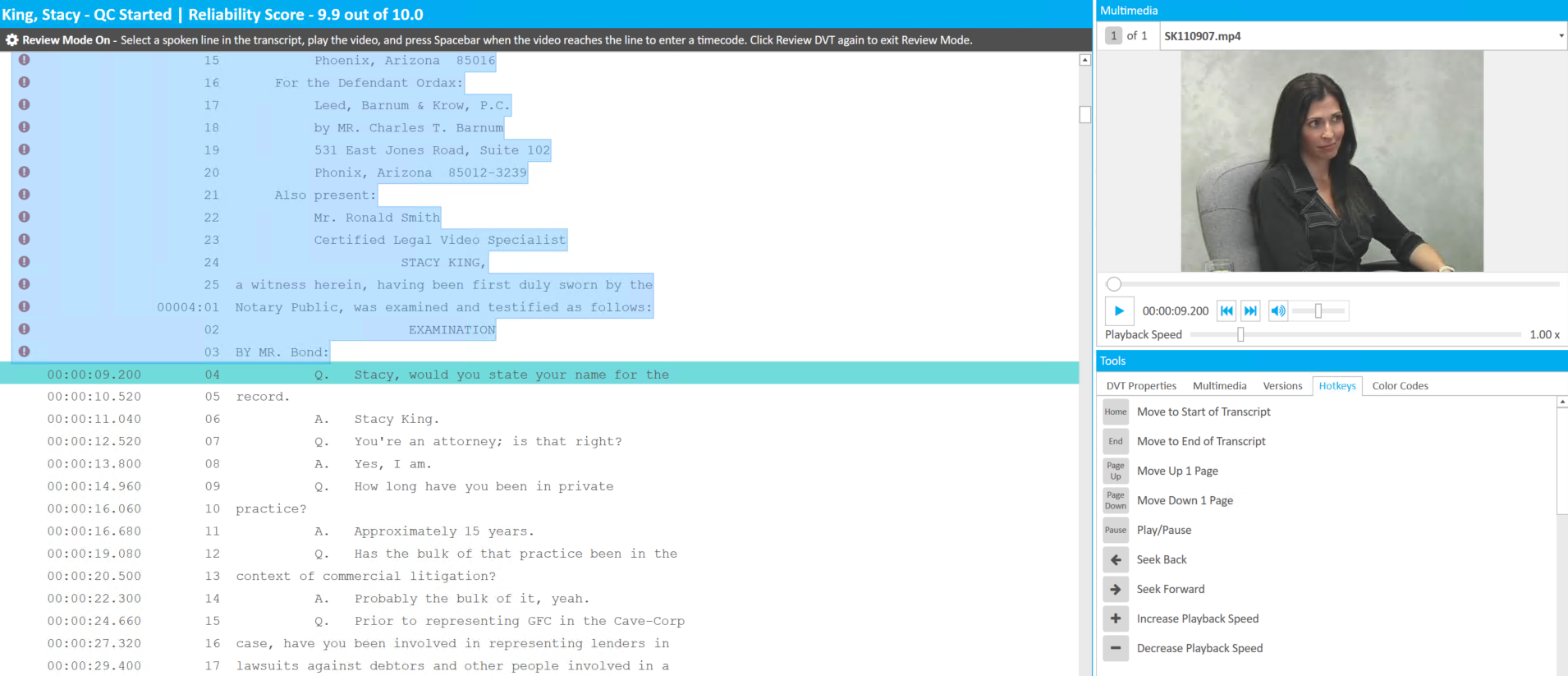
With a DVT open in Sync Plus, within the Transcript tab, there is a Review DVT button that you can use to manually check and fix any timecodes.
To review a DVT, open the DVT you want to check and use the following steps:
- Click Review DVT in the Transcript ribbon bar.
-
Select a line to verify.
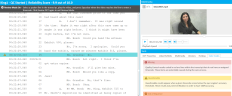

Note: Lines with timecodes marked as potential errors in Quality Control appear in Review Mode.
-
Play the video.
Note: Use the Pause hotkey to toggle the video on and off. Use the Enter hotkey to seek the video to the timecode for the selected line. For more information, see the Use Sync Hotkeys topic.
-
Press the Spacebar to correct the timecode on the selected line.
Note: You can perform a Quality Check while in Review mode to view your progress. Ensure that you have saved your changes before running a Quality Check. As you make changes in Review mode, at any point during the process, you can click the Save Changes button in the ribbon bar. When you click this button, your progress up to that point is saved.


Make Bulk Changes
There are several lines in the transcript that you want to mark as unspoken lines. You can use the following steps to change the lines all at once:
- Select all of the unspoken lines with the mouse. To select all of the lines, click and hold down the left mouse button on the first unspoken line you want to mark. Then drag the mouse down to the last line you want to mark.
-
Press the X key on the keyboard. All the lines selected are marked as unspoken.
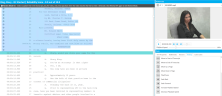
Note: You can use these same steps to accept Questionable timecodes in bulk. View the Accept Questionable Timecode article for more information.

Exit Review Mode
To exit Review mode, use the following steps:
- Click the Review DVT button again. A dialog appears prompting you to save the changes you made with Review mode active. The dialog contains the following options:
- Yes - The changes are saved immediately and the DVT is updated
- No - The changes are not saved and will be undone
-
Click Yes. The changes are saved.
You can also quickly review potential errors of a DVT in Quality Control.
Related Topics
Version: 2022.2.0
Last Revision: 1/18/2023