Job History Workflow
The Job History area is the record keeper of Sync Plus. Its main uses include:
-
Finding past jobs
-
Exporting Spreadsheets – These documents can be used for any reporting purposes.
-
Resolving issues
-
Checking out and checking in jobs
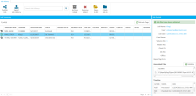
The Job History area tracks all of the DVT sync jobs entered in your account. You can review details about each job in the Job Summary table. For the list of details associated with each job, click  here:
here:

Finding Past Jobs
One of your clients requested you resend a DVT you created several weeks ago. Since then, you have processed over 100 jobs, with several hundred more before that.
To avoid sifting through the files in the Windows File Explorer, use Sync Plus’s Job History. To find the job you're looking for, you can:
- Use the Search field to filter the table by a keyword. Any word you enter will remove the entries that do not contain the query text.
- Use the column headers to sort the entries, making it easier to search the entries according to how you want.
Once you find the job you need, you can click Publish DVT to save it as another file format for easy transfer to your client. See Publish a DVT for more information.
Exporting Spreadsheets
You need to create a report of the work you have done so far. To do so, follow these steps:
-
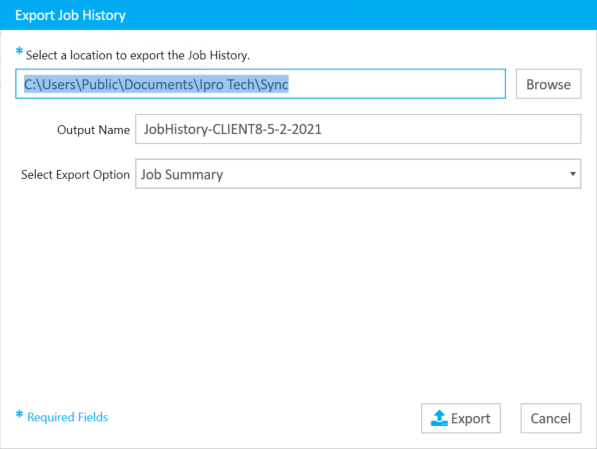
Click Export Job History in the Job History work area. The Export Job History dialog appears.
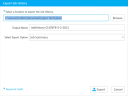
- Fill in the location and name fields.
- Select an Export Option:
- Job Summary – Only shows the columns active in the Job Summary panel in Sync Plus.
- Job Details – Shows all of the columns mentioned at the beginning of this article.
-
Click Export. A spreadsheet file is created in the location specified.

Note: If a search is active in Job History, the Export Job History will only report the results of the search, not the total job entries.
Resolving Issues
There may be times when the files associated with a job are renamed or moved from their original locations. Job History flags these issues because Sync Plus will not be able to find the needed files when trying to open the job. When you see a job has been flagged, you can navigate to the job location with the File Explorer and resolve the issue.
See the Fix an Unavailable Job article for more information.
Check In and Check Out a Job
You have the ability to check in or check out jobs from the Job History work area.

|
|
Note: If you do not see the Checked Out By field in the Job Summary work area, you will need to enable this option in Sync User Preferences. For more information, see Change Sync User Preferences. |
If a job is checked out to you, and you would like to make it available for another user to review, you can do so by selecting the job in the Job Summary table and clicking the Check Job In button in the ribbon bar.

The job then becomes available for another user to check out. Alternatively, if you would like to check out a job, you can likewise do so from this work area by double clicking the job, or selecting the job and clicking the Open In QC button from the ribbon bar.
|
|
Note: You cannot check out a job that is already checked out to another user. |
Related Topics
Version: 2022.2.0
Last Revision: 1/18/2023