Fix an Unavailable Job
You try to open one of your DVTs, but receive a message stating that Sync is unable to access the file. This typically occurs when someone renames an associated file after the DVT is created, or someone moves a file out of the original folder.
Navigate to the Job History area and select the sync job from the Job Summary table.
In the Job Details panel, you see that the associated file paths are marked in red.

To fix the issue, use the following steps:
- Open your file explorer and navigate out to the Sync Job folder, where your Sync jobs are processed.
-
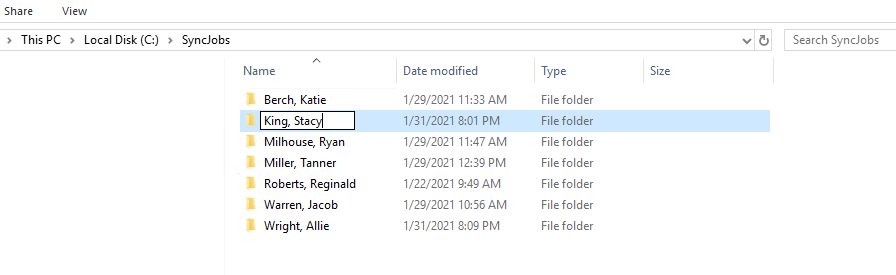
Confirm that the sub-directory associated with the unavailable job has the same name it had when the job was first processed. In the example below, the job name is "King, Stacy."
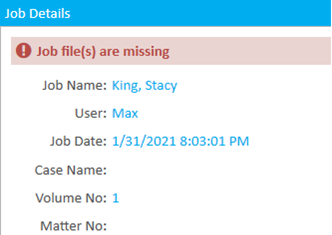
If the name of the sub-directory has changed, update it so that it once again matches the Job Name in Sync Plus.
-
If the sub-directoy name has not changed, open the sub-directory and confirm that the transcript and multimedia files that were initially synced are all present. If any files are missing, add them back. If any files have been renamed, change back the names so that they once again match the associated files in Sync Plus.
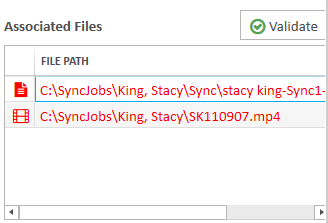
- Once these changes have been made, you can validate that the files paths in Sync Plus have been fixed by clicking the Validate button in the Job Details panel. The red text turns black and a message displays in green at the top of the Job Details panel stating that the "Job Details have been validated."
Related Topics
Version: 2022.2.0
Last Revision: 1/18/2023