Archive a Job
You can archive a job once it has been processed. To archive a job, follow the steps below:
|
|
Warning: Once a job has been archived, it cannot be opened again in QC, however the job can still be published. |
-
Navigate to the Job History work area and select a DVT from the main Job Summary table.
- Click Archive Job(s).
- The ribbon bar under the Job History tab.
- The right-click context menu.
-
The Archive Jobs dialog appears.

Warning: The network location used for archived jobs must be unique and should not reside in the same network location used for sync jobs. Mapped drives are not supported.
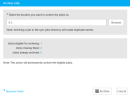
Enter a file path for the archive file that will be created and select Archive.

Note: The Archive Folder system directory identified during the Sync Plus install is the default location that will appear the first time a user archives a job. If a different location is used at any time, the program will default to the last location used. To use the archive folder location again, navigate to that location when a new archive process is started.
A confirmation dialog appears.
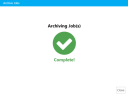
You can confirm the job has been archived by viewing the location it was saved to. You can also confirm the job has been archived by viewing the job status in the Job Summary panel.


You can access this button from:


|
|
Note: If an archived job needs to be processed in QC again, the job will need to be removed and recreated as a new job. For details on removing a job, see Remove a Job. Note that when a job has been removed, all timecodes and edits for that job will be lost.
Once the job has been removed, create a new job by adding a new folder to the designated Sync Job Folder. The new folder must contain supported transcript and multimedia files. Ensure a unique folder name is used for this step. Sync Plus will process this job as a new DVT. See Create DVTs with Sync Plus, if needed. |
Related Topics
Version: 2022.2.0
Last Revision: 1/18/2023