Create DVTs with Sync Plus
When Sync Plus is first installed, the administrator who configures it selects a file share location where all Sync jobs are processed. This Sync Job Folder, which may be on a network path or a local drive, serves as the repository where new jobs can be created for the system to sync.
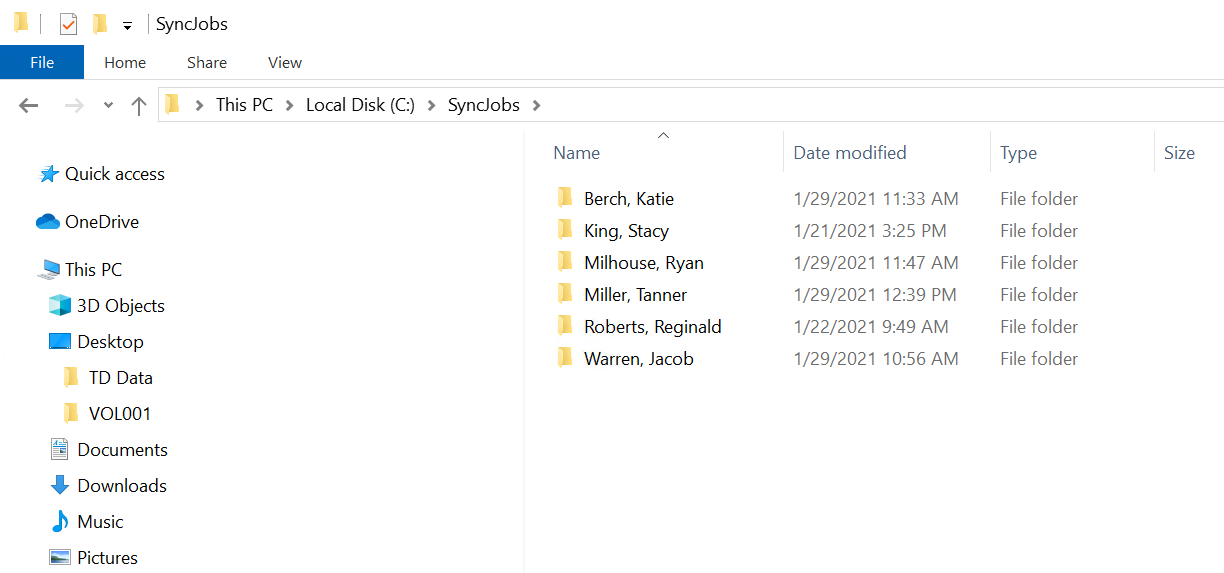
When a user is ready to synchronize their transcript and multimedia files, they simply need to create a subfolder in this repository, add their transcript and multimedia files to the subfolder, and wait for the Sync job service to begin processing the new job. Every subfolder in this repository represents a different job. The job service scans the repository at set intervals to detect if any new jobs are ready for syncing.
Before the job service begins creating the DVT, however, the following criteria must be met:
-
The subfolder must contain at least one supported multimedia file.
-
The subfolder must contain a supported transcript file.
-
The subfolder name must be unique.
-
The transcript name must be unique.
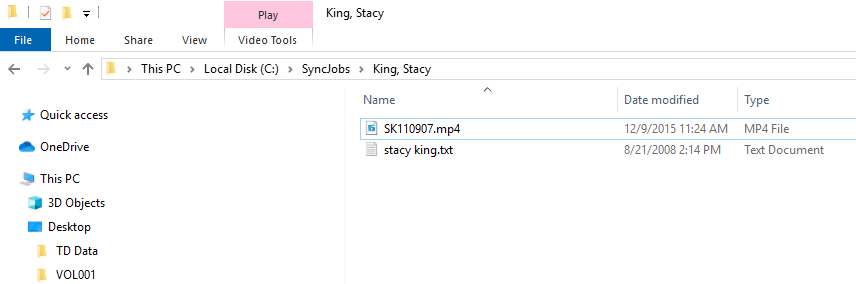
If the subfolder does not contain both a transcript and a multimedia file, the Sync job service cannot begin the DVT creation process.
As soon as the service detects these files, the job is launched and the synchronization begins. You can monitor the progress of a job via the Job Service Manager. Once the DVT has completed syncing, it shows up in the QC Workstation for users to review, modify, and/or publish.
|
|
Important: If there are more than one multimedia files associated with a deposition, it is recommended that you add the multimedia files to the subfolder before adding the transcript file. If you add the transcript first and are in the process of copying over multiple multimedia files, the Sync job may kick off before all the multimedia files have been added. |
In the example below, the file share location is the SyncJobs folder.
Every subfolder in this repository represents a different job. Let's imagine that for Katie Berch's deposition, we have our multimedia files already added to the Berch, Katie subfolder, but are still waiting on the transcript file. As such, the Sync job will not begin processing until the transcript is added. However, for Stacy King's deposition, we have both our transcript and our multimedia files already included in the King, Stacy subfolder. When the job service scans the repository, it will begin the DVT creation process for Stacy King's deposition, while passing over the Katie Berch deposition.
|
|
Tip: If you have different clients with multiple jobs, you can structure your Sync Job Folder with subfolders listed by client, job, matter, etc. Sync Plus will sync any jobs in subfolders that meet the criteria for syncing. |

Create DVTs
Now that you have learned how Sync Plus creates DVTs, you can set up your own environment to begin synchronizing your transcript and multimedia files. Review the steps below to proceed through the DVT creation process.

|
Note: Administrators should ensure that the Sync job service is configured to point to a file share location accessible to all users who will be creating DVTs. The file share location (also known as the Sync Job Folder) is configured during installation. However, you can change this location at any time by means of the Sync Job Service Manager. See Use the Sync Job Service Manager for more information. |
- Open your local file explorer and navigate to the file share location configured for Sync Plus.
-
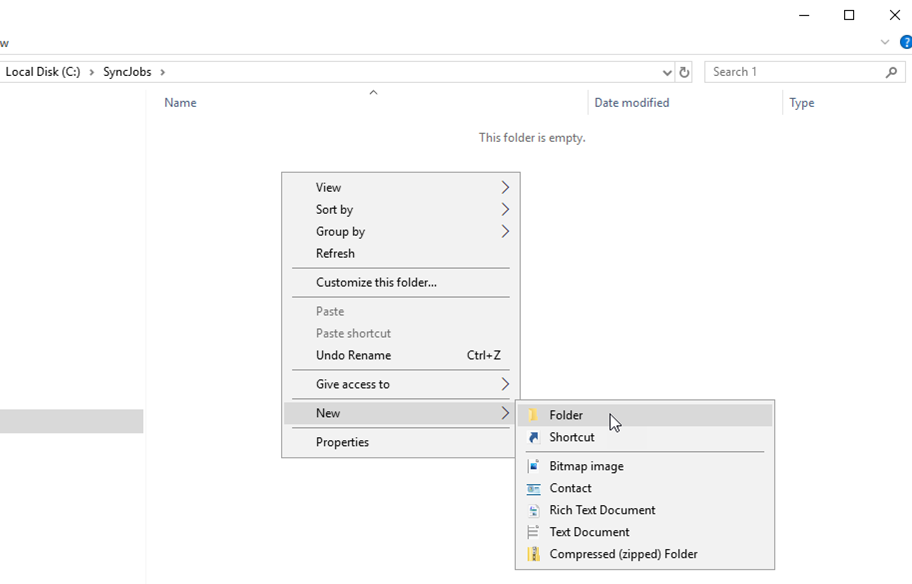
Right-click any white space within this folder and select New > Folder from the context menu.
-
Provide a name for the new subfolder. The subfolder name will serve as the Job Name when the DVT is created and added to the QC Workstation. For instance, if you title the subfolder, "King, Stacy" the job will display in the QC Workstation with "King, Stacy" as the Job Name.
-
Open the subfolder you created by double-clicking on it. Inside the repository, add the multimedia and transcript files that you wish to synchronize.

Important: If there are more than one multimedia files associated with a deposition, it is recommended that you add the multimedia files to the subfolder before adding the transcript file. If you add the transcript first and are in the process of copying over multiple multimedia files, the Sync job may kick off before all the multimedia files have been added.
-
As soon as the service detects these files, the job is launched and the synchronization begins. Once the DVT has completed syncing, it shows up in the QC Workstation for users to review, modify, and/or publish. Note that users may need to click the Refresh Page button in the QC Workstation in order for the new job to appear.
Related Topics
Version: 2022.2.0
Last Revision: 1/18/2023