Use the Sync Job Service Manager
The Sync Job Service Manager is a component of Sync Plus that administrators can use to manage the backend processing of Sync jobs. This component allows administrators to change the file share path where Sync jobs are processed, start and stop the service, and monitor the progress of active jobs.

To watch a tutorial on how to use the Sync Job Service Manager, play the video below.

|
Note: To watch additional video tutorials on Sync Plus, see Sync Plus Videos. |
Change the File Share Path
When Sync Plus is first installed, the administrator who configures it selects a file share location where all Sync jobs are processed. This location, which may be on a network path or a local drive, serves as the repository where new jobs can be created for the system to sync.
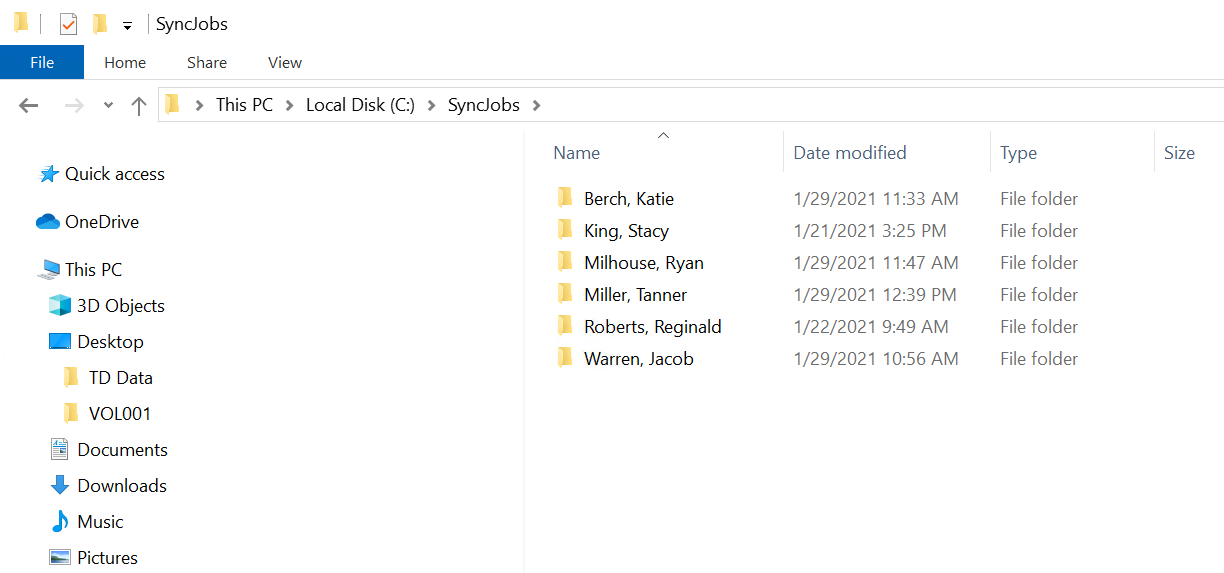
In the example above, let's assume that the file share location is the SyncJobs folder on the C drive. This is the repository that the Sync job service scans for the presence of new jobs to process. Every subfolder in this repository represents a different job. As soon as the service detects a subfolder that contains both a transcript file and at least one multimedia file, the job is launched and the synchronization begins.
The file share path may be changed at any point via the Sync Job Service Manager. To change the file share path:
|
|
Note: It is recommended that you stop the job service before changing the file share path. See Start and Stop the Service below for more information. |
-
Open the Sync Job Service Manager. If needed, you can locate it by running a search in the Windows toolbar.

Note: Depending on your organization's setup, some users may only have access to the Sync Plus QC Workstation.
-
The current file share path displays near the top of the window. To choose a new location, click Browse.

-
A message appears with a warning that changing the path can result in lost data if the service is currently running. Click Yes to proceed with the update.
Note: It is recommended that you stop the job service before changing the file share path. See Start and Stop the Service below for more information.
-
In the explorer window that appears, navigate to the new location you would like to use. When you have found the location, click the folder so that its name appears in the Folder field.
-
Click Select Folder. The explorer closes and the new file share path appears at the top of the Sync Plus Job Service Manager.

Start and Stop the Service
You can start or stop the Sync job service at any time if needed. Be advised that when you stop the service, data may be lost if the service is currently processing a job. For that reason, it is recommended that you stop the service only when it is not currently processing.
To start or stop the job service:
-
Open the Sync Job Service Manager. If needed, you can locate it by running a search in the Windows toolbar.
Note: Depending on your organization's setup, some users may only have access to the Sync Plus QC Workstation.
-
In the Service Management box, you can view the service status.
-
If the service is currently stopped, click Start to run it.
-
If the service is currently running, click Stop to end it.
Note: Be advised that when you stop the service, data may be lost if the service is currently processing a job. For that reason, it is recommended that you stop the service only when it is not currently processing.
-
Monitor Jobs
You can monitor the progress of jobs that are in the process of syncing by means on the Sync Plus Job Service Manager.

When the service picks up a new job, it displays in the Job Management box, as shown above. You can view information about the job in this window.
-
Job Name: The name given to the job when it was created. This is the name of the subfolder that contains the transcript and multimedia files for the job.
-
Machine Name: The name of the machine running the job service currently processing the job.
-
Status: The current status of the job. If a job is taking a long time to process, the status message will change to indicate as much.
-
Runtime: The duration of time in which the job has been processing.
To quickly navigate to the folder associated with the job, you can select the job in the Job Management table and click Open Location at the bottom of the window. This opens the appropriate folder in your local file explorer.
Related Topics
Version: 2022.2.0
Last Revision: 1/18/2023