Install Sync Plus
This article contains high-level procedures to help you install Sync Plus.
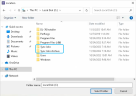
Before you begin, an optional step of creating job folders can done to prepare for the Sync Plus installation. Creating job folders will ensure a location for each job is defined before beginning the installation process.
Create a folder for each of the following jobs:
-
Sync Jobs
-
Sync Jobs Archive


|
Note: IPRO recommends temporarily disabling security or antivirus software prior to beginning the installation process. Security can be reinstalled, re-enabled, and configured after install. Failure to follow the above steps may force a complete uninstall and reinstall. |
Install Sync Plus
Complete the following steps to install Sync Plus:
-
To download the Sync Plus installer, visit https://my.ipro.com/client/products and log in.
-
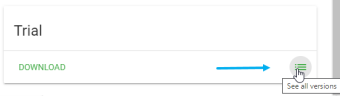
On the Products page, select the See All Versions menu icon for the Trial option.
-
Select the appropriate Sync Plus version to install and click the download
 icon.
icon. -
Accept the terms of the End-User License Agreement by selecting the top option. Click Accept to proceed.
-
After the Sync Plus installation package is finished downloading, locate the Sync Plus installation package and extract the zip file.
-
Right click on the Sync Plus application file and Run as Administrator.
Note: You must run the install as a local Windows administrator to ensure the Sync Job Service is registered properly. Failure to run the install as a local Windows administrator may be require users to reinstall Sync Plus.
-
Accept the terms of the End-User License Agreement by selecting the top option. Click Next to proceed.
-
Select the Sync Plus features you want to install:

-
Install Sync Plus - this is the main application used for reviewing, managing and publishing Sync Jobs.
-
Install Sync Job Service - this is a Windows service that monitors the Sync Job Folder for new depositions to be processed and a management utility for monitoring Sync Jobs in real-time.
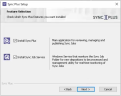
Note: The role of the user will dictate which features are applicable for the Sync Plus install. If the user is an IT administrator or a user with access to manage depositions for all users, both Sync Plus and the Sync Job Service will need to be installed. Standard users should only select the Sync Plus option.

-
Click Next.
-
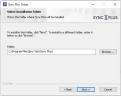
The Select Installation Folder page of the wizard displays. Ensure the correct folder is selected, then click Next.
-
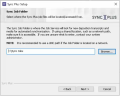
On the Sync Job Folder page in the wizard, select the location where you would like Sync Plus to process jobs from. The Sync Job Service is responsible for scanning the Sync Job Folder and processing new jobs.
Click Next.
-
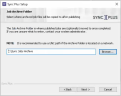
The Job Archive Folder page of the wizard displays. The Job Archive Folder is where published jobs are optionally moved to once an archive job is complete.
-
Click the Browse button to browse to a specific archive folder or enter a valid path in the Folder name field.

Warning: Do not use mapped network drives as locations for the above steps. Mapped network drives may not be consistent across all workstations within a multi-user environment.
-
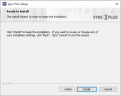
The Ready to Install page of the wizard displays. Click Install.
-
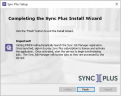
When the installation process is complete, the final page of the wizard displays and a shortcut for the Sync Plus QC workstation is added to your desktop.
-
Click Finish to exit the wizard.
Clicking Finish will automatically launch the Sync Job Manager application.
-
If you chose to install the Sync Job Service, you will be required to log into your Sync Plus subscription using the log in credentials supplied to you by IPRO.
-
Once logged in, the service status will change to running and the service will be set to running.
This will prime your jobs folder to automatically synchronize any eligible depositions with little to no user intervention
-
You can copy and paste the qualified deposition folder to your Jobs folder and Sync Plus will automate the rest of the process.


Related Topics
Version: 2022.2.0
Last Revision: 1/18/2023