Interface Components
Default Eclipse Layout
The IPRO following image shows the typical setup for the IPRO Eclipse application interface:

For a quick-table containing basic information about
the main interface components, click  here.
here.
Components Overview
Main Eclipse Toolbar
Item A in "Default Eclipse Layout"
The main IPRO Eclipse toolbar appears at the top of the IPRO Eclipse workspace.
-
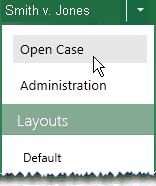
The left side displays the current case name and includes the application menu, an excerpt of which is shown in this figure. (Only members of the Super Admin group will see the Administration command).
-
The right side of the toolbar (see the following figure) displays the current user name and allows you to check current product release details, access documentation and other resources available at myIPRO, and also sign out.


"Quick" Search Toolbar
Item B in "Default Eclipse Layout"
When case documents, a batch, search results, folder, or analytics component is active in the case pane, the search toolbar is available. It includes the following components:

-
Search bar: the quick search bar allows you to find needed records by entering simple text or a Boolean search expression as explained in Basic Search Expressions.
-
Search options menu: allows you to include related documents (family members) with search results.
(For more information on using the "Quick" Search toolbar, see "Basic Search Expressions.")
Timeline
Item C in "Default Eclipse Layout"
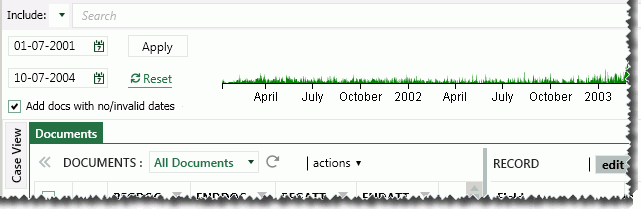
Starting in IPRO Eclipse 2016.3.1, users with appropriate permissions can view a timeline showing dates for the documents in the case or selected set of documents (such as a batch, folder, or search results). The timeline provides a simple way to filter the current document set based on a date range. See the following figure.
(For more information, see "The Timeline.")
Case View Pane
Item D in "Default Eclipse Layout"
The Case View pane is, by default, the left slideout pane in the IPRO Eclipse workspace. Slideout panes can be minimized or organized so that the workspace fits your needs.
The Case View pane contains the following items:
-
Case Details Dashboard: Click to open the Case Details Dashboard in the case pane, which provides case and batch progress information as well as access to case instructions and documents.
-
Documents: Click to open the Documents tab in the case pane, which provides a list of case or batch records.
-
Batches: Click to open the Batching tab in the case pane and select a batch. A Batch tab (the records in the batch) will replace the Documents tab. See "Batch Selection" or details on selecting batches.
-
Advanced Search: Click to open the Advanced Search in the case pane. See "Advanced Search" for details.
-
Analytics: IPRO Eclipse Analytics is an optional feature that your administrator may configure to help you identify concepts and relationships within and across case documents. IPRO Eclipse actually learns concepts and category details.
-
Clicking a Cluster displays a Search Results tab listing documents matching the clustering criteria plus the Concept Wheel tab.
-
Clicking a Category displays a Search Results tab listing documents matching the category criteria.
-
Reports: Click for access to several status reports. The Reports tab displays in the case pane.
-
Case Administration: For IPRO Eclipse administrators, this section of the Case View pane provides access to administrative functions. Clicking an administration item displays the corresponding item in the case pane.
Case Pane
Item E in "Default Eclipse Layout"
By default, the center region of IPRO Eclipse is the “case pane.” Contents depend on what is selected from the Case View pane and what action the user takes, as described in the following paragraphs.
The case table (also called the “grid”) displays when case documents, a batch, search results, folder, or analytics item is selected. It includes a native file icon (if native files are part of the case), plus document field data. The fields (columns of the table) are based on a coding form. (For more information, see "Case Table.")
Other items display in the case pane area when selected in the Case View pane, such as the Dashboard, the Advanced Search workspace, reports, or administrative workspaces.
Record View Pane
Item F in "Default Eclipse Layout"
The Record View pane is available when case documents, a batch, search results, folder, or analytics item is selected. It presents a coding form(s) configured by your administrator. Each coding form contains selected fields from the case and is typically used to perform data entry (coding) or for editing fields. The edit function in this pane also allows you to tag documents.
Tags Palette
Item G in "Default Eclipse Layout"

The Tags pane is the second slideout pane on the right side of the IPRO Eclipse workspace. It includes the Document Tags and (optionally) Page Tags tabs. These tabs list the tags reviewers apply to documents and/or pages in their case or batch.
Tags are defined by the IPRO Eclipse administrator; users with the needed permission can also show or hide different tag groups on the Tags pane and/or create tags. All users with tagging permissions can create private tags for their own use.
When a user is working in a review batch, Batch Review tags are included in the Tags pane. Use these tags to select the status of the document under review, as shown in this example.
(For more information, see "Tags.")
Document Details Pane
Item H in "Default Eclipse Layout"
This pane presents different views of files and data when the Documents or related tab is open in the case pane. The Document Details pane includes the following tabs:
-
Image: The TIFF (or JPG or PDF) file associated with a selected case record. Annotations (such as redactions) are made in this view, as well as highlighting, markups, and sticky notes. The Image tab supports the transparent or cross-hatch view for redacted information and the highlighting of search terms on the image.
-
Native Viewer: This tab presents an HTML rendering of the document. It will be blank if no field in the IPRO Eclipse database is defined as HTML, or if no HTML file exists for a particular document.
-
Extracted Text: The OCR or extracted text associated with the selected record. This tab will be “empty” if no field in the IPRO Eclipse database is defined as EXTRACTEDTEXT, or if no text exists.
-
Production: If documents within the current case or batch have been produced, the produced document for a selected record displays on this tab. (If a selected record's document has not been produced, the tab will be blank.)
-
Transcripts: If transcripts exist for the case, they are available on this tab.
|
|
Note: To view images in the Document Details pane, the IPRO Eclipse image viewer must be installed. Clicking the View button will install this small client component. |

Page navigation
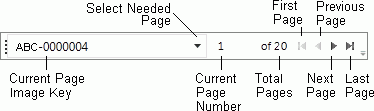
The Image tab’s page navigation bar allows you to navigate to a specific page within a document. This navigation bar also appears on the Production tab if you have production images.
Navigation Toolbars
Item I in "Default Eclipse Layout"
Case table navigation bar
The case table toolbar includes three functions—record set navigation, document synchronization, and page (record set) size selection, as described in the following paragraphs.
Case table - record set navigation
When the Documents or a related tab is active in the case pane, the following toolbar appears at the bottom of the case table. The navigation portion of the toolbar makes it easy to view records in the case table one set (page) at a time.
Case table - document synchronization
By default, documents do not display in the Document
Details pane—they are not synchronized with the records in the
case pane. This approach speeds IPRO Eclipse load times. One method for
loading documents is to click  in the case table toolbar.
Case table - page size
By default, 50 items (records) display at a time in the Documents, Batch, Search Results, or Analytics tab. This is the tab’s record-set (page) size; it can range from 25 to 1,000 records.
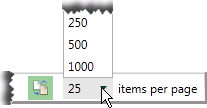
Use the page size selector to choose the preferred number of records.
Record View navigation bar
The Record View pane includes a toolbar that makes it easy to navigate from one document to another:
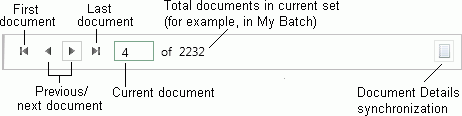
The document selected with this navigation bar aligns with the record selected in the case pane, the details in Record View, and the image and other items displayed in the Document Details pane.
Relationships (Tally) Pane
Item J in "Default Eclipse Layout"
When the Documents, Batch, Search Results, or Analytics tab is selected, the bottom of the case pane area will include a menu at the bottom of the case pane area that allows you to view document relationships or tallied data.
Download Details
Item K in "Default Eclipse Layout"
Click  to view image download information in the status bar:
