Case Table
Working in the Case Table
Case Table Basics
Once you have opened a case or batch as explained in "Case Selection" and "Batch Selection" you can work with the data in the case table as explained in this section. Activities apply to the Documents, Batch, and Search Results tabs (including Smart Folders and Analytics Clusters/Categories).
The following figure shows typical data you may find in the case table. In this example, the actions menu is expanded.
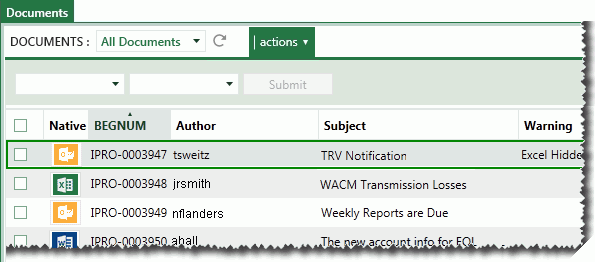
Which fields appear in the case table?
For cases created in IPRO Eclipse 2013.3.0 or later, when you first log in to a case, the fields defined by the default coding form comprise the columns in the case table. If the coding form does not include fields, the BEGDOC field displays. For older cases, the fields that display are as defined by your administrator.
Several different types of fields may be included in your case, including system fields (for example, the BEGDOC field), case-specific fields (for example, the Author field in the previous figure), and feature-specific fields (for example, TAR fields if Technology-Assisted Review is implemented at your firm).
Your administrator will provide details on the fields in your cases and guidelines on evaluating the data. Users with the appropriate permissions can define which fields display in the case table.
Case Records and Documents
The case table is the mechanism by which you access case documents and the individual pages of documents. Each record in the case table represents a case document. When a record is selected, the corresponding document and related views may be presented in the document pane, in the following tabs:
-
Image: The image (TIFF file, if it exists).
-
Extracted Text: Text of the document used for OCR.
-
Native Viewer: Native version of the document, if these versions exist.
-
Production: Produced version(s) of the document, if it exists.
In addition, if your case includes native files (such as email files or text files), the case table includes a link to the native file. The link is an icon representing the file type.
As a reviewer, your job is typically to evaluate a set of documents, add document and/or page tags, and/or annotate the documents (for example, apply redactions or add notes) as explained in "Document Details."
Before you Begin
To work in the case table, start IPRO Eclipse and log in to the needed case. To work with the case table in a tab other than the Documents tab, access the needed tab (Batch, Search Results or Public Folder tab).