Case Selection
This page contains the following content:
Select and Open a Case
Once IPRO Eclipse has been installed and you have logged in, you may select a case to start working in. Start the program as follows:
-
Obtain the IPRO Eclipse URL established at your company.
-
Start Microsoft Internet Explorer.
-
If so instructed by your administrator, add the IPRO Eclipse URL to the browser’s trusted sites. To do so:
-
In Internet Explorer, select Tools > Internet options > Security.
-
Click Trusted Sites, then Sites.
-
Enter your company’s IPRO Eclipse URL, click Add, then Close.
-
In the Internet Options dialog box, click OK.
-
-
Enter the IPRO Eclipse URL in the browser’s address field and press the Enter key.
-
In the IPRO Eclipse log-in screen, enter the user name and password provided by your administrator. If desired, select the Remember Login Name option.
-
If you have not logged in with your network (Active Directory) credentials, your administrator may require you to define a personal password. If you are prompted to change the password, create a new password that:
-
is at least 8 characters long,
-
includes at least one uppercase and one lowercase character, and
-
includes at least one number and one non-alphanumeric character.
-
-
Click Sign in and complete step 8 or step 9.
-
If you are signing in to IPRO Eclipse for the first time, locate and double-click the needed case in the center of the IPRO Eclipse screen. If several cases are listed, take any of the following actions to find the case:
-
Scroll down the list.
-
Enter any part of the case name in the Search field above the list.
-
Change the way in which the case list is presented by clicking one of the following buttons:

Table view

List view
-
-
If you have worked in IPRO Eclipse before, double-click a recently opened case in the left pane of the IPRO Eclipse screen (or perform any of the actions in step 8 to locate the needed case).
-
For best performance, maximize the browser window. For even more working space, use the browser’s full screen mode by pressing the F11 key.
-
If you are working in the case, go to step 12. To open a batch, go to "Open a batch".
-
If this is your first experience with IPRO Eclipse, take a tour of the product as explained in "Interface Components"
-
Work with your administrator to learn how you will be using IPRO Eclipse. Your administrators will provide case-specific instructions.
Before working in a case, read case alerts, instructions, and any other documents provided by your administrator. See "Administrative Alerts" for details.
|
|
Note: If you cannot log in, check and carefully re-enter your credentials. Also, it is possible your administrator has set your status to “Disabled" or that your company is using the IPRO Eclipse “named user” license and all licenses are currently in use. Contact your administrator if you are unable to log in. |

|
|
Tip: When you are working in the List view, click any column heading to sort the list by the data in that column. The column will first sort in ascending order; click again to sort the list in descending order, and a third time to clear sorting. |

|
|
Tip: Instead of double-clicking a case name, you can click it, review the details in the right pane, and then click the arrow button to open the case. |
By default, the Case Details Dashboard (shown in the following figure) displays. Click Documents to access case records and documents.
Changing Cases
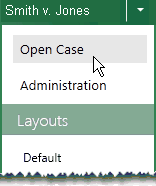
To change from one case to another during a single working session, select Open Case from the IPRO Eclipse “button” menu at the top left of the IPRO Eclipse workspace, as shown in the figure on the right. Next, select the needed case.