Batch Selection
This page contains the following content:
Open a Batch
To open a batch:
-
Open the needed case as explained in "Case Selection."
-
Click Batches in the Case View pane; the batches assigned to you will be listed. (System administrators will see all batches in the case.) Continue with step 3 or step 4.
-
To select the next available batch assigned to you:
-
Click Get Next Available Batch.
-
If multiple review passes exist, select the needed review pass and click OK.
-
Click Documents in the Case View pane. The next available batch is available in the Batch tab.
-
Skip to step 5.
-
-
To open a specific batch:
-
If many batches are listed in the Batching tab, you may want to sort or filter the list to find the needed batch. See "Filter or Sort the Batch List" for details.
-
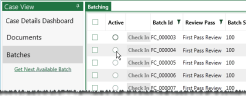
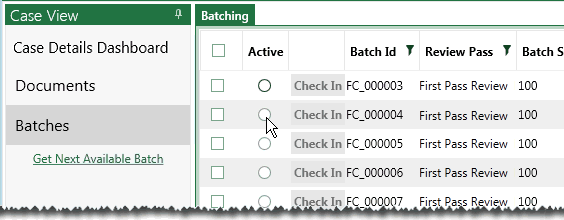
In the Batching tab, click the Active option corresponding to the needed batch as shown in the following figure. Once the option is clicked, the entry changes to
 .
.
-
Click Documents in the left pane. The records comprising the active batch will be available in the Batch tab.
-
-
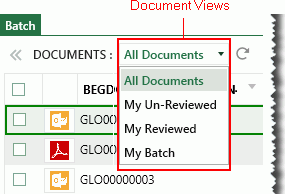
All documents initially display in the Batch tab. Select batch-specific documents by choosing one of the view options in the DOCUMENTS toolbar, as shown in this figure. If needed, click
 to refresh
the list of documents.
to refresh
the list of documents.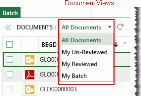
-
For best performance, maximize the browser window. For even more working space, use the browser’s full screen mode by pressing the F11 key.
-
If this is your first experience with IPRO Eclipse, take a tour of the product as explained in "Interface Overview."
-
Work with your administrator to learn how you will be using IPRO Eclipse. Your administrators will provide case-specific instructions.
-
Before working in a batch, read case alerts, instructions, and any other documents provided by your administrator. See "Administrative Alerts" for details.
Filter or Sort the Batch List
It may be useful to sort or filter the list of batches so that you can evaluate and/or select from a specific set of batches.
Filter the List
-
Log in to IPRO Eclipse and open the needed case.
-
In the Case View pane, click Batches. The Batching tab opens.
-
Locate the column by which you want to filter the list and click the funnel button as shown in this figure, then complete step 4 or step 5 as needed.

-
To select from existing column entries, click one or more options in the top part of the Filter dialog box.
-
To define more complex criteria, select filtering criteria in the bottom of the Filter dialog box:

-
Select a needed criterion from the first list. Several options exist, such as Is Equal To, Starts With, or Does not contain.
-
In the field under the first criterion list, enter the details by which you want to filter.
-
If the entry in step b includes text for which capitalization is important, enter the details using the needed case and click the
 button.
 -
If you want to include a second criterion, select the needed connecting operator, And or Or, and repeat steps a – c in the bottom part of the dialog box. This figure shows filtering by a particular range of batch size.
-
When the filtering criteria is defined, click Filter.
-
To filter by an additional column(s), repeat this procedure for the additional column(s).
-
-
To clear filtering:
-
Locate the filtered column and click
 .
. -
In the Filter dialog box, click Clear Filter.
-
Repeat to clear other columns.
-

Sort the List
-
Log in to IPRO Eclipse and open the needed case.
-
In the Case View pane, click Batches. The Batching tab opens.
-
Locate and click the column heading by which you want to sort. The column will first sort in ascending order. Sorting is indicated by a small triangle above the column name.
-
To change to descending order, click the heading again.
-
To clear sorting, click a third time.