Basic Search Expressions
Search expressions described in this section can be entered in the main Search bar or in the Text Search area of the Advanced Search tab. IPRO Eclipse allows you to enter simple to complex search expressions using the operators and options described in the following paragraphs.
People who prefer typing (rather than selecting options with a mouse or other device) will find it relatively easy to learn the syntax required to enter a search expression. If you would prefer to let IPRO Eclipse construct expressions for you, use Advanced Search as explained in the "Advanced Search" section.
Permissions Required
The ability to use the Search bar or Advanced Search are governed by specific permissions. Contact your IPRO Eclipse administrator if you have questions about using IPRO Eclipse search functions.
Basic Search Procedures
Enter a Search Expression
To enter a search of case records and display results in the Search Results tab:
-
Open the case you want to search.
-
To include documents related to those in the search results, select one of the fields in the Include list (click
 on
the left side of the search bar). All fields defined by your administrator
with the Allow Group by option
will be available; typical selections include fields that indicate:
on
the left side of the search bar). All fields defined by your administrator
with the Allow Group by option
will be available; typical selections include fields that indicate: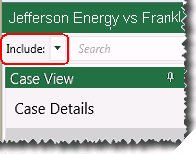
-
Family (based on case BEGATTACH field)
-
Near-duplicates (based on CAATND field)
-
Duplicates (based on MD5HASH field)
-
Email relationships (based on various CAAT fields)
-
-
In the Search bar, enter your search term or expression using the syntax explained in the remainder of this section. For a simple full-text search, enter a word or phrase of interest.
-
Press the Enter key or click
 .
. -
When finished with the current search results, click X in the search bar to clear the search and its results in the case pane (all database records will re-display in the case pane).
This type of “quick” search searches for the word(s) in extracted text and indexed fields as described in "Default Search Assumptions."
Depending on case size and search complexity, a progress indicator may display. When the search is complete, results are listed in the Search Results tab and highlighted in the Native Viewer and Extracted Text tabs (and Image tab if word coordinates exist for images) as described in "Search Results."