Manage a Case
Follow the procedures in this section to complete configuration of new cases and manage existing cases.
This page contains the following content:
Related pages:
Cases may be initially created in Eclipse as described in Create a Case, or in eCapture or OPEN DISCOVERY as described in the respective product documentation. Depending on where a case has been created, a case definition must be completed in Eclipse Administration or on the Web using the procedures in this section.
Permissions Required
Members of the Super Admin group have rights to perform all Eclipse case management tasks. Users with case management permissions (Case Administration and/or Eclipse Admin App permissions) can perform most case management tasks. In this section, "Eclipse administrator” refers to either type of administrative user unless otherwise noted.
Get Started
Cases may be initially created in Eclipse as described in Create a Case, or in eCapture or OPEN DISCOVERY. Depending on where a case has been created, a case definition should be reviewed/completed in Eclipse Administration or on the Web as described in this section.
Creating cases in Eclipse Administration introduces you to Eclipse Administration features and functions. Case administration occurs in both Eclipse Administration and Eclipse. If you are a new administrator, review case management in both Eclipse components as follows.
|
|
Note: If the case to be viewed is disabled, administrators who are not members of the Super Admin group will need to request that it be enabled. (A member of the Super Admin group can enable the case as explained in Enable or Disable a Case). |

Eclipse Administration
To review case management options Eclipse Administration:
-
Start Eclipse Administration and log in as an Eclipse administrator.
-
On the Case Management ribbon, select Case Management > Case Management.
-
Select a needed managing client and case.
-
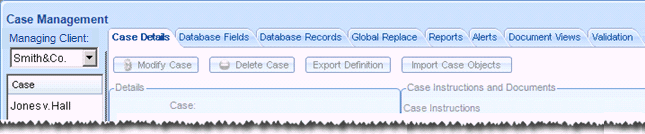
Click each tab (shown in the following figure) and review the information available.
Eclipse
To review case management options in Eclipse:
-
Go to your company’s Eclipse website and log in as an Eclipse administrator.
-
In the Case View pane, click Case Administration.
-
Click each item in the Case Administration menu (shown in the adjacent figure) and review the information available.

About Eclipse Lists
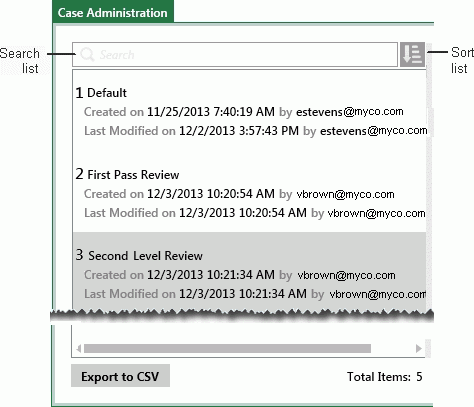
The windows used for Eclipse case administration list all defined items (for example, redactions, tag groups, etc.). The following figure shows an excerpt from the coding form list.
Find items in lists
Several techniques can be used to find specific items in long lists, regardless of which list is being viewed:
-
Scroll vertically and/or horizontally to see all items and details.
-
Click the right border and drag to make it wider.
-
Sort the list by clicking the sort button,
 ,
and choosing from the different options, such as Created
By. Select the option again to reverse the sort order. (Reversing
the order does not apply to Default
sorts.)
,
and choosing from the different options, such as Created
By. Select the option again to reverse the sort order. (Reversing
the order does not apply to Default
sorts.) -
To find a specific item in a long list, start typing the beginning of specific information in the search box until the needed item is shown.
-
In addition to searching by name of the item (user, group, etc.), you can search by such information as name of the person who created or modified the item, part of the created/modified date, or something in the notes. This is a plain text search that searches these items in order.
Export List Details
Most lists can be exported to a .CSV file. The exported file will include basic details for each list item. (For example, the coding-form-list file will include the following details for each coding form: name, number of fields, tag groups, and rules in the form, created/modified details, etc.)
To a list in Eclipse Administration
-
Get started:
-
Log in to Eclipse as an Eclipse administrator.
-
Open the needed case.
-
In the Case View pane, click Case Administration, then select the item of interest (such as Coding Forms).
-
-
At the bottom of the list (left pane of the Case Administration tab), click Export to CSV.
-
Complete the Save As dialog box and click Save. The resulting file will include basic details for the selected list.