Manage Database Fields
After a case is created or migrated, you may need to change various aspects of the database fields. Note:
-
Adding fields: new fields can be added to a case.
-
Deleting fields:
-
System fields cannot be deleted (see Step 3: Define Database Fields for details on these fields).
-
Other fields can be deleted, whether or not they contain data.
-
Changing fields:
-
Field type cannot be changed once a field has been created.
-
Other aspects of each field (name, length, and/or other aspects of the field definition can be changed after fields have been created.
|
|
Some changes to the database require that it be re-indexed for searching and other purposes. See Manage Case Search Indexes for details. |

This page contains the following content:
-
Change Field Definitions
-
Import Fields from a CSV file.
-
Change Field-Level Security
-
Review/Change Database Records
Change Field Definitions
To change field definitions:
-
Get started:
-
Start Eclipse Administration and log in as an Eclipse administrator.
-
On the Case Management ribbon, select Case Management > Case Management.
-
In the Case Management window, select the needed managing client and case.
-
-
Review the change criteria discussed above.
-
Click the Database Fields tab in the Case Management screen. Field details for the case are listed.
-
Click
 corresponding
to the field to be edited. (You may need to scroll horizontally to find
this button.)
corresponding
to the field to be edited. (You may need to scroll horizontally to find
this button.) -
Make needed changes in the Edit Field dialog box and click Save.
Add New Fields
Complete the following steps to add new fields to an existing case:
-
Get started:
-
Start Eclipse Administration and log in as an Eclipse administrator.
-
On the Case Management ribbon, select Case Management > Case Management.
-
Select the needed managing client and case.
-
-
Click the Database Fields tab. Field details for the case are listed.
-
Click New Field.
-
Complete the definition of the field. For details on field definition options, refer to Step 3: Define Database Fields.
-
When finished, click OK.
Import Fields from a CSV file
Complete the following steps to mass import new fields to an existing case:
-
Get started:
-
Start Eclipse Administration and log in as an Eclipse administrator.
-
On the Case Management ribbon, select Case Management > Case Management.
-
Select the needed managing client and case.
-
-
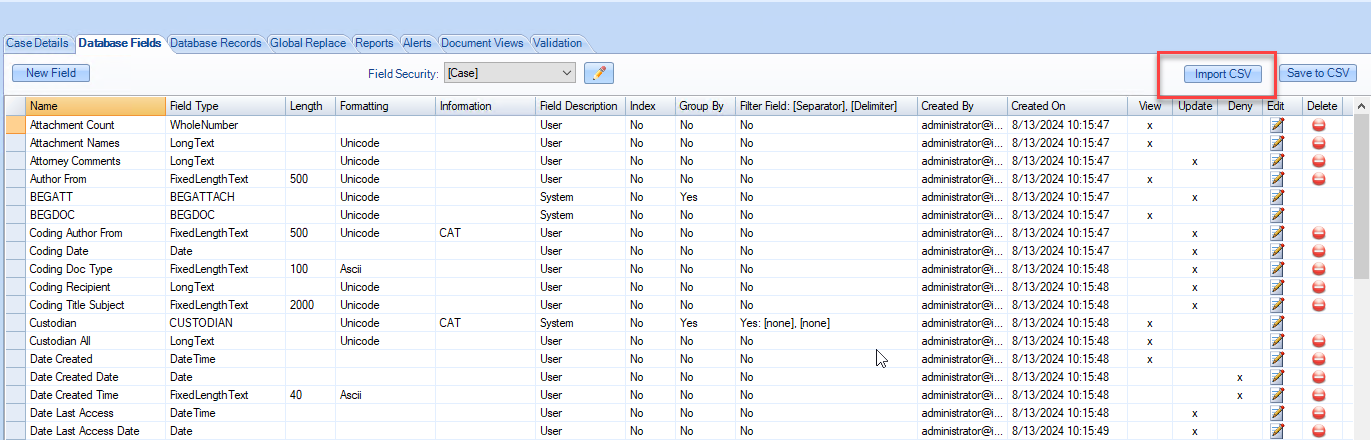
Click the Database Fields tab. Field details for the case are listed.
-
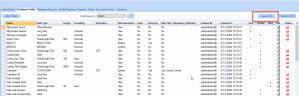
Select Import CSV in the upper right corner.
-
Select your CSV and click Open. The fields will be added to your case.
Change Field-Level Security
Before You Begin
By default, most fields in the Eclipse database can be viewed and data changed in Eclipse by anyone assigned to a case. Field-level security applies to viewing and changing field data, not modifying field definitions.
Field-level security applies to both Eclipse Administration and Eclipse activities, to either a case or a user group(s). It does not apply to Eclipse administrators, who can edit all fields within a case regardless of field-level security settings.
As needed, the Eclipse administrator can allow or deny for a case or a group, the rights to view and/or update data for individual fields. (To change field-level security for a group, the group must be assigned to the case.)
-
View: Allows field to be viewed only.
-
Update: Allows field to be viewed and updated in an Eclipse coding form or through the Eclipse Administration global replace function.
-
Deny: Prevents field from being viewed or updated.
|
|
Note: For best results, evaluate case fields and plan a field-level security strategy before continuing with field-level security changes. |
Change Field-Level Security
By default, all fields are set to Update for a case and no settings appear for groups or users. If no settings are explicitly made for a group, security will be inherited from the case. If field-level security is defined for a group, then these settings will apply to all users in the group.
Basic Procedure
To change field-level security:
-
Get started:
-
Review Before You Begin above.
-
Start Eclipse Administration and log in as an Eclipse administrator.
-
On the Case Management ribbon, select Case Management > Case Management.
-
In the Case Management window, select the needed managing client and case.
-
-
Click the Database Fields tab.
-
In the Field Security field, select either [Case] or a group name, then click
 .
. -
Ensure the needed item is selected in case/group list, then select the needed security level for one or more fields (View, Update, or Deny).
-
When finished, click OK.
-
Repeat this procedure for other cases or groups as needed.
Review/Change Database Records
The Case Management screen provides a summary and details for the records in your database on the Database Records tab. Evaluate or verify records in a particular case as follows:
-
Get started:
-
Start Eclipse Administration and log in as an Eclipse administrator.
-
On the Case Management ribbon, select Case Management > Case Management.
-
In the Case Management screen, select the needed managing client and case.
-
-
Click the Database Records tab.
-
Click List All Records to see records in the Documents list, or click Load Search to view records matching a saved search.
-
Evaluate or change records as explained in Evaluate Case Records. Possible activities include:
-
Reviewing the Documents list
-
Reviewing document details
-
Deleting a document or page
-
Checking/changing file paths
-
Viewing images
-
-
When finished, continue with other administrative activities.