Configure Predefined Custom Layouts
About Predefined Layouts
Eclipse allows administrators (members of the Super Admin Group) to define three case-based custom layouts to provide different review environments for Eclipse users.
Users select these predefined layouts from the main Eclipse toolbar as shown in the figure below.

All users can select from these layouts. They can also make further changes to the layout if needed (see Eclipse Web End User Help). Changes made by a user are personal changes (they do not affect the predefined layouts).
What can be in a predefined layout?
Most of the changes can be saved as part of a predefined layout, including:
|
Layout Item |
Description |
|
Visibility of components |
Whether a component is open and pinned (slideout panes) or expanded (Record View, Relationships/Tally panes) is generally saved as part of a layout. |
|
Size of components |
Changes to the size of a pane (width and/or height, as applicable) will be saved. |
|
Location of components |
If components have been moved from their initial locations, these changes will generally be saved, including an undocked Document Details pane. |
|
Other selections |
If the layout includes an opened (pinned or undocked) Document Details pane, then the tab that is visible in the pane—Image, Native Viewer, Production, Extracted Text, or Transcript—will be saved as part of the layout. For Analytics clusters, the of the Concept Wheel tab is saved as part of the layout. |
What about component security?
User interface security is enforced. Users who do not have permission to see particular components will not see those components in a selected layout.
This page contains the following content:
Plan Predefined Layouts
As with all Eclipse tasks, proper planning will help ensure that the layouts you define are useful to your reviewers. Consider the following steps before you save custom layouts:
-
Log in to Eclipse and evaluate the components, locations, and sizes to determine what is needed. See Eclipse Web End User Help for details on changing the workspace layout.
-
Consider the layout names and how your layouts might align with these names:
-
Default
-
Review Table Mode
-
Review Record Mode
-
|
|
Note: Different Eclipse tabs (Documents, Analytics cluster, etc.) can have different layouts, so plan for all tabs where a predefined layout is wanted. |

Predefine a Layout
To create a predefined layout:
-
Get started:
-
Log in to Eclipse as a member of the Super Admin group.
-
Complete planning (see above).
-
-
In the Case View pane, click the item for which the layout is to be changed (for example, click Documents).
-
Modify the workspace layout according to your planning.
-
If another item is to be included in the layout (for example, an Analytics tab), take the action needed to access the tab. For example, select a cluster.
-
Modify the tab’s workspace as needed.
-
Repeat step 4 and step 5 for other tabs that require different layouts.
-
When finished, in the main Eclipse toolbar, click
 in the Layouts heading bar.
 -
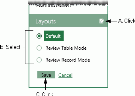
Select the layout being saved and click Save as shown in the following figure.
-
Repeat this procedure to define the other layouts.
-
Explain to users when and how they should use the layouts.

Revise a Predefined Layout
To change a predefined layout, make needed changes and save them as described in the previous procedure.