Manage Document Views
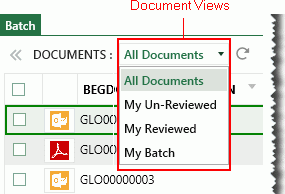
In Eclipse, a menu (shown in the figure below) allows users to choose from the following views:
- All documents in the open case
-
When a batch has been opened: the user’s unreviewed
documents, reviewed documents, or the user’s batch
Administrators have the option to limit one or more of these views to certain review groups and/or organize their appearance in Eclipse. For example, you may not want users to view all case documents. In this case, you would limit the All Documents view to a group that includes only administrators.
To re-order or secure document views:
-
Get started:
-
Start Eclipse Administration and log in as an Eclipse administrator.
-
On the Case Management ribbon, select Case Management > Case Management.
-
In the Case Management screen, select the needed managing client/case.
-
-
Click the Document Views tab. (If it is not visible, click
 on
the right side of the screen’s tabs.)
on
the right side of the screen’s tabs.) -
To change the order of views in Eclipse:
-
Click a view name.
-
Click the Up or Down button until the view is in the needed location.
-
As needed, repeat for other views.
-
-
To limit a view to specific review groups:
-
Click
 corresponding to the
view that will be restricted.
corresponding to the
view that will be restricted. -
In the Select Groups dialog box, select the group(s) that should have access to the view.
-
When finished, click OK. Only members of the selected groups will be able to use the view.
-
As needed, repeat for other views.
-
-
To change restrictions, click the lock button and revise your choices in the Select Groups dialog box.