Basic Visual Search Procedure
-
Open the case you want to search.
-
In the Case View pane of IPRO Eclipse, click Visual Search. The Visual Search tab replaces the Documents tab.
-
If you have a previously defined search, you may select it from the Visual Search area of the Case View pane.
-
Complete the initial portion of the Visual Search.
-
Family (based on case BEGATTACH field)
-
Near-duplicates (based on CAATND field)
-
Duplicates (based on MD5HASH field)
-
Email relationships (based on various CAAT fields)
-
Click Edit Chart and fill in the following fields:
-
Continue with one or more of the following procedures:
|
component |
Description |
||
|
Name |
If you will be saving the search, enter a unique name here. Leave this field blank if you will not be saving the search. |
||
|
Parent Folder |
If you will be saving the search, select the folder in which the search should be saved. By default, a saved search will be public (available to all users with access to the case or batch). It can also be private or shared. Folders are used to organize saved searches and are created as described in "Working with Search Folders." |
||
|
Include |
To
include documents related to those in the search results select
one or more of the Include options
(click
|
 on the
right side of the
on the
right side of the 
|
Field |
Description |
|
Chart Name |
Fill in this section if you wish to name your chart. Otherwise, leave this field blank. |
|
Chart Type |
Select the drop down list and choose either Pie Chart, Bar Chart, or Heat Map. You can make your chart selection based on your searching needs as described in "Chart Types." |
|
Filter Field |
Select the drop down list that correlates to the chart axis you wish to use to view relevant data for your case. You can further refine your search results as described in the next step. |
Define a Text Search in Visual Search
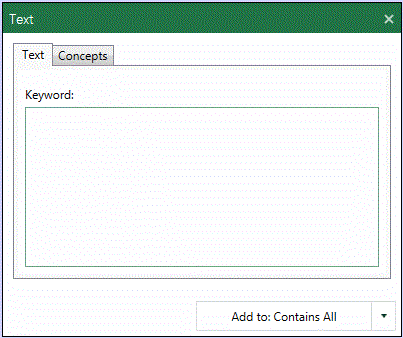
To define a text search, complete the following steps. The following figure shows a typical text search.
-
Begin with the "Basic Visual Search Procedure."
-
Click the Text Search tab in the upper right-hand corner of the chart.
-
Enter any full-text search term or phrase in the Keyword Search field. Use the syntax explained in "Search Syntax" to construct any type of full-text search.
-
After the text search is defined, select the search criteria box in which you wish to place your visual search, and complete your visual search definition as needed. When finished, go to "Run and/or save a search."
Define a Concept Search in Visual Search
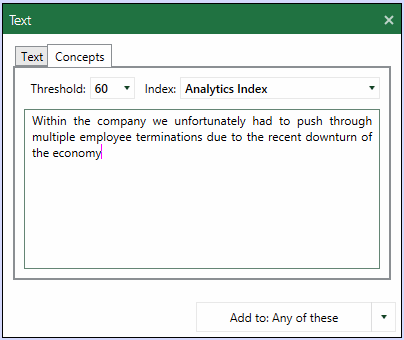
If IPRO Eclipse Analytics has been implemented at your firm, the Visual Search tab will include the Content Analyst dialogue window, as shown in the following figure. A concept search returns documents containing information that is conceptually similar to your search query, that is, it looks for ideas rather than specific terms or phrases. For information on creating an effective concept search, see "Effective searching."
To define a concept search:
-
Begin with the "Basic Visual Search Procedure."
-
Click the Text Search tab in the upper right hand corner of the window.
-
When the Text Search dialogue window opens, click the concept search tab.
-
Complete this section of the Visual Search as described in the following table.
-
A typical value is 50.
-
A higher number represents higher precision but less recall.
-
A lower number represents lower precision but higher recall.
-
Click the drop down arrow and select search criteria box you wish to place this component in.
-
Complete your advanced search definition as needed. When finished, go to "Run and/or save a search."
|
Component |
Description |
|
Concept field |
Enter your query into the Concept field. The query can be any size, but a more fully described concept will usually yield better results that just one or two terms. |
|
Threshold |
Select a relevancy threshold to be used for the search. The threshold expands or narrows the evaluation for conceptually matching documents. Note: |
|
Index |
Select the search index that has been defined for the concept of interest. Your IPRO Eclipse administrator must configure concept search indexes. Contact your administrator for details about your concept search indexes. |
Filter Field Search Criteria
After you have selected the field(s) you wish to use in your chart’s axis, you can further refine your search by selecting additional search criteria, as shown in the following procedure. The following figure shows a filter field search using the Email From field.

-
Begin with the "Basic Visual Search Procedure."
-
Click one of search criteria fields above the chart.
-
Use the following features to fill out the search criteria:
-
Search: Allows you to search through all of the filter items under this particular field.
-
Check all: Fills in the check box next to every filter item listed.
-
Uncheck all: Removes all marks from any previously checked items.
-
Click the
 button and select
the search criteria box you wish to place this component in.
button and select
the search criteria box you wish to place this component in. -
Repeat this step as necessary with any of the filter fields listed above the chart, or select the More Fields option.
-
Complete your advanced search definition as needed. When finished, go to "Run and/or save a search."
Changing a Visual Search
Modify Search Criteria
Any time before or after a visual search is run, you can revise the selected search criteria.
Click on any of the search criteria chiclets in the Selected Search Criteria boxes, and select the Edit option. From here, you can modify your search criteria as you wish. For more details on editing search criteria, see "Basic Visual Search Procedure."
Visual and Advanced Search Synchronization
Once you have built and saved a visual search, you can open it in Advanced Search and edit your search further. Once a visual search has been brought into the Advanced Search page, it can no longer be edited in the Visual Search page.