Search Syntax
This page contains the following content:
Click  here to view the printable version of the Search Syntax Quick Reference Sheet.
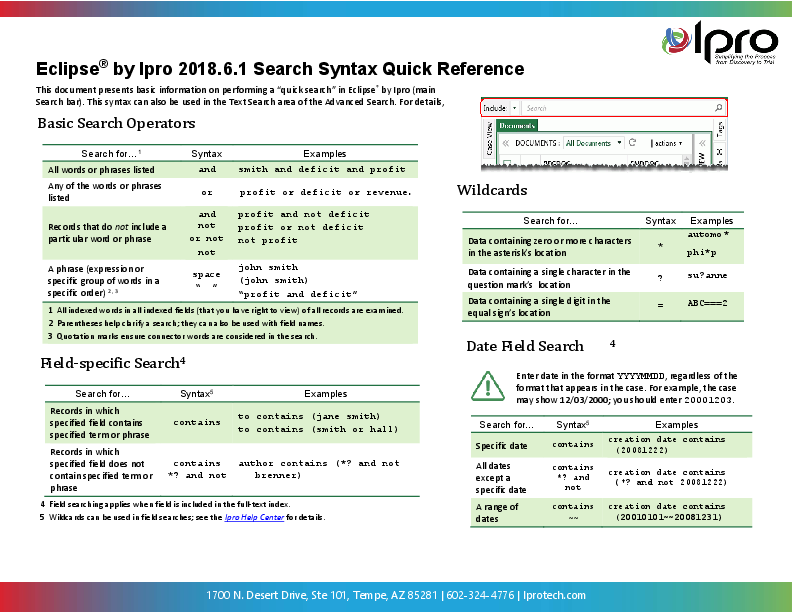
Basic Search Operators
IPRO Eclipse allows you to combine or restrict full-text
search terms using the operators listed in the following
table.
Field-specific Searching
If your administrator has indexed specific fields in your case, those fields can be searched using the main search bar. This is a basic text search limited to a specific field. If you have any question about which fields are indexed, contact your administrator.
For example, author contains (jane smith). This search looks for records in which the Author field includes the entered name.
To learn the fields in your IPRO Eclipse database:
-
Study the fields in your case.
-
If some fields are not visible, right-click a column heading and click Grid Display Options to display needed columns.
A full-text search that is limited to a specific field can include the operators in the following table in addition to those listed in table above. To search for date see "Date fields."
Field
Syntax
Description
Contains
contains
Search for records for which a particular field contains a particular term or phrase (other content may also exist).
Examples:
email to contains (jan smith)
email to contains (smith or hall)
Results: The first search looks for records in which the Author field includes the names jan and smith. The second search looks for records in which the author field contains the name smith or hall.

Note: The wildcard * (asterisk) can be used with this operator. For example, consider the following searches.
- custodian custodians (Jan)
Results will include the name Jan, as in Jan Smith or jan.smith@smithco.com
- custodian custodians (jan*)
Results will contain Jan, Jane, and Janet, as well as other names/terms starting with "jan," such as janitor.
Does not contain
contains *? and not
Search for records for which a particular field does not contain a particular term or phrase (other content may exist).
Example: author contains (*? and not brenner)
Results: This search looks for records in which the Author field does not contain name brenner.
Note: The wildcard * (asterisk) can be used with this operator as described above.
Date Fields
|
|
Note: If your administrator has configured the case index to automatically recognize dates, see "Searching for dates, email addresses, and/or credit card numbers." |
This discussion refers to searching date fields. For DateTime fields, use Advanced Search.
To search for dates using a field-specific search, note:
-
To perform a search on a date field using the main Search bar, the field must be indexed. If it is not indexed, use Advanced Search to search date fields. Contact your administrator if you have any questions.
-
Specify the field containing the date(s) of interest, such as creation date. For long or complex field names (particularly containing spaces), enclose the name in parentheses. See examples in the following table.
-
Enter a date in the format YYYYMMDD, regardless of the format that appears in the case. For example, the case may show 12/3/2000; you would enter 20001203.
-
If needed, enter a range in the format (date1~~date2), as in (20000101~~20001231).
-
If combining a date search with another search, use parentheses to enclose the field name and date (or date range). See example in the following table. You can search for a date alone in a DateTime field by using the * (asterisk) wildcard, for example: 20101130*.
What to find
syntax
All records with a Creation Date of December 22, 2008
creation date contains (20081222)
All records with a Sent Date other than December 22, 2008
sent date contains (*? and not 20081222)
All records with a Creation Date date between January 1, 2001 and December 31, 2008
creation date contains (20010101~~20081231)
All records containing an email address and a 2013 Sent Date
jsmith@myco.com and (sent date contains (20130101~~20131231))
Searching for Dates, Email Address, and/or Credit Card Numbers
Use the following syntax if your administrator has configured the case index to automatically recognize dates, email addresses, and credit card numbers. Check with your administrator if you have questions.
Dates
With automatic date recognition, anything that appears to be a date is found when you search for a date using months (English-language names, including common abbreviations) or numerical formats. Examples of date formats that are recognized include:
|
|
The basic syntax is date(date). See the following table for details and examples.
Date Ranges
Do not use open-ended date ranges. To search for all dates before or after a particular date, use a range that includes the minimum and maximum dates to cover the needed range.
Dates can range from the year 1000 to the year 2900.
The basic syntax is date(date1 to date2).
See the table below for details and examples.
Email Addresses
With automatic email address recognition, valid email addresses (such as sales@iprotech.com) will be found when you search for an email address, regardless of the alphabet settings for the “at” (@) and period (.) characters, or any other punctuation that may be present in an email address.
The basic syntax is mail(emailaddress).
See the table below for details and examples.
Credit Card Numbers
With automatic credit-card number recognition, any sequence of numbers following a valid credit card number criteria (as defined by one of the major credit card issuers) will be found when you perform a credit-card search, regardless of the pattern of spaces or punctuation embedded in the number.
Examples of credit card formats include:
-
1234-5678-1234-5678
-
1234567812345678
-
1234 5678 1234 5678
Tests used by the credit card issuers for card validity are used to identify valid numbers. These tests are not perfect, however, and some numbers may be found that are not actually credit card numbers.
The basic syntax is creditcard(numbers).
See the following table
for details and examples.
Extracted Text Searching
Use the following syntax to limit a search to text in extracted text files (as opposed to fields). Results are highlighted on the Extracted Text tab.
|
syntax |
description |
|
//TEXT contains (term) |
Search extracted text for the specified term or phrase. For example: //TEXT contains (limited resources) |
|
//TEXT contains (term1 or term2) |
Search extracted text for either of the specified terms or phrases. For example: //TEXT contains (solar or wind) |
|
//TEXT contains (term1 and term2) |
Search extracted text for both of the specified terms or phrases. For example: //TEXT contains (electricity and gas) |
Proximity Searches
Proximity searching applies to full-text searches and involves looking for two words or phrases that
-
are located before, after, or within some number of words from one another (in any order),
-
are located within some number of words from the first or last word in a field, or
-
are not located within some number of words from one another.
|
|
Note: Except for first- or last-word proximity searches, full-text proximity searching within IPRO Eclipse spans fields and may therefore return additional results under very rare conditions. The SQL platform utilizes dtSearch for full-text searching, which does not limit the proximity search to within one field. For example, if you search for DAVIS w/5 JONES, and DAVIS exists at the end of Field 1 and JONES exists at the beginning of Field 2 in a particular record, then that record will be included in the search results even though DAVIS and JONES do not exist within the same field. This currently is a limitation of the dtSearch engine. The potential for this scenario is rare; searches will not miss documents but may occasionally return additional results. |
Syntax and usage for full-text proximity searches are
as listed in the following table.
Additional Full-text Search Options
In addition to searching for a literal term in a full-text
search, IPRO Eclipse includes search options listed in the following table.