Visual Search Overview
The Visual Search feature of (Undefined variable: Primary.Ipro Eclipse) allows you to perform and review searches in a two-dimensional chart. Searching in this way allows you to view results in a manner that correlates between two or more data fields, or in relation to a data set as a whole.
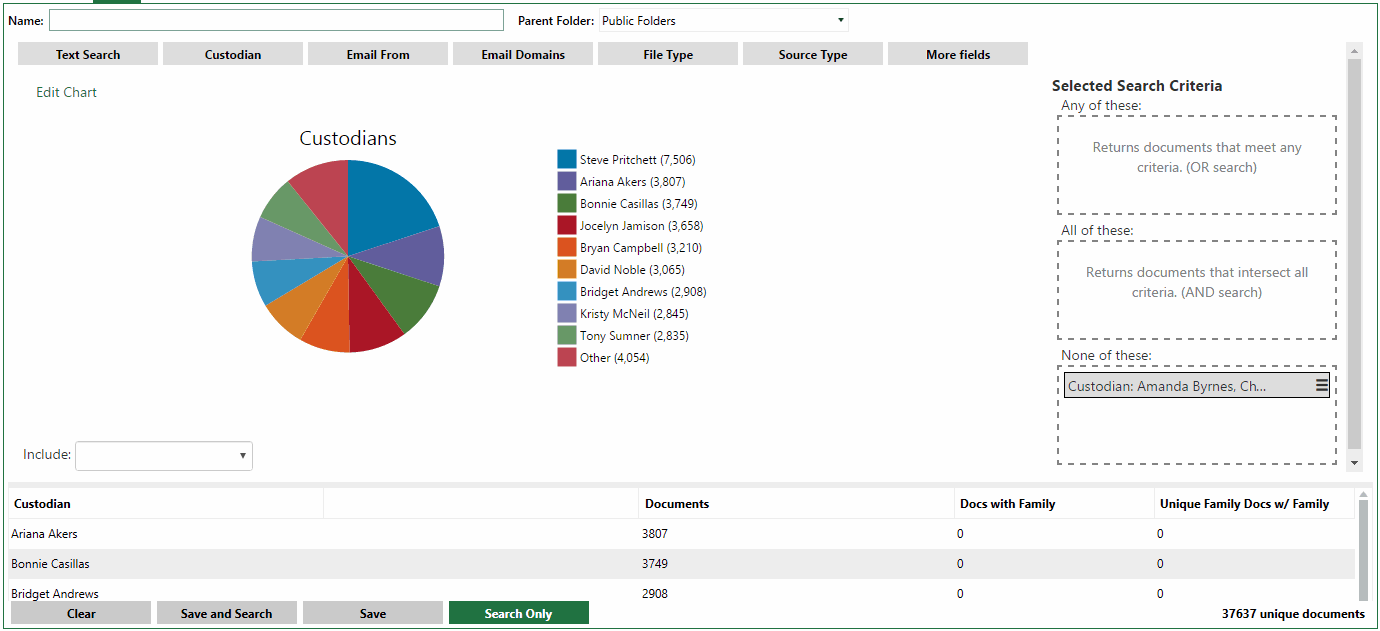
The following figure shows the Visual Search tab with a “Custodian” search displayed in a Pie Chart (components of the tab are broken down and described in the sections that follow).
Before you Begin
Search Navigation
Navigate between Visual and Advanced search by clicking the arrow on the Search tab and selecting either the Advanced Search or Visual Search options.

Chart Types
|
Chart Type |
Description |
|
Pie Chart |
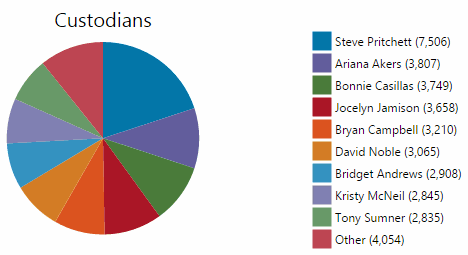
The Pie Chart will display sections with the nine highest counts for any given search along with a tenth count containing all “Other” results. When your mouse hovers over one of the sections of the Pie Chart, a tool tip popup will show the section counts and values (i.e. “Steve Pritchett - 7,506”), as also indicated by the chart’s legend.
|
|
Bar Chart |
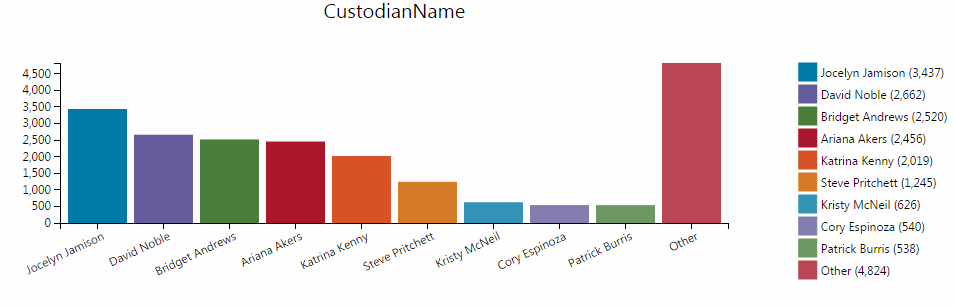
The Bar Chart will display sections with the nine highest counts for any given search along with a tenth count containing all “Other” results. When your mouse hovers over one of the bars, a tool tip popup will show the section counts and values (i.e. “Jocelyn Jamison - 3,437”), as also indicated by the chart’s legend.
|
|
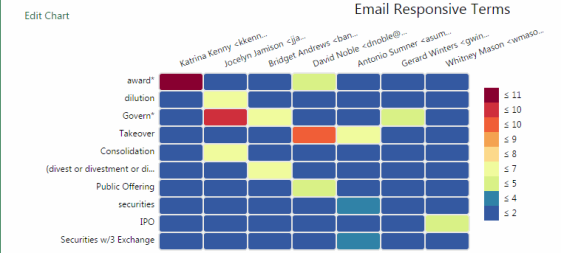
Heat Map |
The Heat Map will show the correlations between two different fields, along both the X and Y-Axis. The Heat Map will display the ten highest counts as they relate to the total number of documents.
|
Visual Search Components
Edit Chart
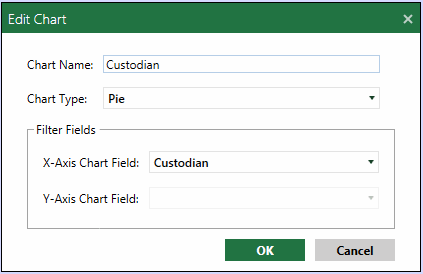
The Edit Chart dialogue allows you to name your chart, choose the type of chart you wish to use in your visual search, and choose the filter field options that correlate to a particular axis of the chart (more information on this in the following Filter Fields section).
Filter Fields
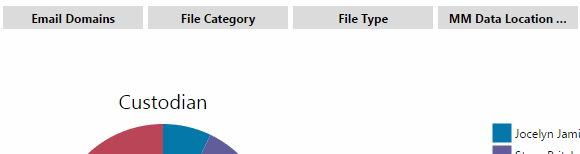
If filter fields have been set up for your case in Eclipse Admin, you can use these fields to set up your visual search. The field(s) you select will determine what data your chart displays. For Bar and Pie Charts, this field data will be displayed in the X-Axis, with counts in the Y-Axis. For a Heat Map, both the X and Y-Axis’s require a filter field to be selected. For more efficient searching, Filter Fields can be set as one of five hot buttons above the chart, as seen below.
Selected Search Criteria
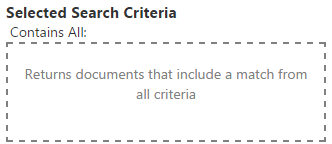
In order to further refine your search results, select one of the filter field options listed above the chart. Once you do, a dialogue box will open which allows you to specify which items are relevant to your search, within that particular field. Choose the appropriate items for your search and then add them to the appropriate Selected Search Criteria box, as described in the following table.
|
Field |
Description |
|
Contains All |
Returns documents that include a match from all of the selected criteria. |
|
Contains One or More |
Returns documents that meet any part of the selected criteria and does not have to meet all of it. |
|
Exclude These |
Excludes documents that meet any of the selected criteria. |
Text Search
Much like Text searches in Advanced Search, you can perform full text searches for words or phrases. The criteria entered in a Text search will be placed in the Selected Search Criteria section, and only documents that comply with this search will show up in your results and charts.
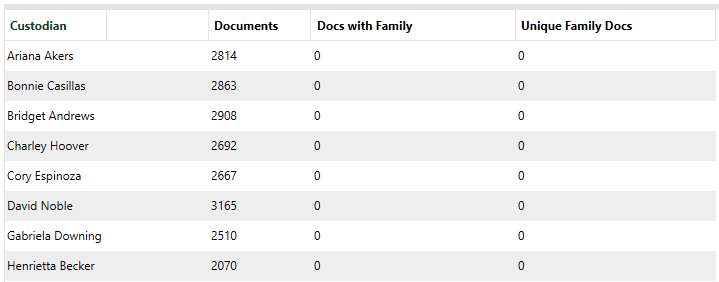
Data Table
The Data Table
allows you to view the case data that correlates to your visual search
parameters. The Data Table will
show document counts, as well as family document counts, as it relates
to the data field(s) selected for your chart’s axis. You can change the
sort order of the table alphabetically by field, or numerically by document
count. You also have the option to export the information shown in the
Data Table to a CSV file, by pressing
the  button, which allows
the table to be saved for later review.
button, which allows
the table to be saved for later review.