Navigating the Case Table
To navigate through all records and see all record content, use any of the following methods:
-
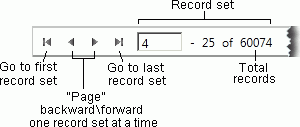
Use the case table navigation bar as shown in this figure.
-
Press the PgUp or PgDn key to scroll up or down within a record set. A record set is whatever is contained on the Documents or related tab (and can range from 25 - 1000). There may be a slight pause as you scroll in the record set.
-
Press the up and down arrow keys to change your selection one record at a time.
-
Use the vertical scroll bar. There may be a slight pause as you scroll.
-
Use the horizontal scroll bar tab to view all table columns.
Viewing Field Content
Content in fields with large amounts of text may be truncated and end with an ellipsis. To view all content:
-
Make the case table area larger by changing the workspace layout. See "Basic Layout Changes" for details.
-
Change column size, visibility, and/or order as explained in "Case Table Columns."
-
Use the Record View pane if your administrator has configured coding forms that include the needed field. To access that tab, see "Record View."
Selecting Records
To select a single record, click the record in the case table. Field data will appear in the Record View pane and corresponding documents will appear in the Document Details pane.