Record View Pane
About the Record View Pane
The Record View pane in IPRO Eclipse presents the field content for a single record. This view is typically used to for data review and editing fields (coding).
Your administrator will configure specific sets of fields (coding forms) to help ensure an efficient review cycle.
|
|
Note: If Technology-Assisted Review (TAR) projects are implemented at your site, TAR-specific coding forms will be available. Use these coding forms as directed by your administrator. For more information, see "TAR." |
Record View Pane Activities
The following activities occur in the Record View pane:
-
Selecting the coding form needed for the activities to be performed. The coding form, which is configured by your administrator, determines which fields appear in the Record View pane, which tags are available in the Tags tab, and whether rules specific to fields or tags apply.
-
Viewing field content in the coding form.
-
Editing fields in the coding form (common editing functions for field-level data) and/or applying tags to the selected document.
Coding Form-based Rules
Your administrator may define specific rules that will apply to your review procedures when you use a specific coding form. For example, a rule may be defined to require that a specific field cannot be empty.
Field-based rules such as this must be followed in order for changes in the Record View pane to be saved.
Editing Limitations
Several system fields cannot or should not be edited, for example, BEGDOC, BEGATT, the EXTRACTEDTEXT field (which will not appear in Record View pane), OPEN DISCOVERY Imaging-related fields, and others that are automatically identified or calculated (such as the HASIMAGE field).
Your administrator may also secure fields so that they cannot be edited.
Contact your administrator if you have questions about the fields in your database and the ones that you should edit.
If a change is made that conflicts with unique or defined information (for example, changing the value of a primary field to one that already exists), the change will not be saved. In this event, an error message will display.
View Field Content
To review field content in the Record View pane:
-
Log in to IPRO Eclipse and open the needed case or batch.
-
In the Documents or related tab, select a record of interest.
-
If Record View is collapsed, expand it; resize if needed.
-
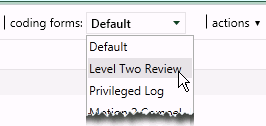
Select the coding form containing the field(s) to be reviewed from the coding forms list, as shown in the example on the right.
-
Evaluate field data. As needed:
-
Scroll to view all fields.
-
If some field content is truncated, point to the field to view the content in a tooltip.
-
Editing a Record
If you have sufficient permissions, edit a case record as explained in the following procedure. This procedure is appropriate for miscellaneous changes to various records.
Preparation
-
Getting started:
-
Review the case guidelines to be followed, including the coding form to use and associated rules (if they exist). For information, check the Case Alerts and Instructions folders. See "Administrative Alerts" and/or contact your administrator.
-
Log in to IPRO Eclipse and open the needed case or batch.
-
Locate the needed record. If needed, perform a search, open a Public Folder, or select a cluster or category in IPRO Eclipse Analytics to find the record.
-
-
In the Documents or related tab, select the record of interest.
-
If the Record View pane is collapsed, expand it; resize if needed.
-
In Record View, select the coding form containing the field(s) to be edited from the coding forms list (see previous figure).
-
If auto-saving is configured for the form and you want to save changes automatically, click actions and select the Auto Save option. (Auto-saving applies to both field edits and tagging.)

Note: Auto Save is not available for coding forms that include rules.
-
If the coding form includes a large number of fields, limit the form to a specific field (or all fields with common content in their names):
-
Click actions to access the field search function.
-
In the search box, enter all or part of the field name.
-
Batches only: If you are working in a batch, select the scope of the search in the Documents from list.
-
If the search does not run/update automatically, click
 .
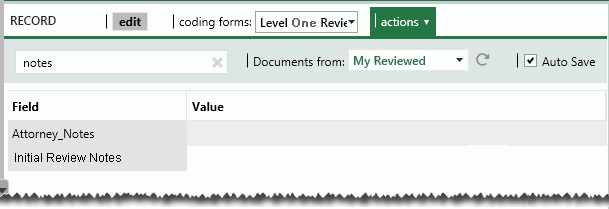
.Only fields with names matching the search criteria will display. In the following example, a reviewer has limited a coding form to fields with “notes” in the name so attorney and/or review notes can be added for reviewed documents in the opened batch. The coding form will remain this way for all records until the field search criterion is changed or cleared (by clicking X in the search field).
-
Editing
-
On the Record View toolbar, click the edit button or press Ctrl+F2.
-
Complete one or more of the following steps, depending on the types of changes required.
-
Text changes: Double-click in the field to be edited and make required changes. Use keyboard commands or a context menu to work with text:
to...
do this...
Cut selected field text
Select text and either press Ctrl+X or right-click and select Cut.
Copy selected field text
Select text and either press Ctrl+C or right-click and select Copy.
Copy entire field
Click on the field, then right-click and select Copy.
Copy field name
Click on the field name, then right-click and select Copy.
Paste clipboard content (text from any source)
Click in field where text is to be pasted and either press Ctrl+V or right-click and select Paste.
-
Hyperlinks: If the field is defined as a hyperlink, enter or edit the linked file’s complete path. The entry should be a single file path in UNC format (for example, \\server001\files\smith01.msg). To view a linked file, click the link in Record View (whether in edit mode or not).
-
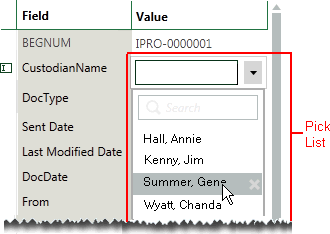
Pick lists: If the field is defined to use a “pick list,” take any of the following actions to use and/or edit the pick list. (Make sure you follow case review instructions.)
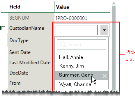
Select a pick-list item: double-click in the field, then click one or more items from the list of choices as shown here.
Enter an item: type a needed entry (that is not in the pick list) in the field.
Edit a selection/entry: remove or change an existing entry in the field.
Add pick-list items: if appropriate to the case review and you have the needed permission, add entries to the pick list by typing the new entry into the field at the top of the list and clicking Add to list.
Remove pick-list items: if appropriate to the case review and you have the needed permission, remove an item from the list by selecting it in the list and clicking
 .
.
-
Repeat these steps to edit other fields.
|
|
Tip: If a field contains a large amount of text that is truncated, point to the field to view the content in a tooltip. |

Pick list actions:
Completion
-
When finished, use the Record View tools as described in the following table.
-
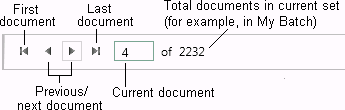
If you saved the record, navigate to other records using the Record View pane navigation bar as shown in the following figure.
|
toolbar |
command bar |
keyboard |
action |
|
Cancel |
|
|
Cancel all changes and stop editing. |
|
|
|
Ctrl+S |
Save all edits and remain on the selected record. |
|
|
|
Ctrl+Enter |
Save all edits and move to the next record in the set (as listed in Documents or related tab). |


