Basic Layout Changes
Use Predefined Layouts
Eclipse allows your administrator to define three layouts for each case to assist you in the review process. Check case instructions or with your administrator for details on using predefined layouts. You can customize a predefined layout using the methods described in this topic. Changes you make are personal changes and do not affect the predefined layouts.
Select a predefined layout from the main IPRO Eclipse toolbar as shown in the figure on the right. In this example, the Default layout is currently selected and the user is about to select the Review Record Mode layout.
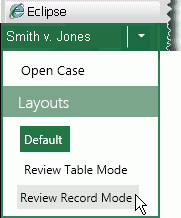
Please note that:
-
Different IPRO Eclipse tabs (Documents, Search Results, etc.) may have different layouts.
-
You can make changes to (customize) a predefined layout using the methods described in this section. Changes you make are personal changes (they do not affect the predefined layouts).
-
When you sign out of a case, the layout in effect (whether predefined or customized) is saved as a user preference and will be used when you re-open the case. Some items cannot be saved, such as an undocked pane that is in the workspace.
-
You may return to one of your sites predefined layouts by selecting it from the main Eclipse toolbar menu.

Tip: Make sure you sign out using the user menu on the Eclipse toolbar (underneath your name). Layouts may not be saved properly if you simply quit the browser.
Manipulate Slideout Panes
There are various changes and customizations that can be made to the panes in the IPRO Eclipse:
-
Open a slideout pane: To temporarily show the content of a slideout pane (Case View, Document Details, or Tags), click the item of interest. The pane will remain open until the pointer moves off the pane.
-
Pin a slideout pane: To keep a slideout pane open, first click a pane, then click
 to "pin"
the pane in place.
to "pin"
the pane in place. -
Hide a slideout pane: To hide a slideout pane that has not been pinned, move the pointer to anther area of the workspace. To hide a pinned slideout pane, click
 .
.
Show the Record View Pane
To show Record View, click the
corresponding  . To hide
it, click
. To hide
it, click  . More in depth
customization of the Record View pane
is discussed in "Arrange
the Components."
. More in depth
customization of the Record View pane
is discussed in "Arrange
the Components."
Resize the Components
Different areas in the workspace (such as the Tags tab or Record
View pane) can generally be resized by positioning the mouse pointer
on the edge of the item to be resized until the pointer changes to  or
or  ,
then dragging the component to the appropriate size.
,
then dragging the component to the appropriate size.