Advanced Layout Changes
For more advanced layouts of the IPRO Eclipse workspace, different regions can be used. Note:
-
Tabs can exist within these regions.
-
The Documents or related tab is treated as a single component with three panes that can be expanded/collapsed (case table, Record View, and Relationships/Tally panes).
-
Most tabs can also be “freestanding,” meaning they can exist anywhere within the IPRO Eclipse workspace (within the browser).
-
The Document Details pane can be undocked (freestanding outside of the workspace), including on a separate monitor if you are using dual monitors.
This page contains the following content:
Guidelines for Advanced Layouts
You can best learn what all of the areas and layout options are by experimenting in IPRO Eclipse using the procedures explained in this section. The following table explains which components within IPRO Eclipse can be moved.
|
Component/default location |
Details |
|
Case View (left slideout pane) Components:
|
|
|
Documents (or related) tab (center)
|
|
|
Document Details (right slideout pane) Components:
|
|
|
Tags (rightmost slideout pane) Components:
|
The Tags pane can be moved or freestanding within the workspace. Individual tabs cannot be moved separately. |
Create a Freestanding Tab or Slideout Pane
To make any movable component freestanding, complete the following steps:
-
If the needed component is collapsed, open and pin it by clicking
 .
. -
Point to the component’s tab or title bar, then drag.
-
Continue dragging until the item is in the desired location within the browser area, then release the mouse button.
-
As needed, resize the freestanding item by clicking and dragging any border.
Undock Document Details Pane from Eclipse
Complete the following actions to work with the Document Details pane outside of the IPRO Eclipse workspace (including on a separate monitor):
-
The Document Details pane is available when the Documents, Batch, Search Results, Advanced Search, or Analytics tabs is in the case pane.
-
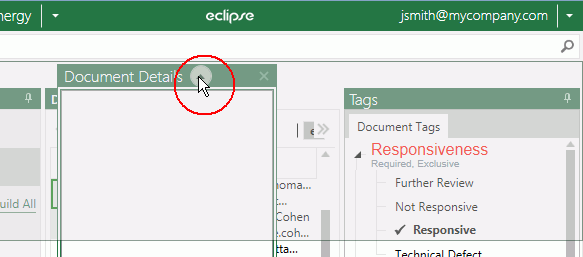
To detach the pane, click
 in the Document
Details pane title bar as shown in the following figure:
in the Document
Details pane title bar as shown in the following figure: -
You can click this button whether the pane is open or collapsed.
-
Use standard Windows actions to move and resize the detached pane.
-
To return the Document Details pane to the IPRO Eclipse workspace, click its close button,
 . The pane
will be returned to its default position.
. The pane
will be returned to its default position.
Arrange the Components
The key to moving tabs to different regions is a set of alignment markers, shown in this figure. These markers indicate the regions in which IPRO Eclipse components can reside.
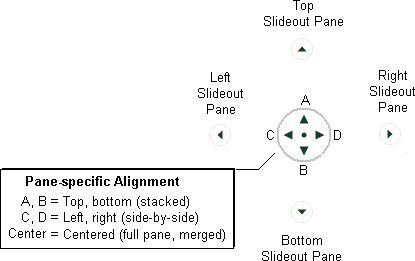
When you drag components in the IPRO Eclipse workspace, these markers appear in the center of the workspace and also in each individual area (depending on where the component being dragged is). In addition, selected areas highlight as you position the mouse pointer over the different alignment markers.
The best way for you to learn about workspace layout possibilities is to drag components to different alignment markers. You will see the different areas highlight and become familiar with the options available.
To return to one of your site’s predefined layouts, select it from the main IPRO Eclipse toolbar.
Move a Component to a Different Region
To move a component to a different region of Eclipse, complete the following steps:
-
If the needed component is collapsed, open and pin it by clicking
. -
Place the mouse pointer over component's tab or title bar, then drag.
-
Continue dragging until the pointer is over the alignment marker of the desired location and the region is highlighted, then release the mouse button. The following figure shows one example. Note the highlighted region and the alignment markers.
-
If needed, resize the region by dragging its margins.
Arrange Components Within the Case Pane
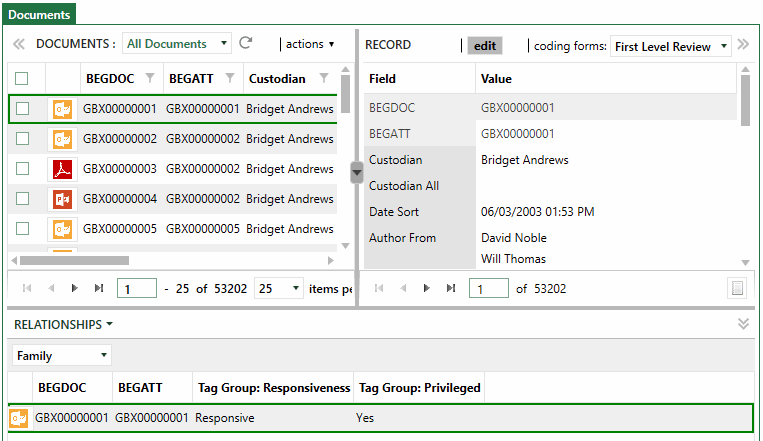
When the Documents or related tab is the active tab (by default, in the center case pane), Record View and/or Relationships or Tally panes can be expanded to share the space, as shown in the following example.
Take any of the following actions as needed to do your work:
-
Collapse or expand different panes by clicking the
 ,
,
 ,
,  ,
or
,
or  .
. -
Increase the size of a pane by dragging its separator,
 .
. -
Use the Arrange Views button,
 , in the
center of the separator bar between the Record
View pane and other pane (Documents,
Batch, etc.), to lay out panes as follows:
, in the
center of the separator bar between the Record
View pane and other pane (Documents,
Batch, etc.), to lay out panes as follows:-
Switch the order of panes from top to bottom or from left to right (depending on current pane arrangement) by selecting
 or
or  .
. -
Stack the panes or arrange side-by-side by selecting
 or
or  .
.
-