Case Table Columns
Columns (the fields included in the case table) can be manipulated in the following ways. Some activities require specific permissions. After you open a case or batch of interest, complete the following procedures as needed:
Changing Column Size
To change column width:
-
Place the mouse pointer on the column boundary. The cursor changes to
 .
. -
Drag the column boundary to the left or right to change the column width as needed. Up to 200 characters will display in a field; data will wrap if it contains spaces.
Sort the Case Table
To sort a column, right-click the column heading and select Sort Ascending or Sort Descending from the resulting menu.
To return the case table to its original sort order after sorting, right-click and select Clear Sorting.
Show/Hide and Organize Columns
For cases created in IPRO Eclipse 2013.3.0 or later, when you first log in to a case, the fields defined by the default coding form comprise the columns in the case table. If the coding form does not include fields, the BEGDOC field displays. For older cases, the fields that display are as defined by the administrator or user.
If you have been given the needed permission, you can show and organize the columns (fields) in the case table to meet your review needs. This applies to all columns except the leftmost column (the Native File Link column).
To show and organize columns in the case table:
-
Right-click in a column heading and select Grid Display Options.
-
In the Field Selection dialog box, evaluate the fields that are currently shown and hidden, and their order. Continue with the following steps as needed.
-
Double-click fields (or use the arrow buttons) to move individual fields from the Available Fields to the Displayed Fields list or vice versa. Fields added to the Displayed list are placed at the bottom of the list.
-
To rearrange columns:
-
Evaluate the order of fields in the Displayed Fields list. Top-to-bottom order in this list equates to left-to-right in the case table.
-
Click on the name of a field to be moved. The field name highlights.
-
Click the Up or Down button as needed.
-
Repeat these steps to move other fields.
-
-
To cancel changes (return to the selections that were in effect before you opened the Field Selection dialog box) and start over:
-
Click Reset.
-
Repeat the steps above to show/hide and organize needed fields.
-
-
When finished, click Apply. The changes are applied to the Document or other tab in the case pane.
These changes are saved as a user preference and remain in effect until/unless you make other changes to the case table. Each time you change the columns in the case table, the changes are saved as your user preference.
Filtering the Table by Column Data
Add Filters
IPRO Eclipse allows you to filter the case table based on data in one or more columns (that is, field data). This is an alternative to performing a field-specific search.
To filter data based on column data:
-
Open the needed case or batch. Optionally, perform a search.
-
Optional: Show or hide columns as explained in "Show/hide and organize columns" so that the displayed content matches your needs.
-
In the heading of a column you want to filter, click
 .
. -
In the resulting search box, enter the needed term or phrase. Note:
-
This search is not case sensitive.
-
This search uses the CONTAINS operator.
-
Wildcard support: An asterisk (*) can be used to represent zero or more characters.
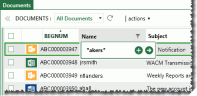
The following figure shows that the case table will be filtered to show only documents for which the Name field contains “akers.”
-
-
To filter by the single column, click
 and skip to step
7.
and skip to step
7. -
To filter by one or more additional columns:
-
Click
 and repeat step
3 and step 4 for each additional
column.
and repeat step
3 and step 4 for each additional
column. -
When all filters have been defined, click Apply Filter above the case table.

Note:
-
Filters on different columns are treated as AND statements.
-
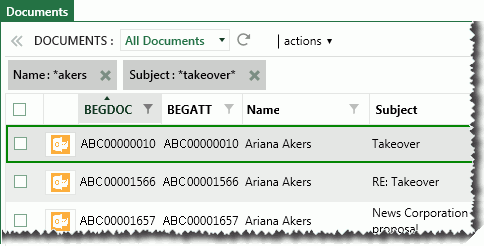
Applied filters appear above the case table as shown in this example:
-
-
-
When finished, work with the filtered data as needed. All data for the current tab (Case Table, Batch, Search Results, or folder) will be filtered, regardless of the number of record sets (pages) in the tab.

Remove Filters
To remove a filter, click X in the filter box above the case table.