Reviewing Relationships Details
For accessing to any of the types of relationship information:
-
Getting started:
-
Log in to IPRO Eclipse and open the needed case.
-
In the Case View pane, select Documents, a batch, a folder, or Analytics. Optionally, perform a search for needed documents.
-
Select a record of interest.
-
-
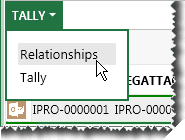
If the pane title is not RELATIONSHIPS, click the title and select Relationships as shown in this figure:
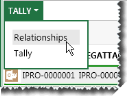
-
If the Relationships pane is collapsed, expand it by clicking the button on the right side of pane’s title bar or dragging the top of the pane up.
-
To change the current view, click the “view” button as follows:
-
 - Change from table view
to summary (title) view.
- Change from table view
to summary (title) view. -
 - Change from the summary
view to table view.
- Change from the summary
view to table view.
-
-
To see relationship details:
-
If in tile view, click the relationship tile of interest and skip to step 7.
-
If in table view, complete the next step.
-
-
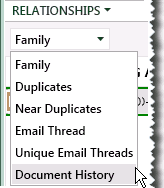
Select the needed relationship from the Relationships menu as shown in this figure. In this example, Document History is being selected. If you have questions on available relationships, contact your administrator.

-
Continue with the following actions as needed. Contact your administrator if you have any questions on how you should use relationship information.
relationship
action
Family
Evaluate the information presented.
Duplicates, Near Duplicates
Ecaluate the information presented. To compare duplicate documents, see "Comparing Related Documents."
Document History
Evaluate the information presented. To compare duplicates documents, see "Document History."
Other
If your administrator has configured other relationships, evaluate the information per case instructions.
-
To perform actions on or view details of related documents (whichever relationship has been chosen):
-
Double-click a record in the Relationships pane. Related documents will be listed in the top pane (Documents, Search Results, or whichever tab was active).
-
View details for the related documents, apply tags, or take whatever action is needed.
-
When finished working with the selected set of related documents, click Return to Document Set in the Relationships pane. Contents of the top pane (Documents, Search Results, or whichever tab was active) will return.
-
-
Document history: Evaluate the information presented. See "Document History."