Document History
Document history provides a record of certain actions made for each document during the current working session. History is persistent and includes actions made by all administrators/users.
Actions that are recorded in document history include:
-
Administrative actions
-
Importing or creating new records for a case
-
Overlaying record data with new data (file paths, global replace)
-
-
Reviewer/user actions
-
Editing/user actions
-
Applying document tags (not page tags or privilege tags) individually or by tagging search results
-
Applying redactions
-
Adding annotations
-
Viewing a document (any tab in the Document Details pane)
-
Creating and using Smart Folders
-
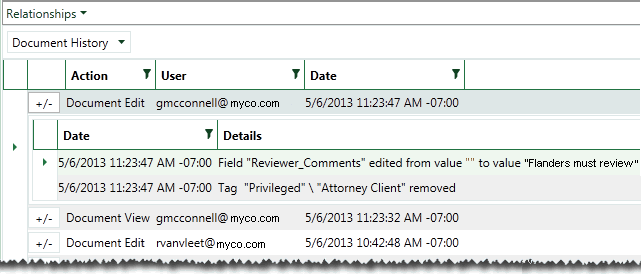
The following figure shows an excerpt from the Document History pane. Details for an entry from 05/06/2013 have been expanded so that each action is visible.
View Document History
To view document history:
-
Complete "Reviewing Relationships Details" and select Document History in the Relationships menu.
-
As needed, filter the history by completing "Filter Document History."
-
To view specific details for a particular entry in the Document History pane, click
 . Details for one
entry can be viewed at a time.
. Details for one
entry can be viewed at a time.
Filter Document History
Complete the following procedure to filter document history:
-
Open the Document History pane as explained in the previous procedure.
-
To sort the details, click a column heading by which you want to sort.
-
To filter details, locate column by which you want to filter the list and click the funnel button as shown in this figure .
-
To select from existing column entries, select one or more options in the top part of the Filter dialog box, then click Filter.
-
For more complex filtering, complete the bottom of the Filter dialog box:
-
Select a needed criterion from the first list. Several options exist, such as Is Equal To, Starts With, or Does not contain.
-
In the field below the first criterion list, enter the details by which you want to filter.
-
If the entry in step b includes text for which capitalization is important, enter the details using the needed case and click the
 button.
 -
To include a second criterion, select the needed connecting operator, And or Or, and repeat steps a – c in the bottom part of the dialog box. This figure shows filtering by a particular date range.
-
When the filtering criteria is defined, click Filter.
-
-
To clear filtering:
-
Locate and click the highlighted filter button,
 .
. -
In the Filter dialogue box, click Clear Filter.
-


|
|
Tip: To filter by dates, if a specific time is not of importance, enter only the date. IPRO Eclipse will complete the entry to include the time and GMT offset. |
