Other Native File Actions
This page contains the following content:
Viewing Search Results and Highlights
Your administrator may configure “persistent highlighting” to emphasize specific document content. This highlighting appears in the Native Viewer tab. Search results are also highlighted in this tab.
To navigate through highlighting in the Native Viewer tab:
-
For a selected record, open the Native Viewer tab as explained in "Accessing Case Documents."
-
Select a view (Normal, Draft, or Preview).
-
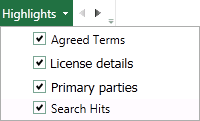
To check the persistent highlighting that your administrator has configured, select Highlighting and review the names. If you have any questions about evaluating/using persistently highlighted content, contact your administrator.
-
Scroll to see highlighted content, or click the highlight arrow buttons to navigate through highlights. This can be very useful when evaluating a spreadsheet.
Copying Native File Content
To copy file content displaying in Native Viewer:
-
For a selected record, open the Native Viewer tab as explained in "Accessing Case Documents."
-
Locate the text to be copied. See "View a file in Native Viewer" for tips.
-
Select the content to be copied, then right-click and select Copy.
-
Paste the copied text as needed:
-
Paste into a field in the coding form you are using by clicking in the field and pressing Ctrl+V.
-
Paste into an appropriate file using Ctrl+V or file-specific command.
-
|
|
Tip: For a large amount of text, double-click the first term, then shift-click the last term of the content to be selected. |

Printing from Native Viewer
|
|
Note: Users must have permission to View Redactions in order to print from Eclipse. Since the printer can burn in redactions when printing, users by default must have rights to view redactions to complete printing operations. |

If you have the permission to do so, print the content of the Native Viewer tab as follows:
-
For a selected record, open the Native Viewer tab as explained in "Accessing Case Documents."
-
Select Preview mode to view the margins, flow of the document with default settings, and highlighting in the file (which may include persistent highlights, search results, and/or results from finding content within the page).
-
On the tab’s toolbar, click
 .
. -
In the Print dialog box:
-
Click Setup to select a printer and printer-specific options.
-
Click Options to define page options such as font type/size and header text. Note: the header text includes the job name (which can be customized) and page number.
-
Complete additional details in the Print dialog box and click OK. The native file and highlighting (if it exists) will print.
-
|
|
Tip: If needed, select Highlights and clear items you do not want to print. |
Create an Image File (TIFF on the Fly)
IPRO Eclipse allows you to create image files for case documents, through the use of the “TIFF on the Fly” feature in the Native Viewer tab. Note:
-
Only users who are given the appropriate permission can use TIFF on the Fly.
-
You cannot create an image file if one is already defined for the selected record. The TIFF on the Fly toolbar button will not be available if an image exists.
-
The image file is created from the file that is displayed in the Native Viewer tab. Some formatting may differ (for example a lined table may not include lines).
-
Email header date and time values in generated images are governed by an administrative setting (an offset to Greenwich Mean Time, GMT) for the case. This offset may differ from the one used when the native file itself was created. Contact your administrator if you have any questions about the offset used.
-
One image file is created for each page comprising a document.
This procedure applies only if image files do not exist (but native files do). If you have sufficient permissions, create the image file(s) as follows:
-
For a selected record, open the Native Viewer tab as explained in "Accessing Case Documents."
-
If you have a color preference for the image(s) to be produced (and the native files include color), click next to the TIFF button and select either Black and White or Color. This setting will remain in effect until it is changed again. The default setting is black and white.
-
Click
 .
(This button will be available only if an image file is not already defined
for the record.). After the file is created, the button disappears for
the currently selected record. TIFF image files are created and placed
in the images folder that is defined for the case.
.
(This button will be available only if an image file is not already defined
for the record.). After the file is created, the button disappears for
the currently selected record. TIFF image files are created and placed
in the images folder that is defined for the case. -
Click the Image tab to view the newly created image.
Adding Example Content for Categories
If IPRO Eclipse Analytics have been configured for your site, content or document examples can be added for Analytics Categories from the Native Viewer tab. See "Adding Example Content for Categories" for details.