Document Details
This page contains the following content:
About Case Documents
Case documents are presented in the following five tabs in IPRO Eclipse, which are located in the Document Details pane.
-
Image - This tab displays the graphic file (TIFF, JPG, or PDF file) associated with a selected case record. Annotations (such as redactions) are made in this tab, as well as highlighting, markups, and embedded text. The Image tab supports the transparent or cross-hatch view for redacted information and the highlighting of search terms on the image.
-
Extracted Text - This tab displays the text (OCR) associated with the selected record. This tab will be blank if the IPRO Eclipse database does not contain a field defined as EXTRACTEDTEXT, or if no text exists.
-
Native Viewer - If your administrator has included native and/or HTML files as part of your case, this tab displays an MHTML (.MHT) version of the file for a selected record.
-
Production - If documents within the current case or batch have been produced, a produced image for a selected record displays on this tab (unless no production image is available).
-
Transcript - If your case includes transcripts, access them in the Document Details pane. For details on working with the Transcript tab, go to "Transcripts."
Permissions Required
The activities explained in this topic require a variety of permissions that are defined by the IPRO Eclipse administrator. Ask your administrator if you are not able to perform activities needed for your review.
Preparation
Before working with case documents:
-
Ensure that the workspace layout will allow you to work efficiently and comfortably, and that you understand how to find or navigate to specific documents. Review "Layout Customization" for details.
-
Make sure you understand the guidelines to be followed. For information, check the case alerts and instructions. See "Administrative Alerts" or contact your administrator.
Accessing Case Documents
To view case documents and related information:
-
Log in to IPRO Eclipse and open the needed case or batch.
-
Complete "Preparation."
-
From the Case View pane, select Documents, a Smart Folder, a specific batch, or Analytics. Or, conduct a search such that Search Results displays in the case pane area.
-
Select a record of interest.
-
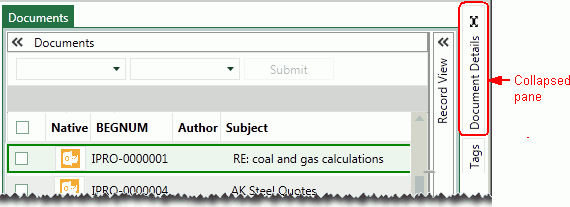
Open and pin the Document Details pane. The following figure shows the collapsed pane.
-
The first time the Document Details pane is accessed, complete the following steps:
-
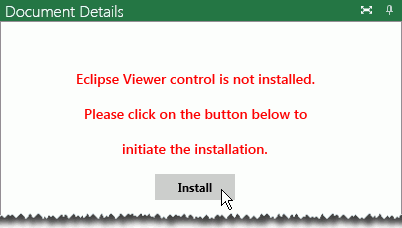
On the Native Viewer or Extracted Text tab, click Install as shown in the following figure.
-
On the Web Viewer installation wizard Welcome screen, click Next.
-
Follow all Install Wizard prompts to complete the installation.
-
When the installation completes, click Finish.

Note: If a Windows security message asks you whether the program should allow changes, click Yes.
-
-
Click the tab of interest in the Document Details pane.
-
To view navigate from one document to another, use the document navigation bar in Record View as described in the following topic. To view the individual pages within a document, use the page navigation bar in the Image tab.
For Native Viewer or Extracted Text tabs, click View on the tab.
Alternatively, in the case pane toolbar, click the Document Details synchronization button, shown in the following figure.

Document and Page Navigation
Keyboard Shortcuts
Use the following keyboard shortcuts to easily navigate in IPRO Eclipse:
|
Shortcut |
Description |
|
Page and Document Navigation |
|
|
PgUp |
Go to previous page (Image or Production tab). |
|
PgDn |
Go to next page (Image or Production tab). |
|
Alt+PgUp |
Go to previous document in Image, Extracted Text, Production, or Native Viewer tabs. |
|
Alt+PgDn |
Go to next document in Image, Extracted Text, Production, or Native Viewer tabs. |
|
Document Details Pane |
|
|
Ctrl+N |
Go to Native Viewer tab. |
|
Ctrl+I |
Go to Image tab. |
|
Ctrl+T |
Go to Extracted Text tab. |
|
Ctrl+P |
Go to Production tab. |
Record View Toolbar
Use the navigation bar in Record View to move from one document to another:
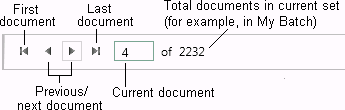
The document selected using the navigation bar aligns with the record selected in the case pane, the details in Record View, and the image and other items displayed in the Document Details pane.
|
|
Note: If the Document Details pane is undocked, this navigation bar is also included at the bottom of the pane, to make it easy to navigate between documents in the undocked pane. |
Image and Production Tabs Toolbar
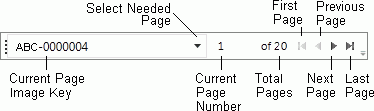
A simple page navigation bar (shown below) allows you to view individual pages on the following tabs:
-
Image: View individual pages.
-
Production: If you have production documents, view individual pages.
Basic page navigation