Viewing Native Files
This page contains the following content:
Open a File in its Native Application
If you have the needed permission and the native application, use one of the following two methods to open a native file in its native application.
Opening From the Case Pane
To open a file in its native application from the Documents tab (or a batch, folder, analytics, or search tab):
-
Getting started:
-
Log In to IPRO Eclipse and open the needed case.
-
In the Case View pane, click Documents (or needed item). Optionally, perform a search for needed documents.
-
Select a record of interest.
-
-
In the case table (Documents or related tab), click the icon representing the file type next to the record of interest. For example, the icon for email files is
 .
. -
Examine the file contents as needed. Perform activities allowed by the native application, such as saving or printing the file. Do not attempt to change the file.
-
When finished, close (do not save) the native file.
Opening from Document Details Pane
To open a file in its native application from the Native Viewer tab:
-
Getting started:
-
Log In to IPRO Eclipse and open the needed case.
-
In the Case View pane, click Documents (or needed item). Optionally, perform a search for needed documents.
-
Select a record of interest.
-
-
Open the Document Details pane; move, enlarge, and/or pin it as needed.
-
Click the Native Viewer tab. If this tab alerts you to the need to install the viewer control, see "Accessing Case Documents." If documents are not visible, click View on the tab.
-
In the tab’s toolbar, click the icon representing the file type. For example, the icon for Microsoft PowerPoint files is
 . The file opens in its native
application. If IPRO Eclipse cannot find the software program needed to
open the file, a Windows message will ask you to either allow the Windows
Web service to find the program, or select it yourself.
. The file opens in its native
application. If IPRO Eclipse cannot find the software program needed to
open the file, a Windows message will ask you to either allow the Windows
Web service to find the program, or select it yourself. -
If you receive the Windows message, select a method for locating the program and click OK.
-
Examine the file contents as needed. Perform activities allowed by the native application, such as saving or printing the file. Do not attempt to change the file.
-
When finished, close (do not save) the native file.
View a File in Native Viewer
|
|
Note: Files exceeding a size defined by your administrator (by default 12 MB) cannot be viewed in the Native Viewer tab; if you try to open such a file in the Native Viewer, a message will alert you. Open such files with the native application as explained in "Open a file in its native application." |

To view a native file in the Native Viewer tab:
-
For a selected record, open the Native Viewer tab as explained in "Accessing Case Documents."
-
If needed, click View on the tab to synchronize native files with case records. Note:
-
If the file exceeds the allowed file size, a message will alert you to open the file using the native application. Close the message and click the native file button in the tab’s toolbar (button icon represents file type, such as
 for Word files).
 -
For files that do not exceed the allowed size, the file will be downloaded and displayed on the Native Viewer tab. A progress meter in the status bar will indicate download details, similar to the following example:
-
Download rate depends on system resources.

-
-
If the native file is an email, be aware of date/time values in the email header. These values are governed by an administrative setting (an offset to Greenwich Mean Time, GMT) for the case. This offset may differ from the one used when the native file itself was created. Contact your administrator if you have any questions about the offset used.
-
Except for spreadsheets (such as Microsoft Excel), select the desired viewing mode:
-
Preview: Default view. All supported formatting is applied and the text wraps as it will be printed (with margins and on a page-by-page basis).
-
Draft: The document is displayed using a single font. Embedded graphics and borders are not be displayed and text wraps to the size of the view window. Email headers are presented at the top and the body scrolls below the header.
-
Normal: The text wraps to the size of the view window and all supported formatting is applied.
-
-
View the file. Note:
-
Scroll as needed to view all content.
-
In Preview mode, fit content to the width of the Native Viewer tab by clicking
 . Click
again to enlarge the document.
. Click
again to enlarge the document. -
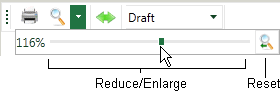
In Draft or Normal view, adjust the magnification percentage as shown in this figure:
-
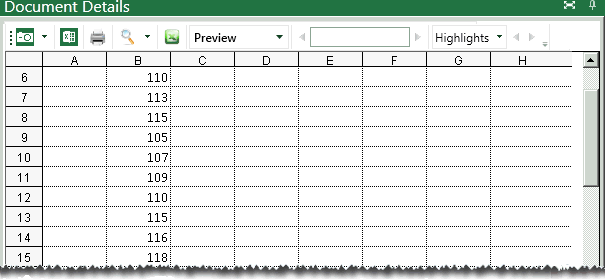
The following figure shows an example of Preview mode.
-
If you are viewing an Excel spreadsheet:
-
Click
 to show hidden cells.
Click again to hide the cells.
to show hidden cells.
Click again to hide the cells. -
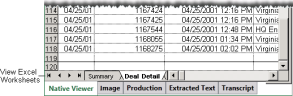
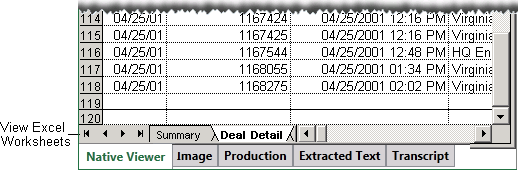
View multiple worksheets using the navigation bar at the bottom of the spreadsheet:
-
|
|
Note: In all view modes, attachments appear as links; for this release, links are not active. (Clicking an attachment link will not open the attachment.) |
-
To find a term within the Native Viewer tab, enter the term in the find field and press the Enter key. Click the arrow buttons to navigate to/from each match in the file. Following is an example:

-
If the Native Viewer display of the file does not meet your needs, you may be able to open the native file in the native application. This requires that you have the needed permission and also the native application. See "Open a file in its native application."