Finding Transcript Content
Use the following procedures to locate and/or copy specific information in the transcript:
Search Transcripts
To search for a particular term or phrase within one or more transcripts:
-
Log in to IPRO Eclipse and open the needed case or batch.
-
Access the Document Details pane and click the Transcripts tab.
-
Click Search in the left pane of the tab, then click New Search.
-
In the New Search dialog box, select one or more transcripts to be searched.
-
Choose needed search options:
-
Transcript Text: search transcript content
-
Annotation Notes: search notes added by reviewers
-
-
Choose needed text options, listed in the following table.
-
Low: Only a few characters may be incorrect.
-
Medium: A moderate number of characters may be incorrect.
-
High: Up to half of the characters may be incorrect.
-
Enter the search term or phrase in the Query Text field and click Search. Search syntax such as wildcards (e.g., * to allow any characters) or proximity syntax (e.g., term1 w/5 term2 will find all instances where term1 is within 5 words of term2) can be used. See "Basic Search Expressions" or "Proximity searches" for details.
-
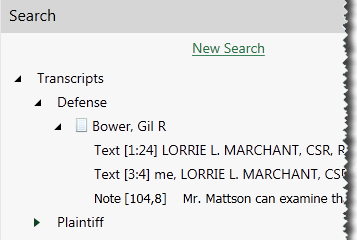
In the Search area, expand the folders and transcripts to view a list of results as shown in this figure.
-
Evaluate the search results. Note:
-
Enlarge the Transcripts pane and/or scroll to view all details.
-
Note that a few words of text around the search hit are included in the list.
-
In the list, Text indicates a search hit within the body of the transcript; Note indicates a search hit within an annotation note. The page/line number where the text or annotation exist are also indicated.
-
-
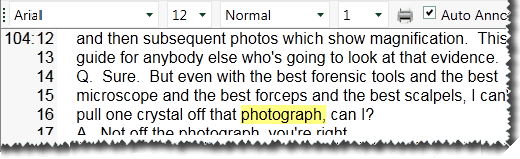
To view a search hit within the transcript text, click the result in the list. The search hit will be highlighted (in yellow) in the transcript content pane as shown in the following figure.
-
Click the result in the list. The annotation with which the note is associated will be highlighted in the transcript content pane (yellow will be imposed over the annotation color).
-
Click the annotation to open the Annotation pane and see the note in which the search hit exists.
-
Click Search to return to the list of search results.
-
|
Option |
description |
|
Stemming |
Search for terms and all words beginning with the root form of the word, such as brief, briefing, briefly. |
|
Phonetic |
Search for terms that sound similar but are spelled differently, such as smith and smythe. |
|
Fuzzy |
Search for terms that are not quite an exact match but are close, such as photograph and phottograph. For this option, choose degree of fuzziness: |
Use the Word Wheel
The Word Wheel is an index of words and numbers in the transcript, along with their corresponding page and line numbers. The Word Wheel is located on the left side of the Transcript tab.
To use the Word Wheel:
-
Log in to IPRO Eclipse and open the needed case or batch.
-
Access the Document Details pane and click the Transcripts tab.
-
Click WordWheel in the left pane of the tab.
-
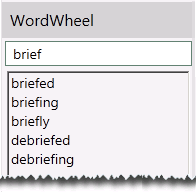
In the Word Wheel “find” field (which is beige), enter the needed word (or its base form, punctuation, and/or number). Words containing your entry display in the Word Wheel list, as shown in this figure.

-
Click the needed word in the list.
-
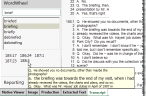
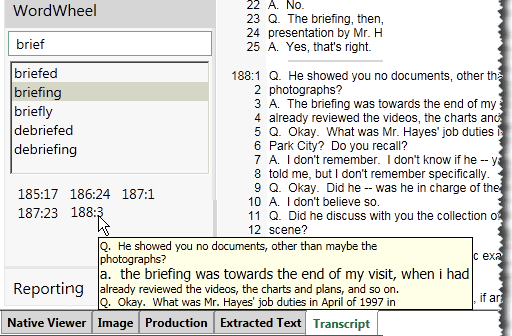
To see an excerpt of the transcript containing the word, point to a page/line entry in the bottom of the Word Wheel and read the excerpt in the tooltip as shown in the following figure.
-
To see a term in the body of the transcript, click the page/line entry; the term will be highlighted in the transcript.
-
If the correct word is not listed, then the word does not exist in the transcript. In this case, enter another term of interest.
Copy Transcript Text
To copy text from a transcript:
-
Log in to IPRO Eclipse and open the needed case or batch.
-
Access the Document Details pane and click the Transcripts tab.
-
Locate the needed text; see "Search Transcripts" and "Use the Word Wheel."
-
Make sure the Auto Annotate option is not selected.
-
Drag across the content to be copied, then right-click and select Copy.
-
Paste the copied text into an appropriate file.