Use the Concept Wheel
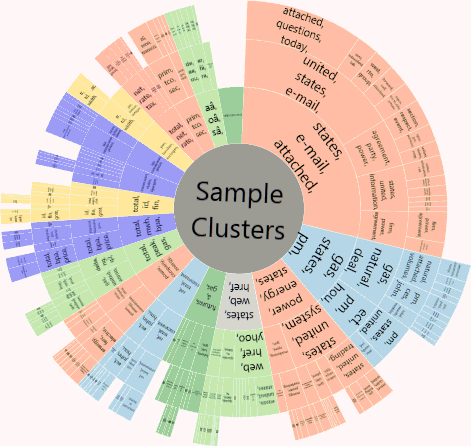
The concept wheel is a visual representation of cluster details, based on the clusters configured by your administrator. It corresponds to the details listed for a selected top-level cluster, as shown in the following figure.
|
|
Note:
|

The Concept Wheel tab will include data only when a cluster is selected, however.
The Concept Wheel tab can be freestanding (separated from the case pane area). As such, it can be resized/moved within the IPRO Eclipse workspace. See Advanced Layout Changes for details on moving components in the IPRO Eclipse workspace.
Use the Concept Wheel
To use the Concept Wheel:
-
Complete Evaluate Document Clusters.
-
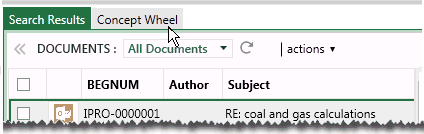
Select a cluster in the Analytics list in the Case View pane, then click the Concept Wheel tab in the case pane area.
-
If the cluster group was selected, the wheel will be centered within the tab. If a cluster or subordinate cluster was selected, the wheel will align to that cluster segment and it will be selected (indicated by a grey color for the segment).
-
Take any of the following actions:
-
Click a segment to enlarge it and realign the wheel to that area.
-
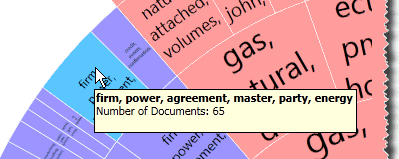
Point to any wheel segment to view details in a tooltip as shown in the following figure.
-
Drag the wheel.
-
Double-click the wheel to return it to its default position and a size that fits in the existing window.
-
Use the Concept Wheel buttons as described in the following table.
|
button |
Description |
|
|
Realign, center, and fit the concept wheel to the current window. |
|
|
Go back to the previous view. You may “go back” several times for a selected cluster group. |
|
|
Increase the number of words in cluster titles (up to the maximum number configured by your administrator). Font size decreases as words are added. |
|
|
Decrease the number of words in cluster titles (minimum one word). Font size increases as words are added. |
|
|
Incrementally increase the size of the current view. |
|
|
Incrementally decrease the size of the current view. |


