Configuring SharePoint Connector
To include data from SharePoint, configure the connector and create a Live Location in the IPRO Administration Console.
First, complete the prerequisites for configuring the SharePoint connector. Integrate IPRO with Office 365. Register the Crawler application with the Microsoft Identity Platform and grant the permissions required.
When configured, create the Live Location in the IPRO Administration Console. Next, ensure all users are mapped by performing User Mapping. Complete the configuration process by creating Indexing and Archiving jobs to crawl and archive the source data.
Indexing is required to make data searchable. If you intend to search archived data, indexing must be performed. You can set up and run a File Indexing job prior to archiving, or configure a File Archiving job allowing for simultaneous indexing—see Configuring File Indexing and Configuring File Archiving.
When set up is complete, indexed and archived SharePoint content can be viewed, searched, and exported from IPRO Search.
Each indexed and archived SharePoint site is listed as a separate location entry and can be included or excluded from your

 How to configure permissions for sharepoint online
The following steps are valid for parent sites and their subsites, as long as a given subsite inherits the permissions of its parent site.
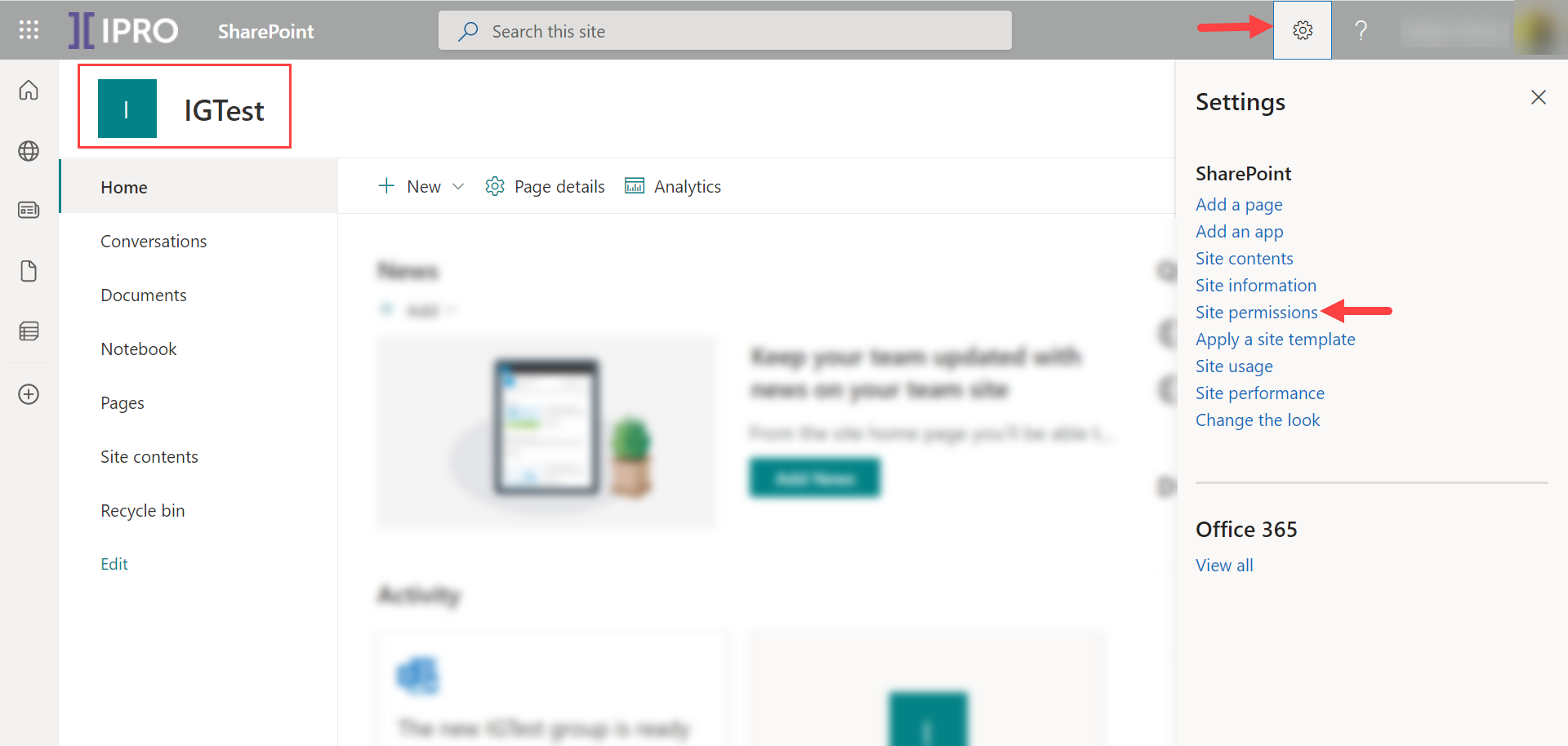
- Log into SharePoint as Owner of the site you want to index, and open the site.
- Under Settings, select Site permissions.
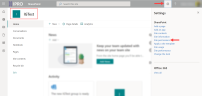
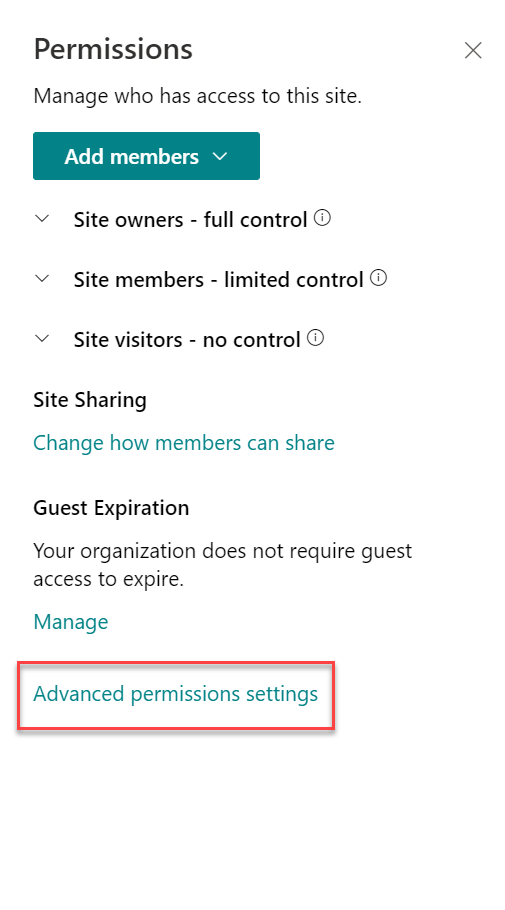
- Under Permissions, select Advanced permission settings.

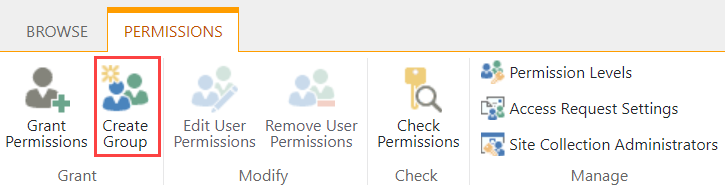
- In Advanced permission settings, select Create Group.
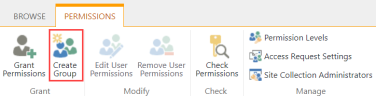
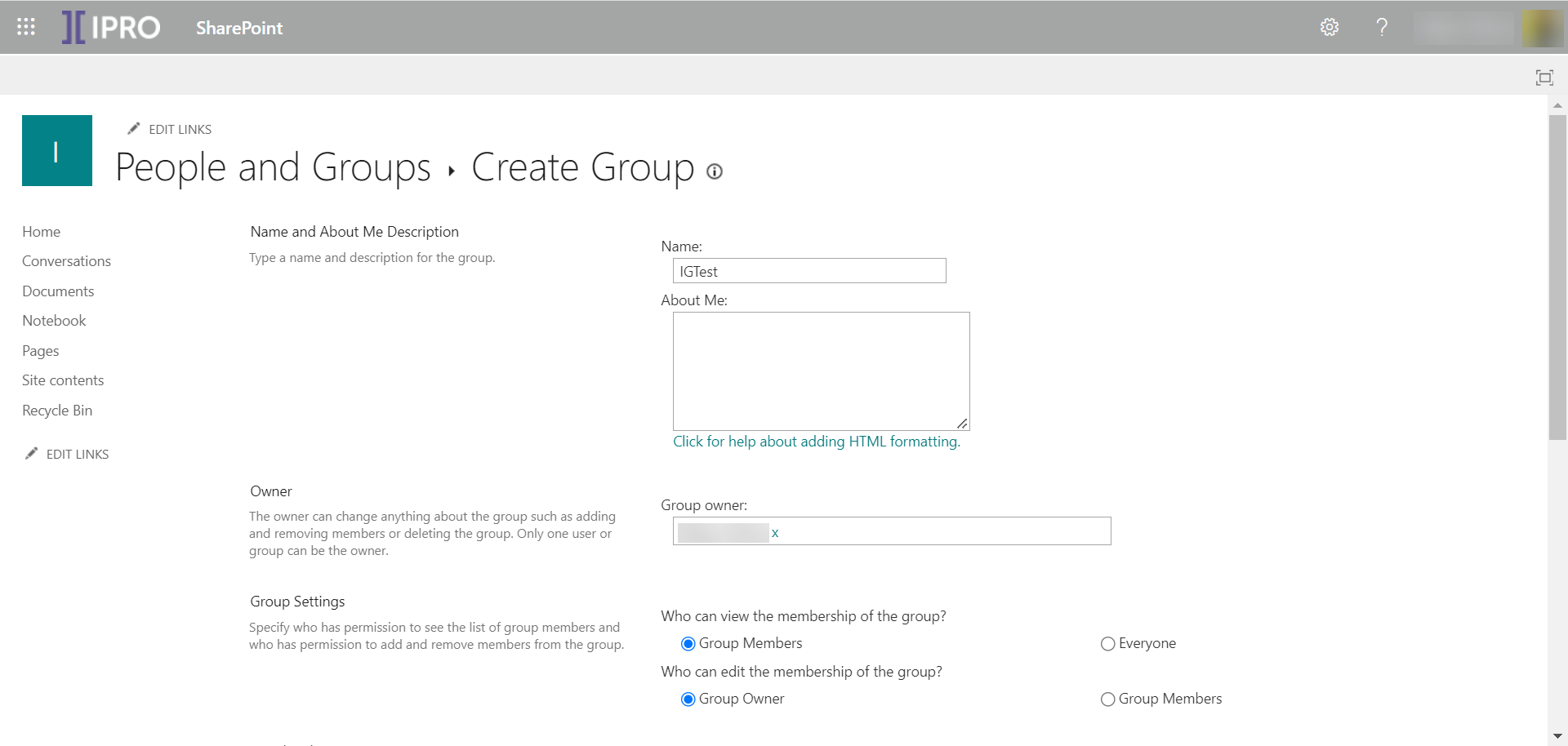
- Name the Permission group and set its permissions.
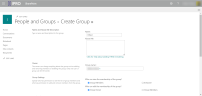
- The permission level required by the SharePoint connector is Read Only. At a minimum, assign Read access.
- Here is a complete overview of all available permissions:
- Full Control: Has full control.
- Design: Can view, add, update, delete, approve, and customize.
- Edit: Can add, edit and delete lists; can view, add, update and delete list items and documents.
- Contribute: Can view, add, update, and delete list items and documents.
- Read: Can view pages and list items and download documents.
- IMPORTANT
Assigning permission levels directly to individual users is not recommended because it is difficult to manage and track who has access to sites. It can be necessary to do so, but should be kept to a minimum.
- Click Create.
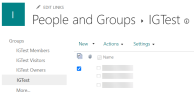
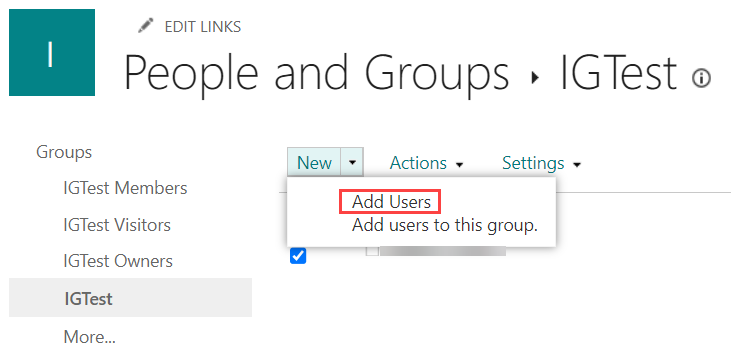
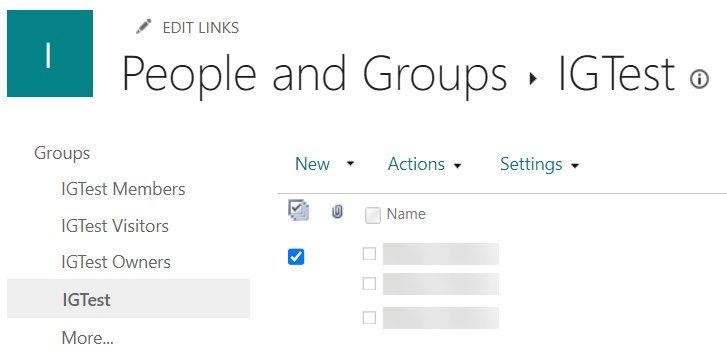
- Assign individual users to the relevant group. Select the group you created. Click New, then click Add Users.
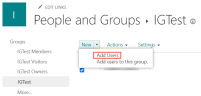
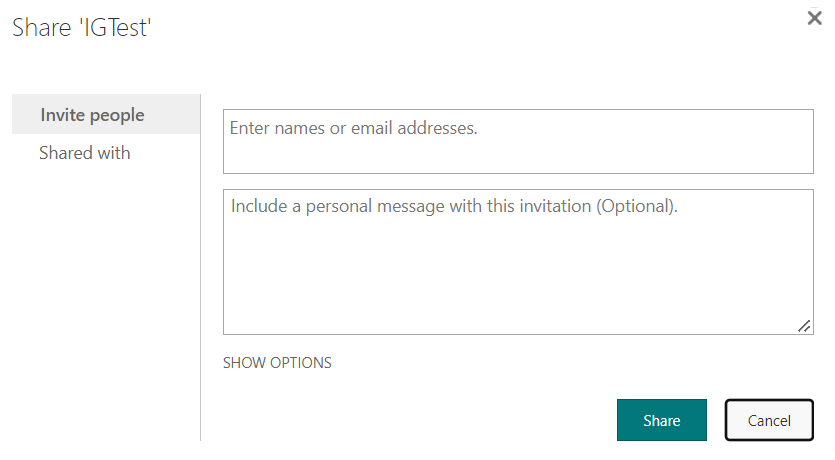
- In the Invite people tab, enter the names or email addresses of the users you want to add.
-
NOTE
Invited users do not have to be licensed, but must have the permissions required to sign in. 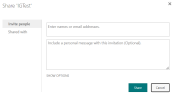
- Click Share.
- When users accept their invitation, they are listed as group member.
 How to configure the sharepoint connector
Complete the prerequisites for configuring the SharePoint connector in IPRO. You can contact your Support Representative for further details on the connector features, system requirements, and pre-configuration process.
Perform the following steps in the IPRO Administration Console. Administrator rights are required.
- Log into the IPRO Administration Console.
- Select Archiving.
- Open the Connectors tab.
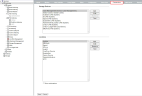
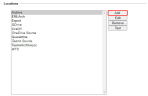
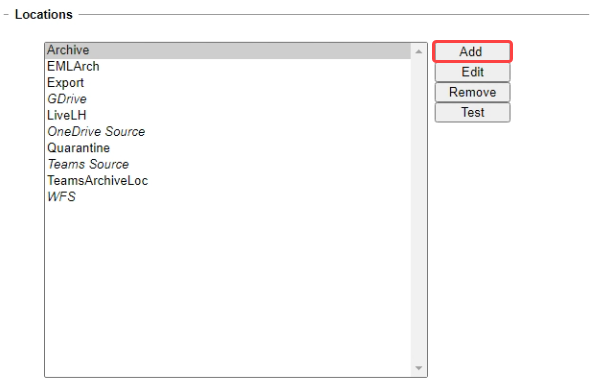
- Navigate to the Locations section. Click Add.
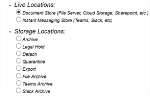
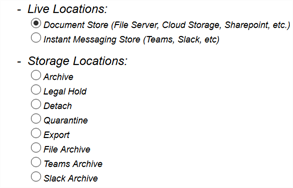
- Click on Live Locations to expand, select Document Store.
- Click Next.
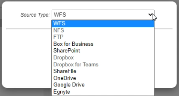
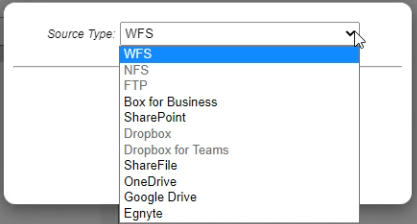
- Select SharePoint as the Source Type.
- Click Next.
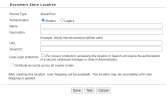
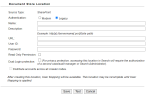
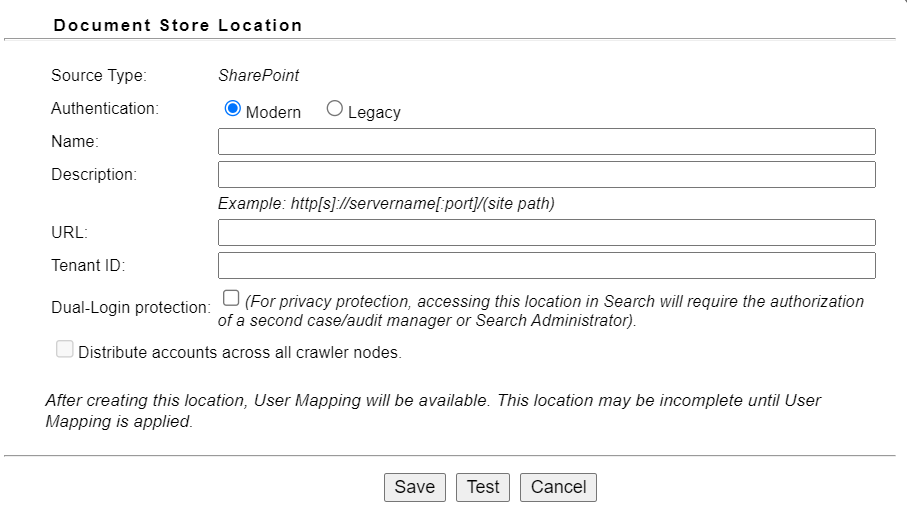
- The Document Store Location window displays.
- Choose the preferred method of Authentication. You can choose between Modern and Legacy.
- Modern Authentication allows you to authenticate to SharePoint at the root level. With Modern Authentication, you do not need to set up a separate connector for each SharePoint site that has its own set of credentials.
-
IMPORTANT
Modern Authentication requires installation and registration of the most recent SharePoint application in the Azure tenant.
Use the following:
App name: SharePointCrawler
App ID: 33d0608b-1a71-495d-8a71-e4662fa33414 - Select Modern for O365 Tenant ID. User ID and Password are not required.
- Select Legacy for User ID and Password.
-
NOTE
You can switch from Legacy Authentication to Modern Authentication, but not vice versa. - In the Name field, enter a name that is meaningful to the users and reviewers who will be accessing the data. Include the term "Connector" in the name entered.
-
IMPORTANT
To change a location name, a new location must be created and its data must be reindexed. - In the Description field, enter a relevant description.
- In the URL field, enter the URL of a location with read access:
- SharePoint: http[s]://servername[:port]
- If you are opting for Modern Authentication, enter the base URL in the URL field.
- If you are opting for Legacy Authentication but have upgraded to the most recent SharePoint application, you can enter the base URL in the URL field.
- Depending on the Authentication type selected, do one of the following.
- If opting for Modern Authentication:
- In the Tenant ID field, enter the Tenant ID of an account with read access to the path specified. Use UPN-format syntax.
- If opting for Legacy Authentication:
- In the User ID field, enter the User ID of an account with read access to the path specified. Use UPN-format syntax.
(Optional) Enable Read Only Permission to ensure users can only view pages, list items, and download documents. -
NOTE
If the IPRO Search services account has the required access, then no additional credentials are required. - In the Password field, enter the password for the account.
- (Optional) Enable Dual-Login Protection to to ensure that access to this location in IPRO Search will require the authorization of a second Manager or Administrator.
- (Optional) Enable Distribute accounts across all crawler nodes. This is checked by default for a better balancing of the indexing workload.
- (Optional) Click Test to verify the connection.
- Click Save.
- Click Save at the bottom-left of the Connectors tab.


Following connector and location configuration, perform User Mapping. For more information—see User Mapping. For detailed steps—see Configuring User Mapping.
Next, configure File Indexing and File Archiving jobs to process the source data—see Configuring File Indexing and Configuring File Archiving.